
Note: With the v2026.0 release, Topcon returned its office and field software to the MAGNET name. Topcon Office is now MAGNET Office, Topcon Field is now MAGNET Field and version numbers now follow the year (for example, MAGNET Office 2026.0).
Good news: once you’ve done it once, it’s pretty painless! Topcon MAGNET Office is downloaded from myTopcon NOW!, installed with a standard Windows installer and activated online with your Topcon ID and serial number.
This FAQ walks you through all of it, plus what to do when you get a new computer. Our screenshots were taken before the rebrand, so some screens may still say Topcon Office instead of MAGNET Office. The steps are the same.
Before you start, make sure your computer meets the MAGNET Office system requirements and has an internet connection for activation.
Jump to:
- Do I need a myTopcon account?
- How do I download MAGNET Office?
- How do I install MAGNET Office?
- How do I activate MAGNET Office?
- What happens the first time I open MAGNET Office?
- How do I reinstall MAGNET Office on a new computer?
- Can I install MAGNET Office on more than one computer?
- Where can I find more help from Topcon?
Do I need a myTopcon account?
Yes. You need a myTopcon account to download MAGNET Office and to watch Topcon’s activation videos. If you already have one, skip ahead to downloading MAGNET Office.
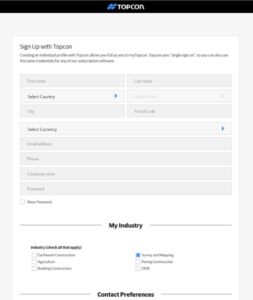
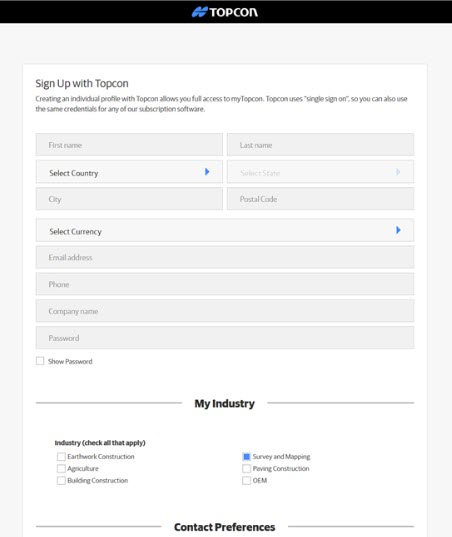
- Click here to create a myTopcon account.
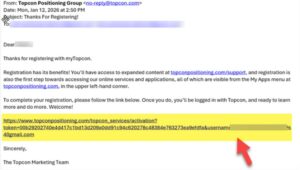
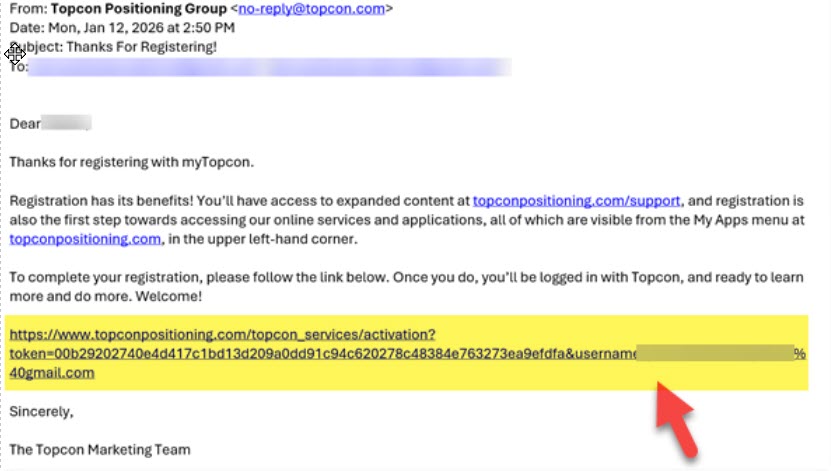
- Check the email address you registered with for a “Thanks For Registering” email from Topcon. Click the link near the bottom of that email to complete your registration.
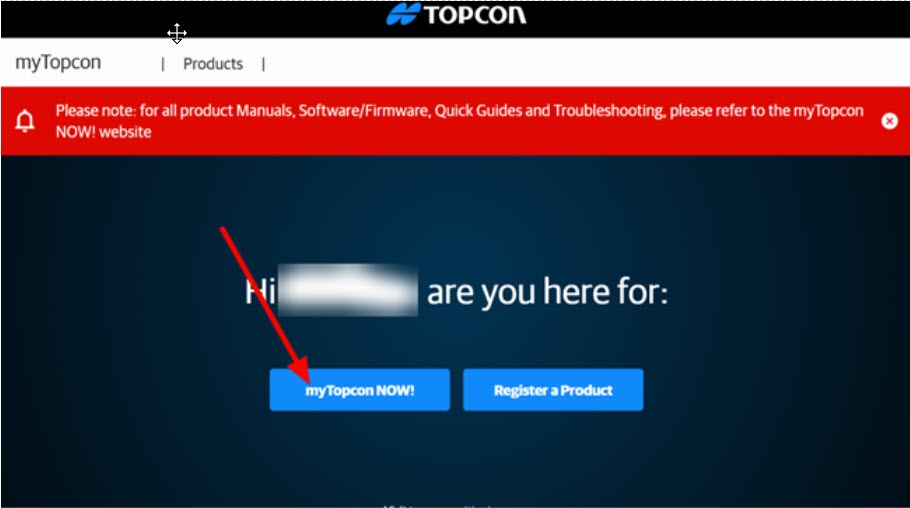
- myTopcon opens in your browser and a video may play over the page. When it’s over, close the video. You’ll see a page with your name on it. Click myTopcon Now!

How do I download MAGNET Office?
- Log in to myTopcon NOW! with your myTopcon username and password.

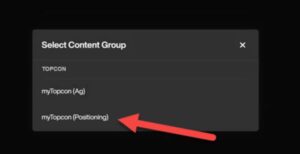
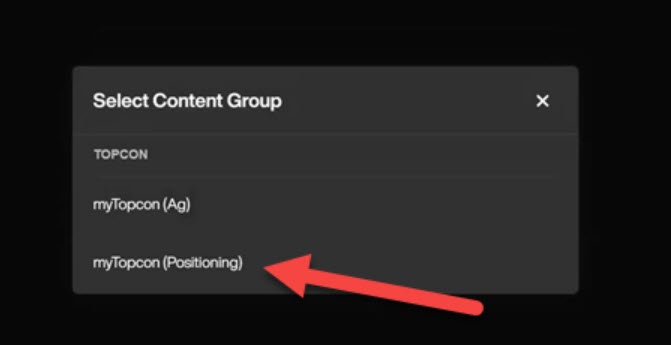
- When asked to select a content group, click myTopcon (Positioning).
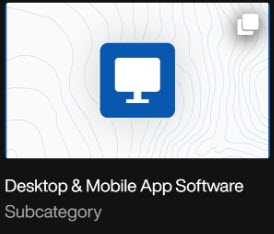
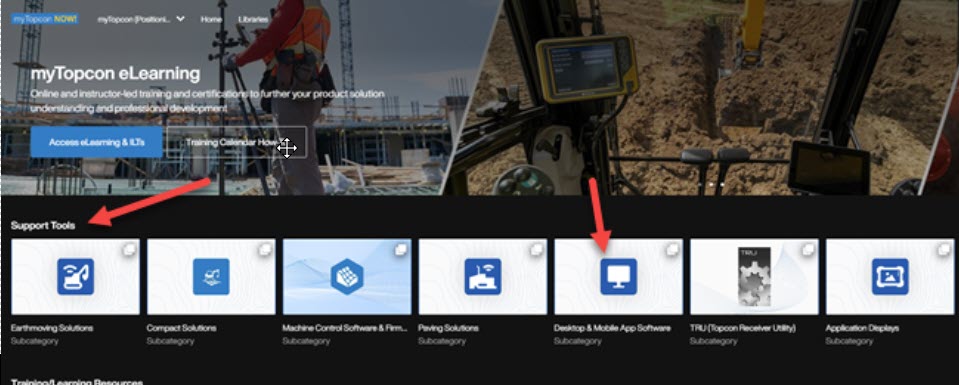
- The first row of options on the myTopcon NOW! home page is Support Tools. On that row, click the square labeled Desktop & Mobile App Software.

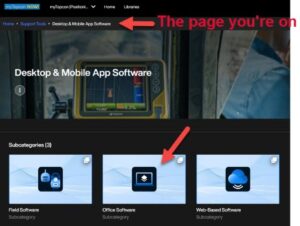
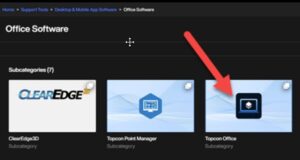
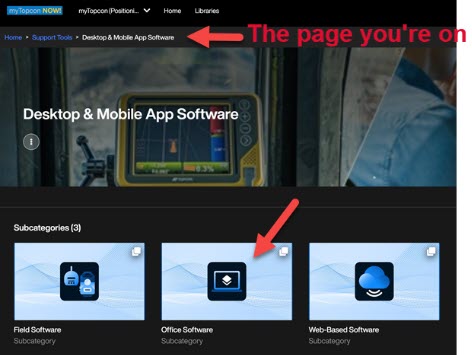
- Under the software subcategories, click Office Software.
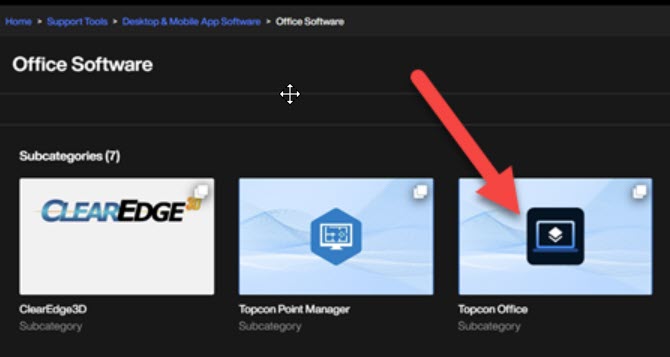
- Click the product you want to download. In our screenshot it’s still listed as Topcon Office.
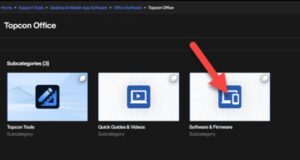
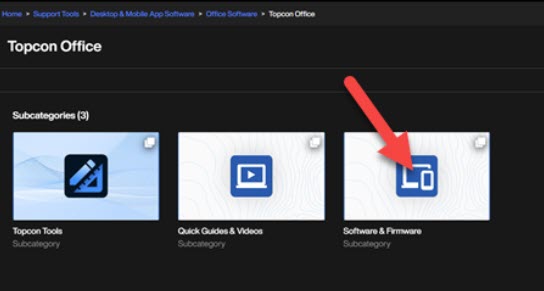
- Click Software and Firmware.
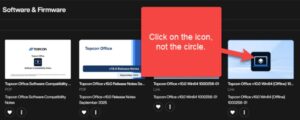
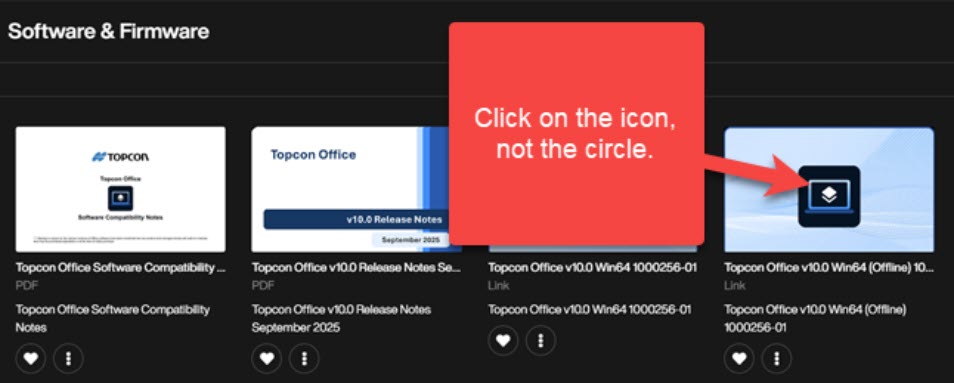
- Click the installer for the latest version. Be sure to click the icon, not the circle in the corner!
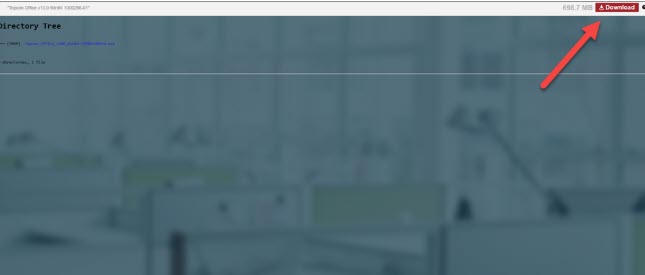
- Click the red Download button in the upper right corner of the screen. The download may take a few minutes depending on your internet connection.



How do I install MAGNET Office?
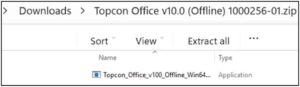
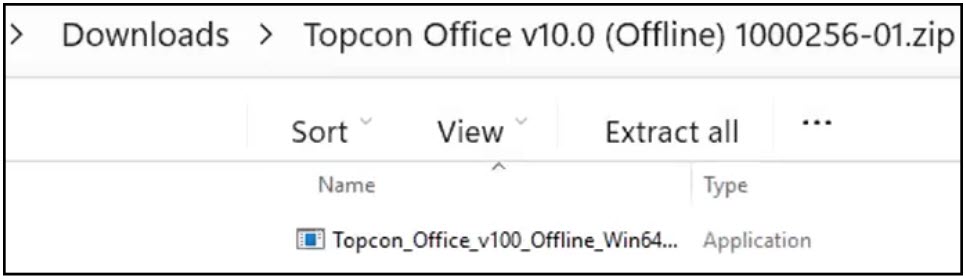
- When the download is finished, find the zip file in your Downloads folder. Right-click it and choose Extract All, then start the installer from the extracted files.
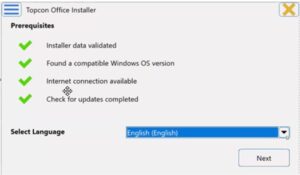
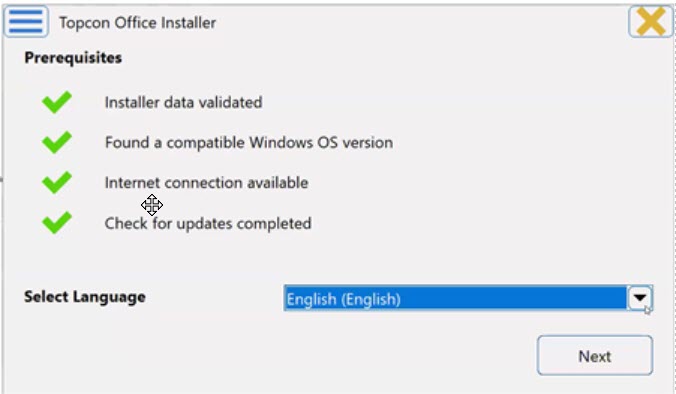
- Select your language and click Next.
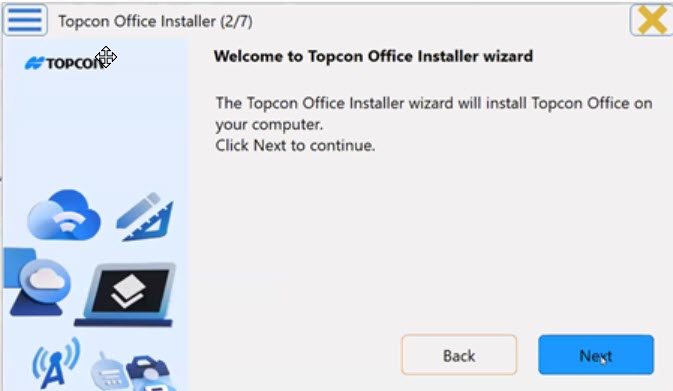
- When the Installer Wizard opens, click Next.
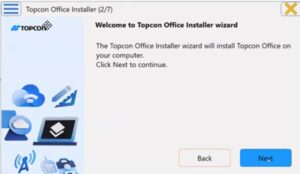
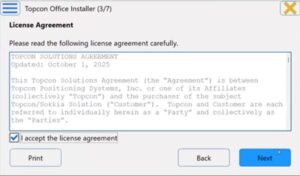
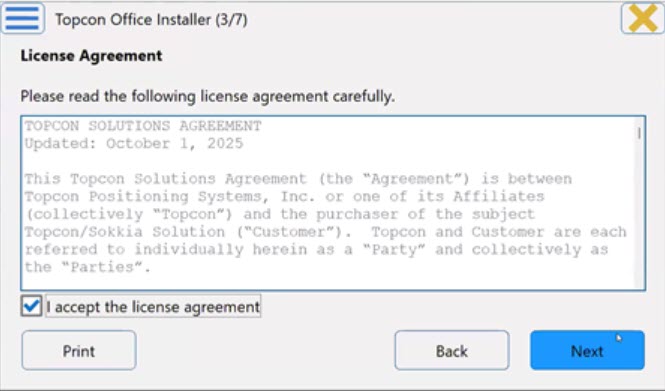
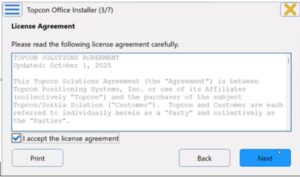
- Read the license agreement, check I accept the license agreement (click Print if you want a copy) and click Next.
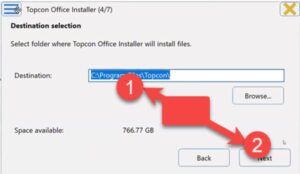
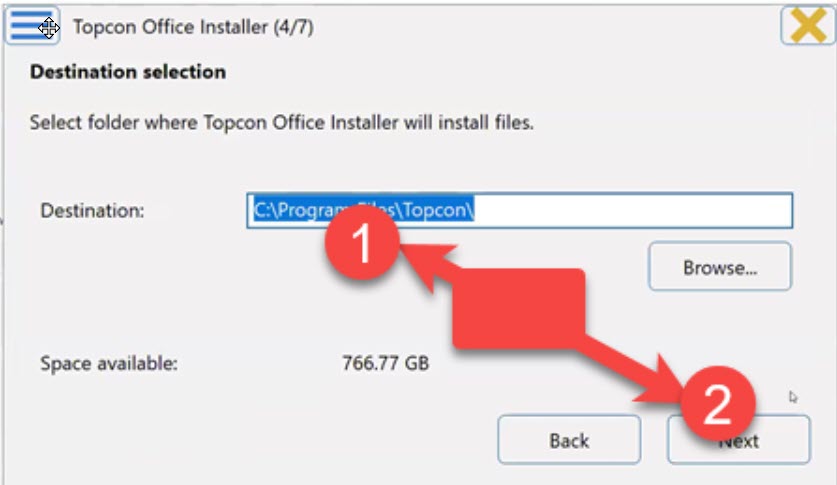
- Choose where you want the software installed and click Next.
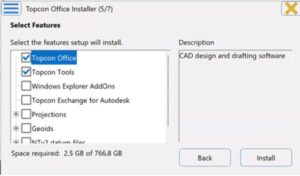
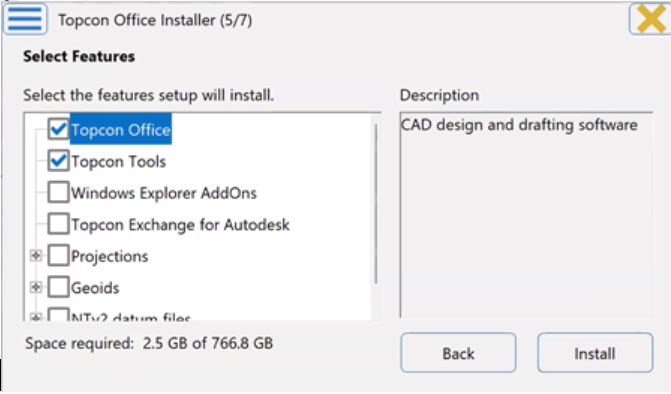
- Select the features you want to install and click Install.
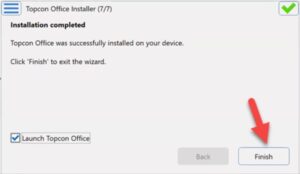
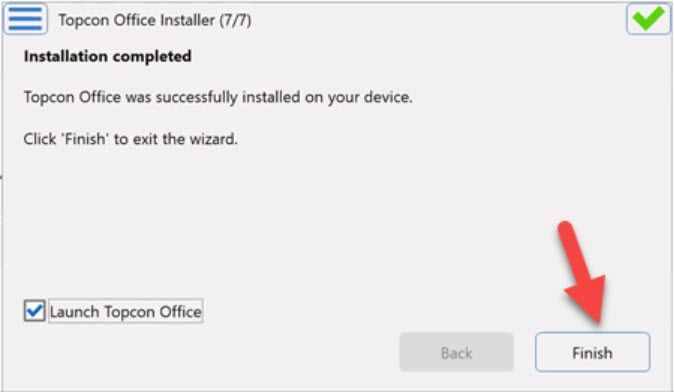
- When the installation is complete, make sure Launch is checked and click Finish.
How do I activate MAGNET Office?
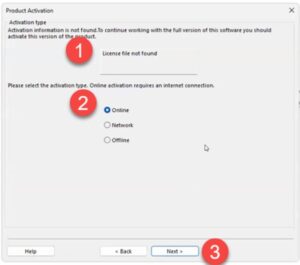
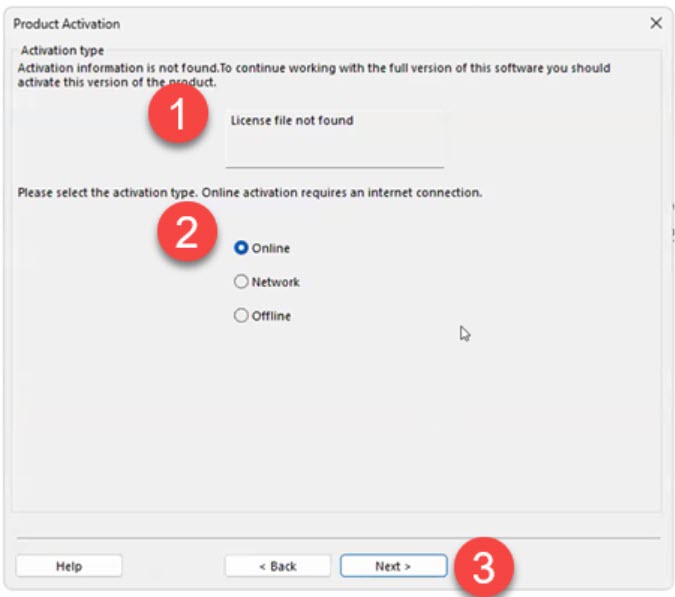
The first time you launch MAGNET Office, you’ll see a License file not found message. Don’t panic! That’s expected because your serial number hasn’t been activated yet.
Have your serial number and your Topcon ID (your myTopcon / MAGNET Enterprise login) handy, then:
- On the Product Activation screen, select Online and click Next.
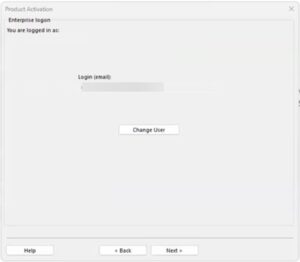
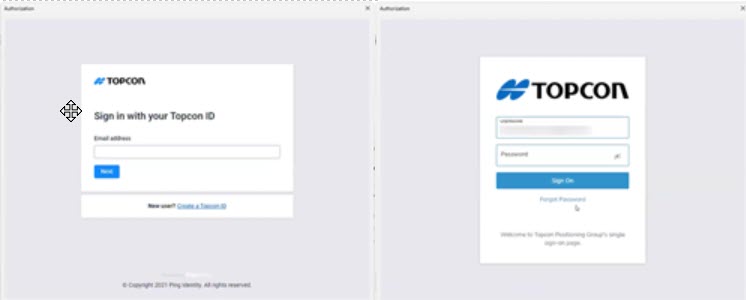
- Sign in with your Topcon ID.

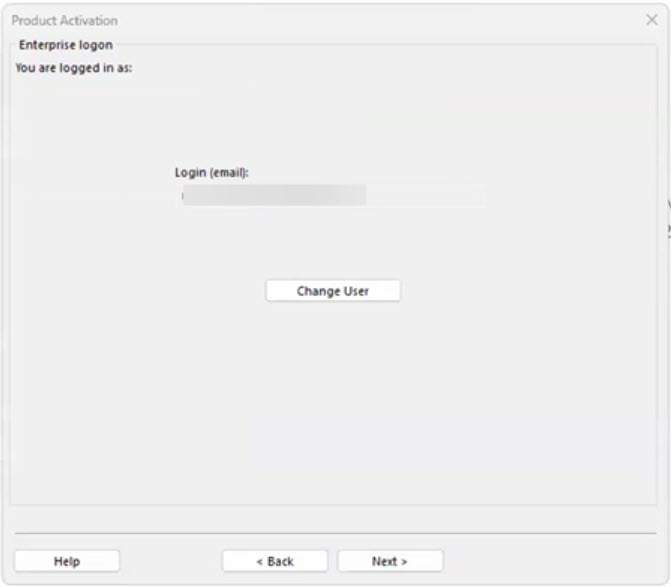
- You’re now logged in to Enterprise (the cloud side of your Topcon account). This step is required to activate your license. Check that your email address is correct in the Login field and click Next.
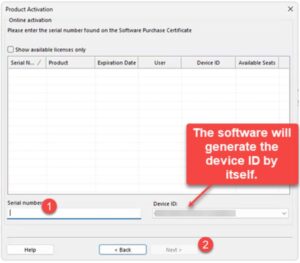
- Enter your serial number and click Next.
- Check I accept the terms of the license agreement and click Next.
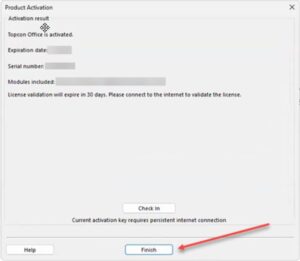
- Review the Activation Result screen and click Finish.
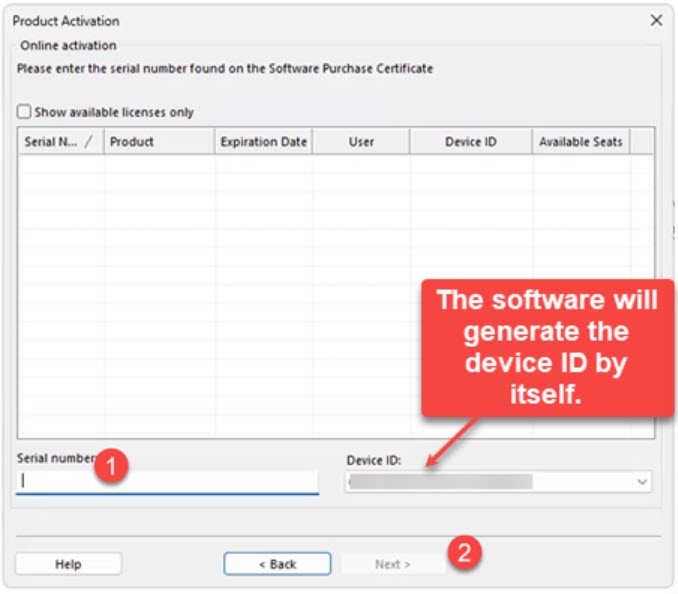
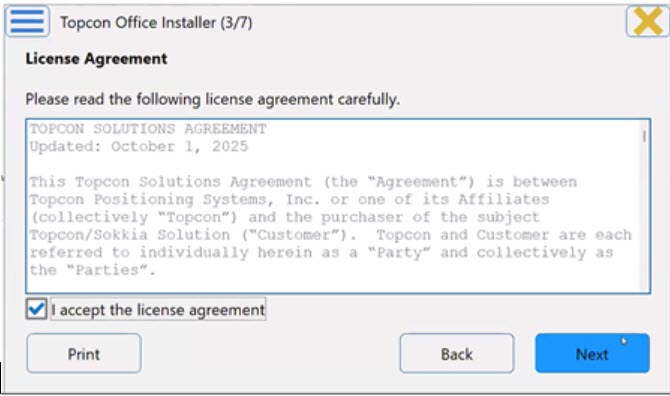
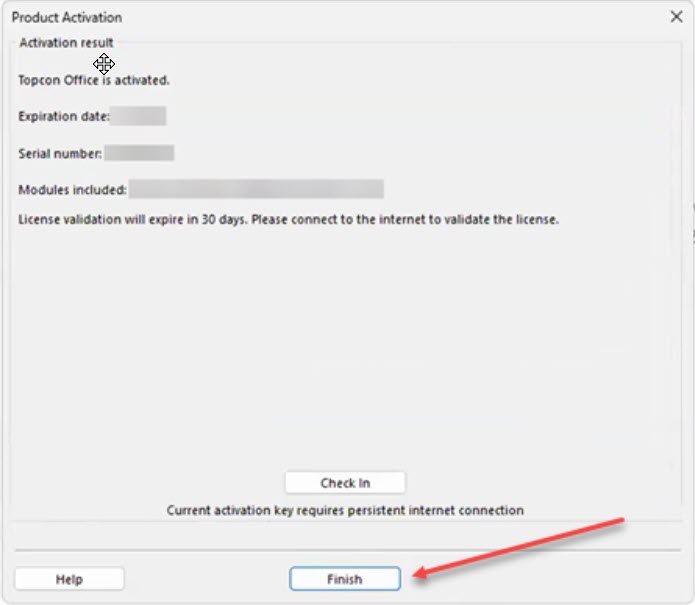
Topcon also has an offline activation method for computers that can’t get online. The catch: a license activated offline can’t use Topcon’s license Check In / Check Out feature, which is how you move a license to another computer. So I always recommend activating online if you can.
What happens the first time I open MAGNET Office?
You can launch MAGNET Office from the Windows Start menu or by typing its name in the Windows Search bar.

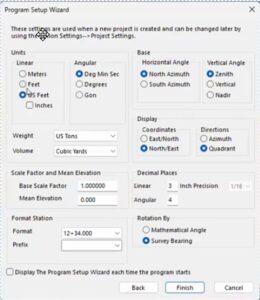
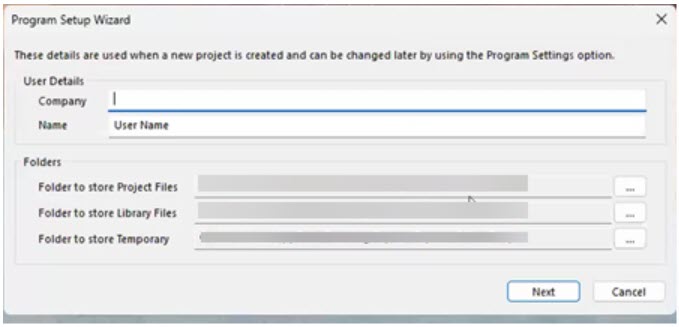
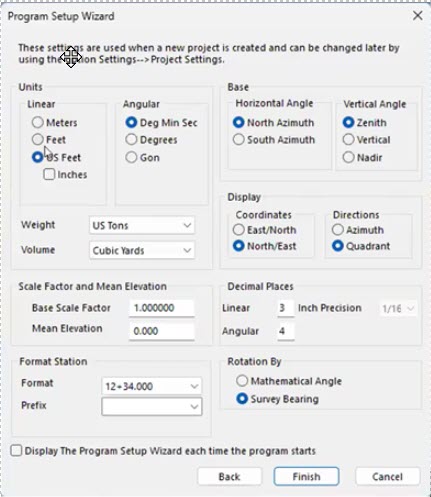
The first time it opens, the Program Setup Wizard walks you through some basic setup:
- Fill in the User Details, review the Folders and click Next.
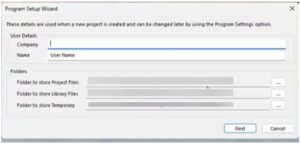
- Select your settings and click Finish.
That’s it. MAGNET Office is installed, activated and ready for your configurations and projects!
How do I reinstall MAGNET Office on a new computer?
No problem. Your license is tied to the computer it’s activated on, so the trick is to release it from the old computer before you activate it on the new one. Topcon calls this Check In.
On the old computer (while it still works and is online):
- Open MAGNET Office and go to Help > License.
- Select Check In.
- Enter your Topcon ID (MAGNET Enterprise) credentials and click Next.
- Topcon warns you that the license will be checked in and the program will restart in Demo Mode. Select I understand and wish to continue and click Next.
On the new computer:
- Download and install MAGNET Office the same way you did the first time.
- Activate it online with the same serial number.
A few things to keep in mind:
- Check In only works for licenses that were activated online. If yours was activated offline, contact your dealer or Topcon support before you retire the old computer.
- If the old computer died before you could check the license in, contact your dealer or Topcon support to get the license released.
- MAGNET Office can also open in Demo Mode after you update to a new version or renew your Service Plan or Subscription. When that happens, just reactivate online with your serial number. Topcon’s Reactivating Topcon Office quick guide walks you through it.
Can I install MAGNET Office on more than one computer?
Installing isn’t really the limit. Activation is.
Each MAGNET Office serial number is activated on one computer at a time. Without an active license, MAGNET Office runs in Demo Mode. So if you want to work at the office one week and on your laptop the next, you can check the license in on one computer and activate it on the other, using the steps above.
If you need MAGNET Office running on two computers at the same time, you’ll need a license for each one. Talk to an authorized Topcon dealer about your options. See also What you should know about purchasing Topcon.
Where can I find more help from Topcon?
Topcon has quick guides and short videos for activation, Check In / Check Out and reactivation. The videos require a myTopcon NOW! login.
- Quick Guide PDF: MAGNET Office Online Activation
- Quick Guide PDF: MAGNET Office Offline Activation
- Quick Guide PDF: MAGNET Office License Check In and Check Out
- Quick Guide PDF: Reactivating Topcon Office
- Quick Guide Video: Topcon Office License Activation
- Quick Guide Video: Topcon Office License Check-in
Want to know what’s new in the latest release? See our running thread on recent improvements to MAGNET Office.

Some content on this website was prepared with AI assistance. Please verify important information with the manufacturer or original source before making purchasing or financial decisions.
If you find the material on this website helpful, please consider supporting That CAD Girl by purchasing our products or services.
If you are interested in purchasing products or services we do not offer, we would love to refer you to one of our Trusted Partners. Please click here to send us a message with your request.