
FAQ
Faq category: Installation & Tech Support
SEARCH THAT CAD GIRL SITE
What is Carlson Software’s Maintenance Plan? And why you should buy it through an Authorized Carlson Reseller
+The maintenance program is available for programs that include IntelliCAD and/or run on top of a separately purchased license of an AutoCAD-based program. The following modules of Carlson office products are available with maintenance: Survey, Civil, Hydrology, GIS, Basic Mining, Geology, Underground Mining, Surface Mining, Natural Regrade, Field, CADnet, GeoTech, Trench and Construction.
This maintenance program does not include Carlson Survey or Takeoff with embedded AutoCAD (OEM). These programs must be upgraded individually after a new version has been released.
BENEFITS OF MAINTENANCE FROM CARLSON SOFTWARE:
- Automatic upgrades for all modules when a new version is released.
- Unlimited access to Carlson Academy (requires login), Carlson Software’s online learning platform See FAQ: What is Carlson Academy?
COST OF MAINTENANCE FROM CARLSON SOFTWARE:
- An active Maintenance Plan can be renewed annually at a cost of 10% of software retail price.
- If Maintenance is not renewed prior to expiration, Maintenance increases by 10% per year after the expiration date.
- Importantly… Carlson never charges more than 50% of the retail price of any program to upgrade and bring it up to the current version.
WHY BUY FROM AN AUTHORIZED RESELLER?
Regardless of your license status (trial, old, prospecting or current), you’ll always get FREE tech support directly from Carlson. So, why not support another small business by buying from them? In many cases, a Reseller will offer discounts and/or training but, at a minimum, you will gain one more level of support when you need it.

Some content on this website was prepared with AI assistance. Please verify important information with the manufacturer or original source before making purchasing or financial decisions.
If you find the material on this website helpful, please consider supporting That CAD Girl by purchasing our products or services.
If you are interested in purchasing products or services we do not offer, we would love to refer you to one of our Trusted Partners. Please click here to send us a message with your request.
xxWhat you should know about purchasing Carlson Software
+

About Carlson Software, the Company
About Carlson, the Software
Carlson programs work natively and produce DWG format files. There is NO need to convert, import or export – only Open and Save.
The programs are primarily delivered as “vertical” modules that can be installed and run on top of a generic-CAD platform.
Carlson’s desktop modules for land surveying, engineering and construction are built to run on top of the ITC’s IntelliCAD and Autodesk’s AutoCAD platforms. The modules include: Survey, Civil, Hydrology, GIS, Geology, Underground Mining, Surface Mining, Natural Regrade, Field, CADnet, GeoTech, Trench, Construction and Point Clouds.
Additionally, Survey and Takeoff are developed and run on top of an embedded AutoCAD (OEM).
You Have Options!
Purchase Carlson with the Platform that's Best for You
Carlson’s desktop programs can be installed as a standalone program on top of IntelliCAD or on top of your separately-purchased, full-AutoCAD-based program.
Each purchase includes a license of the latest version of IntelliCAD – it doesn’t have to be purchased separately.
Your separately-purchased, full-AutoCAD-based program can be AutoCAD, AutoCAD Map, Land Desktop, Civil 3D or other vertical – but does NOT include AutoCAD LT.
The following modules are available with IntelliCAD/for YOUR AutoCAD: Survey, Civil, Hydrology, GIS, Geology, Underground Mining, Surface Mining, Natural Regrade, Field, CADnet, GeoTech, Trench, Construction and Point Clouds
Carlson Survey and Takeoff can be purchased and installed standalone with embedded AutoCAD (also known as the OEM version).
Each purchase includes a license of the latest version of embedded AutoCAD (OEM) – it doesn’t have to be purchased separately.
Note that embedded AutoCAD (OEM) is more similar to AutoCAD LT than AutoCAD – so, experienced AutoCAD users may end up missing much of the functionality they are accustomed to.
The embedded AutoCAD (OEM) programs do not include IntelliCAD and do not require a separate purchase of AutoCAD.
Importantly, although both programs can be installed on the same computer, programs installed with the OEM platform will be completely separate from those installed with IntelliCAD/your AutoCAD. This means that you will not be able to work in a DWG file and simply switch between menus – you’ll have to close the drawing in one program in order to open it in the other.
Carlson's Versions vs AutoCAD's Versions
Carlson Software will run on earlier versions of AutoCAD; however, you cannot run a version of Carlson that is older than the AutoCAD. For instance, Carlson 2024 will run on AutoCAD 2018-2024 but Carlson 2022 will only run on AutoCAD 2018-2022.
Which Program or Modules Do I Need?
FAQ: I’m a land surveyor. What software do I need?
FAQ: I’m a civil engineer. What software do I need?
Programs with embedded AutoCAD (OEM)
FAQ: What features & menus are in Carlson Survey with embedded AutoCAD (OEM)? (a running thread)
FAQ: What features & menus are in Carlson Takeoff with embedded AutoCAD (OEM)? (a running thread)
Desktop Programs with IntelliCAD/for YOUR AutoCAD
FAQ: What features & menus are in the non-OEM Carlson Survey program? (a running thread)
FAQ: What features & menus are in Carlson Civil? (a running thread)
FAQ: What features & menus are in Carlson GIS? (a running thread)
FAQ: What features & menus are in Carlson Hydrology? (a running thread)
FAQ: What features & menus are in Carlson Point Cloud? (a running thread)
FAQ: What features & menus are in Carlson Construction? (a running thread)
FAQ: What features & menus are in Carlson CADNet? (a running thread)
FAQ: What features & menus are in Carlson GeoTech? (a running thread)
FAQ: What features & menus are in Carlson Trench? (a running thread)
Carlson iCAD
Retail Pricing for Carlson Software
| Program | Retail Price of Standalone (effective 7/10/2024) | Retail Price of Network |
|---|---|---|
| Select Suite - Pick 6 (from Survey, Civil, Hydrology, GIS, Point Cloud Basic, CadNet) | $ 4,950 | $ 5,445 |
| Select Suite - Pick 5 (from Survey, Civil, Hydrology, GIS, Point Cloud Basic, CadNet) | $ 4,650 | $ 5,115 |
| Civil Suite or Select Suite Pick 4 (from Survey, Civil, Hydrology, GIS, Point Cloud Basic, CadNet) | $ 4,250 | $ 4,675 |
| Select Suite - Pick 3 (from Survey, Civil, Hydrology, GIS, Point Cloud Basic, CadNet) | $ 3,850 | $ 4,235 |
| Select Suite - Pick 2 (from Survey, Civil, Hydrology, GIS, Point Cloud Basic, CadNet) | $ 3,350 | $ 3,685 |
| Survey | $ 2,150 | $ 2,365 |
| Civil | $ 1,950 | $ 2,145 |
| Hydrology | $ 1,550 | $ 1,705 |
| GIS | $ 1,250 | $ 1,375 |
| Point Cloud Basic | $ 2,000 | $ 2,200 |
| Point Cloud Advanced | $ 6,000 | $ 6,600 |
| Takeoff Suite (Construction, CADNet, Trench, GeoTech) | $ 7,500 | $ 8,250 |
| Construction | $ 3,950 | $ 4,345 |
| CADNet | $ 1,750 | $ 1,925 |
| Trench | $ 1,595 | $ 1,755.50 |
| GeoTech | $ 1,595 | $ 1,755.50 |
| Takeoff with embedded AutoCAD (OEM) | $ 9,000 | $ 9,900 |
| Survey with embedded AutoCAD (OEM) | $ 3,250 | $ 3,575 |
Upgrading Carlson Software
Upgrades are managed through the Annual Maintenance Plan which, essentially. allows users to pre-pay for future upgrades. As long as your Maintenance is active at the time a new version is released, you are eligible for an automatic upgrade to the new version.
See additional information about Maintenance below…
Survey and Takeoff with embedded AutoCAD (OEM)
Maintenance is NOT available for these products so upgrades are only available after a new version has been released.
The cost to upgrade Carlson’s OEM products is subject to change each year and varies depending on the program and how many versions behind you are.
However, Carlson never charges more than 50% of the current retail price to upgrade any license to the latest and greatest version of the software.
Carlson Software Annual Maintenance
Every new license of Carlson with IntelliCAD/for CAD includes 90 days of free Maintenance. This is Carlson’s way of ensuring that anyone who purchases a new license inside of that 90-day window can be assured of getting the free upgrade.
Renewing Maintenance Before it Expires
Renewing Maintenance is optional for users.
However, if you prefer to keep your software up-to-date when new versions are released, keeping the Maintenance plan active is the best way to do that.
If it is renewed prior to expiration, maintenance costs 10% of the retail price of the software.
Renewing Expired Maintenance
If your Maintenance has expired, you can pay the regular 10% Maintenance fee plus the expiration fee to activate your Maintenance for one-year. While Maintenance is active, you’ll be eligible for an immediate upgrade to the current version AND for automatic upgrades to any new versions released during the Maintenance year.
How Old is Too Old (to Renew)?
For licenses of Carlson with IntelliCAD/for CAD that are more than 4 years old, users can pay 50% of the retail price to activate Maintenance for 1-year.
While Maintenance is active, you’ll be eligible for an immediate upgrade to the current version AND for automatic upgrades to any new versions released during the Maintenance year.
See the tables below for sample pricing for Carlson Maintenance.
Carlson Software Maintenance Fees – per Product
Carlson’s policy on Software Maintenance can be viewed by clicking here
| Program | Retail Price of Standalone (effective 7/10/2024) | Annual Maintenance for Standalone | Retail Price of Network | Annual Maintenance for Network |
|---|---|---|---|---|
| Select Suite Pick 6 | $ 4,950 | $ 495 | $ 5,445 | $ 544.50 |
| Select Suite Pick 5 | $ 4,650 | $ 465 | $ 5,115 | $ 511.50 |
| Select Suite Pick 4 | $ 4,250 | $ 425 | $ 4,675 | $ 467.50 |
| Select Suite Pick 3 | $ 3,850 | $ 385 | $ 4,235 | $ 423.50 |
| Select Suite Pick 2 | $ 3,350 | $ 335 | $ 3,685 | $ 368.50 |
| Civil Suite | $ 4,250 | $ 425 | $ 4,675 | $ 467.50 |
| Survey | $ 2,150 | $ 215 | $ 2,365 | $ 236.50 |
| Civil | $ 1,950 | $ 195 | $ 2,145 | $ 214.50 |
| Hydrology | $ 1,550 | $ 155 | $ 1,705 | $ 170.50 |
| Point Cloud Basic | $ 2,000 | $ 200 | $ 2,200 | $ 220.00 |
| Point Cloud Advanced | $ 6,000 | $ 600 | $ 6,600 | $ 660.00 |
| GIS | $ 1,250 | $ 125 | $ 1,375 | $ 137.50 |
| Takeoff Suite | $ 7,500 | $ 750 | $ 8,250 | $ 825.00 |
| Construction | $ 3,950 | $ 395 | $ 4,345 | $ 434.50 |
| CADNet | $ 1,750 | $ 175 | $ 1,925 | $ 192.50 |
| Trench | $ 1,595 | $ 159.50 | $ 1,755 | $ 175.50 |
| GeoTech | $ 1,595 | $ 159.50 | $ 1,755 | $ 175.50 |
Carlson Software Maintenance & Expiration Fees
Carlson’s policy on Software Maintenance can be viewed by clicking here
| Maintenance Status | Annual Maintenance (Percentage of Retail) | Expiration Fee (Percentage of Retail) | Total Fee to Renew (Percentage of Retail) |
|---|---|---|---|
| Active | 10% | 0 | 10% |
| Expired, up to 1 year | 10% | 10% | 20% |
| Expired, up to 2 years | 10% | 20% | 30% |
| Expired, up to 3 years | 10% | 30% | 40% |
| Expired, more than 3 years | 10% | 40% | 50% |
Sample Pricing for Active and Expired Maintenance Renewal Fees
Carlson’s policy on Software Maintenance can be viewed by clicking here
| Program | # of Years Expired | Retail Price | Total Fee (Percentage of Retail) | Total Fee to Upgrade and/or Renew Maintenance for 1 Year |
|---|---|---|---|---|
| Survey | Not expired, maintenance is current | $ 2,150 | 10% | $ 215.00 |
| Survey | Expired for less than 1 year | $ 2,150 | 20% | $ 430.00 |
| Networked Survey | Expired for less than 1 year | $ 2,365 | 20% | $ 473.00 |
| Civil Suite or Select Suite Pick 4 | Not expired, maintenance is current | $ 4,250 | 10% | $ 425.00 |
| Civil Suite or Select Suite Pick 4 | Expired for less than 1 year | $ 4,250 | 20% | $ 850.00 |
| Networked Civil Suite or Select Suite Pick 4 | Expired for less than 1 year | $ 4,675 | 20% | $935.00 |
Carlson Licensing
A purchase of Carlson Software grants a perpetual license to the owner. This means that, once purchased, you “own it” and never need to pay additional fees to use it.
Carlson allows users to “network” their licenses for an additional fee. The fee is 10% of the retail price of the software being networked.
When installing their desktop software, Carlson recognizes 5 different “Reasons for Installation”:
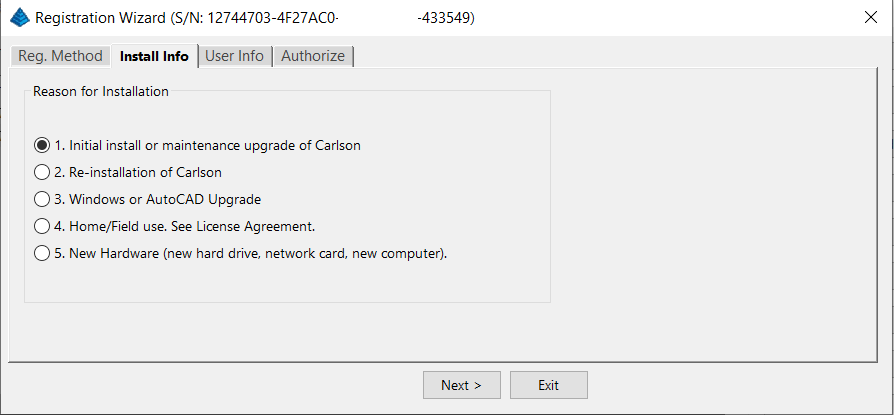
After installation and registration, Carlson provides a Registration Report that includes a “Change Key” and it’s a good idea to save the report and the change key.
And here’s a Pro-Tip for you! The Serial Number screen on your That CAD Girl Customer Portal has a “Customer Notes” section – that’s a great place to save your Change Key and other important information about each license!
FAQ: Does Carlson retire their products?
FAQ: What happens if I get a new computer and need to reinstall Carlson?
FAQ: Can I install my Carlson desktop software on two computers?
FAQ: Is it better to network Carlson than use standalone licenses?
FAQ: Does Carlson Software Still Offer Perpetual Licenses?
FAQ: How do I register my Carlson Software? And what are change keys?
System Requirements for Desktop Software
Technical Support & Training
You can see all the opportunities for training with That CAD Girl here and you can follow these links to see our FAQs about the training and technical support available from Carlson and That CAD Girl.
30-Day Trials
Once you decide to purchase, you won’t even need to uninstall. You can activate your software by simply updating your registration with your purchased serial number.
Frequently Asked Questions: What to Know Before Purchasing Carlson Software
1. What is Carlson Software and who should use it?
Carlson Software is a leading solution for land surveying, civil engineering, grading, and utility contractors. It offers powerful tools for site design, construction layout, data collection, and project management, making it ideal for professionals in land development and infrastructure projects.
2. What are the main features of Carlson Software for land development?
- Advanced survey data collection and processing
- 3D site modeling and earthwork calculations
- Road and subdivision design tools
- Utility and drainage design modules
- Seamless integration with GPS and total station hardware
- CAD drafting and mapping capabilities
- Automated grading and volume calculations
- Compatibility with DWG and DXF file formats
3. What types of licenses and versions are available?
Carlson Software offers perpetual, subscription, and network licenses. Choose from modules like Survey, Civil, Hydrology, GIS, and Takeoff. Bundle packages are available for comprehensive land development needs.
4. What are the system requirements and compatibility details?
Carlson Software runs on Windows-based PCs and is compatible with most CAD platforms, including AutoCAD and IntelliCAD. Check the latest system requirements on the Carlson website to ensure optimal performance.
5. How do I purchase Carlson Software?
You can buy Carlson Software directly from authorized dealers or the official Carlson website. Discounts may be available for multi-seat, educational, or government purchases.
6. Is technical support and training available?
Yes. Carlson provides extensive customer support, including phone, email, and online resources. Training options include webinars, tutorials, and in-person classes tailored for land surveyors and civil engineers.
7. Can I try Carlson Software before buying?
A free trial version is available for download. The trial allows you to explore core features relevant to surveying, civil engineering, grading, and utility design.
8. How are updates and upgrades handled?
Annual maintenance plans include software updates and technical support. Upgrades to new versions are available for users with active maintenance agreements.
9. What should I consider before purchasing?
- Ensure compatibility with your existing hardware and CAD platforms
- Identify which modules best fit your land development projects
- Review training and support options for your team
- Consider long-term maintenance and upgrade costs
10. Where can I find more information?
Visit the Carlson’s website or contact a local dealer for personalized advice on solutions for land surveying, civil engineering, grading, and utility contracting.
MicroSurvey Software: Your Questions Answered
About MicroSurvey
Who is MicroSurvey?
MicroSurvey is a Canadian software developer that has been creating software for land surveyors, engineers, and mapping professionals since 1985.
Software Platform Options
What makes MicroSurvey software unique?
MicroSurvey’s desktop programs run on 64-bit Windows computers and work natively with DWG files, eliminating the need for file conversion. Their software is built to run on various CAD platforms, including IntelliCAD, AutoCAD, and BricsCAD.
What are the different ways I can purchase and use MicroSurvey software?
- With IntelliCAD: MicroSurvey CAD can be installed as a standalone program with an embedded version of IntelliCAD included.
- With embedded AutoCAD (OEM): MicroSurvey embeddedCAD includes an embedded version of AutoCAD and is a standalone product. Note that its functionality is more similar to AutoCAD LT.
- With AutoCAD: MicroSurvey inCAD can be installed on top of your separately purchased, full version of AutoCAD-based programs (excluding AutoCAD LT).
- With BricsCAD: SurveyTools for BricsCAD can be installed on top of your BricsCAD, or you can bundle BricsCAD Pro with your purchase.
Licensing and Upgrades
What licensing options does MicroSurvey offer?
MicroSurvey provides both perpetual and subscription licensing. Licenses can be for a single user or floating (network) licenses that can be shared among users on the same network. Licensing is cloud-based, so no dongle is required.
How do software upgrades work?
Upgrades can be purchased for the current version from the previous version. Upgrades are also available to customers with an active Customer Care Package. Crossgrades to different editions or platforms may also be available.
Maintenance and Support
What is the MicroSurvey Customer Care Package (CCP)?
The CCP is a 12-month service plan that provides software updates and technical support. New software license purchases include one year of CCP.
Other MicroSurvey Products
What is MicroSurvey STAR*NET?
STAR*NET is software that adjusts and analyzes 2D/3D survey networks to improve accuracy. It runs on 64-bit versions of Windows 10 and 11.
What is MicroSurvey FieldGenius?
FieldGenius is data collection software for land surveyors that runs on Android and 64-bit versions of Windows 10 and 11. A legacy version for Windows devices is also available but is no longer updated.
Getting Started
How can I determine which MicroSurvey program is right for me?
It is recommended that you request a 30-day trial to test the software.
Carlson Software: Your Questions Answered
About Carlson Software
Who is Carlson Software?
Carlson Software, based in Maysville, Kentucky, has been a developer of software for land development professionals since 1983. They offer specialized modules for land surveying, civil engineering, construction, and mining industries.
Software Platform Options
What are my options for running Carlson Software?
Carlson’s desktop programs can be installed on top of IntelliCAD or a separately purchased full-AutoCAD-based program. A license for the latest version of IntelliCAD is included with each purchase. Compatible AutoCAD-based programs include AutoCAD, AutoCAD Map, Land Desktop, and Civil 3D, but not AutoCAD LT.
Does Carlson offer a standalone version with an embedded CAD engine?
Yes, Carlson Survey and Takeoff can be purchased with an embedded AutoCAD (OEM) version. This is a standalone product and does not require a separate purchase of AutoCAD. However, the functionality is more akin to AutoCAD LT.
Compatibility
What versions of AutoCAD are compatible with Carlson Software?
You can run Carlson Software on earlier versions of AutoCAD, but you cannot run a version of Carlson that is older than your AutoCAD version. For example, Carlson 2024 is compatible with AutoCAD 2018-2024, while Carlson 2022 works with AutoCAD 2018-2022.
Licensing and Upgrades
What type of license does Carlson offer?
Carlson Software offers perpetual licenses, meaning you own the software after purchase. They also provide network licensing for an additional fee.
How do software upgrades work?
Upgrades are managed through the Annual Maintenance Plan. If your maintenance is active when a new version is released, you receive an automatic upgrade. New licenses include 90 days of maintenance. The cost to upgrade OEM products varies.
Getting Started
Can I try the software before buying?
Yes, it is highly recommended to request a 30-day trial to test the software for your specific needs.
progeCAD Software: Your Questions Answered
About progeCAD
What is the story behind progeCAD?
Founded in 1985, progeCAD co-founded the IntelliCAD Technology Consortium (“ITC”) in 1999 to create a comprehensive and fairly priced alternative to AutoCAD. They offer a native DWG 2D/3D CAD software with a familiar interface and powerful features at a low cost.
progeCAD Software Features
What are the key features of progeCAD?
progeCAD works natively with AutoCAD DWG files without any conversion, ensuring complete compatibility. It features an “AutoCAD Like” interface and supports AutoCAD file types, fonts, and plotting styles. progeCAD Professional includes 3D ACIS Solid Modeling and realistic rendering. It also offers more functions than AutoCAD LT at a fraction of the price of other major CAD software.
Licensing Options
What licensing solutions does progeCAD offer?
- Single+ (SL): Allows installation and use on two computers by the same person, but not simultaneously.
- USB Portable (USB): Install on multiple computers and use the software on one computer at a time by plugging in a USB dongle.
- Network (NLM): Install on unlimited PCs on a network and use concurrently based on the number of licenses purchased. Licenses can be temporarily moved for offline use.
- Corporate One Site: Unlimited users at a single company location.
- Corporate Country: Unlimited users within the same country under one company name.
Maintenance and Support
What is iCARE?
iCARE is a one-year subscription-based maintenance and support program that provides all progeCAD updates, new versions, and free technical assistance.
Getting Started
Can I try progeCAD before I buy it?
Yes, it is highly recommended that you request a 30-day trial to test the software for yourself.
Why Buy from That CAD Girl?
Once you decide to purchase, you won’t even need to uninstall. You can activate your software by simply updating your registration with your purchased serial number.
Some content on this website was prepared with AI assistance. Please verify important information with the manufacturer or original source before making purchasing or financial decisions.
If you find the material on this website helpful, please consider supporting That CAD Girl by purchasing our products or services.
If you are interested in purchasing products or services we do not offer, we would love to refer you to one of our Trusted Partners. Please click here to send us a message with your request.
Where do I get Carlson support? How much will it cost me?
+It doesn’t matter if you’re on the latest version or on a version that’s 10 years old – it’s always free.
You can email Carlson tech support or call (606) 564-5028. You might also check Carlson’s Knowledge Base site which provides answers to many common questions including KB 1078: Troubleshooting Guide
Because we have Carlson as our backup, That CAD Girl also tries to answer as many tech support questions as we can. You can follow this link to send us a Request for Tech Support.
Pro-Tip!: When calling or emailing for technical support, the first question you’ll likely get from either me or Carlson is “Are you using the current build?”. If you want us to love you even more and help us answer your question in the first phone call, make sure to say, “Oh, by the way, I’ve already checked and I’m using the current build”.
FAQ: Where do I find the build date or build number of my Carlson Software?
FAQ: What is the latest and greatest version/build of my Carlson Software? (a running thread)
Some content on this website was prepared with AI assistance. Please verify important information with the manufacturer or original source before making purchasing or financial decisions.
If you find the material on this website helpful, please consider supporting That CAD Girl by purchasing our products or services.
If you are interested in purchasing products or services we do not offer, we would love to refer you to one of our Trusted Partners. Please click here to send us a message with your request.
Downloading, Installing and Licensing progeEARTH
+Jump to:
- Do I need to uninstall the progeEARTH trial before installing the full version?
- Do I need to reset the progeCAD user interface after removing progeEARTH?
- How do I reset the progeCAD user interface?
- Do I need progeCAD Professional installed before installing progeEARTH?
- Where do I download the full version of progeEARTH?
- How do I activate my progeEARTH license?
- How many computers can I install progeEARTH on?
- How do I move or reinstall progeEARTH on a new computer?
- What information do I need to save?
- progeEARTH Download Links
Do I need to uninstall the progeEARTH trial before installing the full version?
Yes. If you already downloaded and installed the progeEARTH trial, you will need to remove it before installing the full version of progeEARTH.
To remove the trial, use Add or Remove Programs in the Windows Control Panel.
Do I need to reset the progeCAD user interface after removing progeEARTH?
Yes. After removing the progeEARTH trial, you should reset the progeCAD user interface before installing the full version of progeEARTH.
You can do this through the progeCAD Center, which is installed when progeCAD is installed.
How do I reset the progeCAD user interface?
To reset the progeCAD user interface:
- Open the Windows Start menu.
- Look for the progeCAD folder.
- Start the progeCAD Center.
- Go to Settings > Repair.
- Make sure the profile you are using is selected, usually Default.
- Press OK.
- Accept the default selection in the dialog box.
- Press OK again.
Your menus should now be reset and ready for the progeEARTH installation.
Do I need progeCAD Professional installed before installing progeEARTH?
Yes. You must have progeCAD Professional installed before installing progeEARTH.
The progeEARTH version has to match your progeCAD version:
- progeEARTH 2027 requires progeCAD 2027
- progeEARTH 2026 requires progeCAD 2026
- progeEARTH 2025 requires progeCAD 2025
If you’re upgrading progeCAD to a new version, plan on upgrading progeEARTH too. Not sure which version you have? Open progeCAD and go to Help > About.
Where do I download the full version of progeEARTH?
When you are ready to download and install progeEARTH, scroll to the bottom of this FAQ to find the correct download link.
After downloading the installer, you should copy the file to a removable storage device, such as a jump drive, as a backup.
How do I activate my progeEARTH license?
To activate progeEARTH, use your assigned serial number along with the Product I.D. that appears in the Registration Dialog Box.
You can register the program online here:
How many computers can I install progeEARTH on?
progeEARTH licenses are valid for installation on only one computer at a time. This is true even if your progeCAD license is a Single+ or Flex License that lets you install progeCAD on more than one computer.
How do I move or reinstall progeEARTH on a new computer?
To move or reinstall progeEARTH, follow the same installation steps outlined above.
Before installing on a new computer, you must request that your license be unlocked.
Please contact support here to unlock your license:
Once your license has been unlocked, you can proceed with the installation and activation on the new machine.
What information do I need to save?
Be sure to print and save your progeEARTH serial number along with a backup copy of the installer. You will need them if you ever need to reinstall or move the software.
progeEARTH Download Links
| progeEARTH Version | progeCAD Link | That CAD Girl Link |
|---|---|---|
| 2026 | Download 2026 from progEARTH site | Follow this link and then Click the Download button Download 2026 from That CAD Girl |
| 2025 | Download 2025 from progearth site | Follow this link and then Click the Download button Download 2025 from That CAD Girl |
Some content on this website was prepared with AI assistance. Please verify important information with the manufacturer or original source before making purchasing or financial decisions.
If you find the material on this website helpful, please consider supporting That CAD Girl by purchasing our products or services.
If you are interested in purchasing products or services we do not offer, we would love to refer you to one of our Trusted Partners. Please click here to send us a message with your request.
What you should know about purchasing progeCAD by progeSOFT
+
Updated October 2026 for progeCAD 2027.
Jump to:
- About the companies
- About the software
- Operating system and system requirements
- How and where to purchase
- Upgrades, competitive upgrades and crossgrades
- License types and license terms
- Software trials
- Support and training options
About the Companies
About progeSOFT
progeSOFT, founded in 1985 and based in Chiasso Switzerland, is a privately owned company known for delivering low cost 2D and 3D CAD software for Windows and macOS. The company develops both progeCAD for Windows and iCADMac, a native DWG CAD solution for macOS, giving users on either platform powerful tools for drafting and design at a competitive price.
As a founding member of the IntelliCAD Technology Consortium, progeSOFT has helped shape the direction of DWG-based CAD development. Today, it serves a global user base across industries like construction, engineering and manufacturing, with major clients including Boeing, Samsung and ABB Group.
Click here to learn more about progeSOFT
About progeCAD USA
progeCAD USA is the North American distributor for progeSOFT’s CAD products.
Headquartered in Clackamas Oregon, the company provides support and resources for users of DWG-based CAD software in the United States and surrounding regions.
progeCAD USA also develops progeEARTH, a civil and survey add-on suite designed for land development professionals working in coordinate geometry, terrain modeling and road design.
The company has been involved in CAD software development since 1985 and was one of the founding members of the IntelliCAD Technology Consortium (ITC) in 1999.
Click here to learn more about progeCAD USA
About the Software
About progeCAD
progeCAD is a DWG-native 2D and 3D CAD application developed by progeSOFT. Built on the IntelliCAD engine, it works natively in DWG format and includes a wide set of design tools and libraries.
Available through a try and buy model, progeCAD is used by over 250,000 professionals worldwide across industries such as construction, automotive and technology. It delivers high performance CAD at a competitive price.
The current version is progeCAD 2027, released in June 2026 on the IntelliCAD 14.1 engine. It opens and saves DWG files from AutoCAD 2.5 through AutoCAD 2027. For what changed in each release, see What are the recent improvements to progeCAD and progeEARTH?
Click here to learn more about progeCAD
Click here for a feature comparison between progeCAD, AutoCAD and AutoCAD LT
About iCADMac
iCADMac is the first DWG-native 2D/3D CAD solution designed specifically for macOS, compatible with AutoCAD files up to the 2025 version.
It offers a familiar AutoCAD-like interface and provides tools such as PDF import/export, gradient hatches, tables, ACIS® solid modelling, constraints, custom blocks, extensive hatch patterns and powerful rendering capabilities.
Click here to learn more about iCADMac
Click here for a list of features in iCADMac
About progeEARTH
progeEARTH is a civil and survey add-on suite for progeCAD Professional. It includes tools for coordinate geometry (COGO), digital terrain modeling (DTM) and simple road corridor design.
The suite is organized into modules—Survey/Cogo, DTM and Roads—each tailored to support topographic mapping, site planning and field-to-finish workflows. Each module is sold separately and progeEARTH requires progeCAD Professional to run.
Click here to learn more about progeEARTH
Operating System
progeCAD 2027
Windows 10 and 11 (64-bit only)
iCADMac
macOS v13 (Ventura), v14 (Sonoma), v15 (Sequoia)
System Requirements
progeCAD
- Processor: 2.2 GHz or faster (2.5 GHz recommended)
- RAM: Minimum 4 GB (8 GB recommended)
- Disk: At least 4 GB free disk space
- Graphics: Dedicated NVIDIA GeForce or compatible; Artisan Render does not support AMD graphics cards
iCADMac
- Intel® Core™ i5 or superior
- ARM: Apple M1 ARM or superior
- 8 GB RAM (16 GB recommended)
- 8 GB free disk space for download and installation
- mac OS X-compliant printer
Click here to learn more about progeCAD System Requirements
Click here to learn more about iCADMac System Requirements
CAD Platform
All application software developed by progeSOFT and progeCAD USA are built on the IntelliCAD CAD platform.
How and Where to Purchase
progeCAD and progeEARTH can be purchased directly from progeCAD USA or through an authorized progeCAD dealer.
Pricing is subject to change without notice and varies depending on software edition and add-ons.
If you would like a referral from That CAD Girl to one of our trusted partners, please click here to Send Us a Message with your request
Upgrades to New Versions, Competitive Upgrades and Crossgrades to Different License Types
progeCAD and iCADMac can be upgraded to the most current version at a reasonable, reduced rate versus the cost of a new license. An active subscription to iCARE includes updates and upgrades to newly released versions. Note that iCARE requires the latest version of progeCAD, so if you’re on an older version you’ll need to buy the upgrade first.
Upgrading to progeCAD 2027 is easier than past upgrades. The new UI Migrate Tool brings your toolbars, aliases, profiles and settings over from progeCAD 2026.
Users of other CAD programs, such as AutoCAD, are eligible for discounted competitive upgrades to Single or Network licenses of progeCAD Professional.
Click here to learn more about progeCAD upgrades and crossgrades
Click here to learn more about iCADMac upgrades
Click here to learn more about iCARE
License Types and License Terms
License Terms
Both progeCAD and iCADMac sell with perpetual licenses which do not expire and no annual fee required. The licensed software version will run for as long as your hardware and operating system support it.
License Types
iCADMac
Offers only a SL – Single license deployment.
progeCAD
progeCAD 2027 is sold as a Single+, Flex or Network license. Corporate site and country licenses are also available on request.
- Single+ (SL) – Single license
Assigned to one person and can’t be shared. The Single+ license can be installed on two computers, such as a desktop and a laptop, used by the same person but never at the same time. To move it to a new computer, uninstall it from the old one and release the license. - FL – Flex License (new in progeCAD 2027)
Install progeCAD on every computer you use: office, home, laptop, client site. Each Flex license runs on one computer at a time. When you close progeCAD you can release the license and pick it up on another computer in seconds. An internet connection is only needed to activate or release the license, so you can work offline once it’s on your computer. If you buy several Flex licenses, the number you own is the number of people who can run progeCAD at the same time, so it works as a floating license too. Flex costs a little more than Single+, but if you’re buying progeCAD 2027 and work on more than one computer, this is the license I’d choose. - NLM – Network Licenses
Network licenses aren’t assigned to individual users and can be shared over your local network from a license server. Network licenses do not require an internet connection to activate or use. progeCAD NLM can be installed on as many computers as you want, but you can only run it at the same time on the number of seats you purchased. License Take-Away lets you temporarily move a network seat to a laptop or remote PC to use offline. - Corporate One Site and Corporate Country
Unlimited installations and users under one company name at one location (One Site) or across the whole country (Country).
For how to install, activate and move each license type, see our FAQ: Downloading, Installing and Licensing progeCAD.
Click here to learn more about progeCAD licensing
Click here to learn more about iCADMac licensing
Software Trials
progeCAD, progeEARTH and iCADMac can run in trial mode for 30 days. After this period, you need to activate a valid commercial license.
If you would like our help requesting a trial of this software from an authorized dealer, please click here to Send Us a Message with your request
Support & Training Options
iCARE is an optional yearly maintenance plan that includes priority technical support through the help desk (ticket, email and remote support) plus every progeCAD update and new version released during the plan year. Buying iCARE with your license (within 30 days of registering) saves money compared to adding it later.
Free video recordings and tutorials for progeCAD and iCADMac are available from progeSOFT’s website here: https://www.progesoft.com/video-tutorial/progeCAD-professional-media-video
Some content on this website was prepared with AI assistance. Please verify important information with the manufacturer or original source before making purchasing or financial decisions.
If you find the material on this website helpful, please consider supporting That CAD Girl by purchasing our products or services.
If you are interested in purchasing products or services we do not offer, we would love to refer you to one of our Trusted Partners. Please click here to send us a message with your request.
Downloading, Installing and Licensing progeCAD
+Updated October 2026 for progeCAD 2027 (current build 27.0.6.11).
Jump to:
- What should I check before I install progeCAD?
- Where do I download progeCAD?
- How do I install progeCAD?
- How do I activate progeCAD?
- How does the progeCAD Flex License work?
- How many computers can I install progeCAD on?
- How do I reinstall or move progeCAD to a new computer?
- How do I install updates or upgrade to a new version?
- What should I save for future reinstallations?
- What support is available for progeCAD?
- progeCAD download links
What should I check before I install progeCAD?
Already installed the trial? You don’t need to download and install progeCAD again. If the trial is the same version you purchased, just register it with your serial number.
Make sure the license type and version match. A Single+ serial number won’t activate a network (NLM) installation and a network serial number won’t activate a Single+ installation. A serial number from an older version also won’t activate a newer version, so a progeCAD 2026 serial number needs progeCAD 2026.
Check the system requirements. progeCAD 2027 runs on 64-bit Windows 10 and 11. Our What you should know about purchasing progeCAD FAQ lists the hardware requirements.
Where do I download progeCAD?
Your download link is in the order confirmation email you received from progeCAD USA. You can also use the download links at the bottom of this FAQ or the progeCAD Updates page on the progeSOFT website, which lists every version with its release date.
If a download link in an older email doesn’t work, change the link from http to https. Your browser may be blocking insecure connections.
How do I install progeCAD?
- Run the progeCAD installer (or the progeCAD Downloader) and choose the target folder when it asks.
- When the download is complete, click Install to continue or Open Folder to see where the installation files were saved.
- Follow the prompts to finish the installation.
- Make a backup copy of the installer on a thumb drive or other external media. You’ll need it if you switch computers, reinstall or have a hardware failure.
How do I activate progeCAD?
Single+ license
- Make sure the computer is connected to the internet.
- Launch progeCAD and choose to register it with your serial number when prompted.
- Enter the serial number from your order email. progeCAD registers itself and generates the authorization code automatically.
Flex License
- Open the activation link in the email that came with your Flex License, enter your License ID and click Next.
- Create a progeSOFT profile with your email and a password (or log in to your existing profile). This profile is where you manage your Flex licenses, so hang on to the login.
- Fill in the license holder details. The confirmation screen shows the serial number you’ll use to activate progeCAD. Save it!
- Launch progeCAD, click Activate in the Welcome to progeCAD dialog, paste the serial number and click Next.
Network license (NLM)
Your IT person installs the progeCAD license server first. Then install progeCAD on each workstation and follow the guided activation, entering the license server details from your network. The server is usually detected automatically.
How does the progeCAD Flex License work?
The Flex License is new in progeCAD 2027 and it’s the license I recommend for anyone buying progeCAD 2027 who works on more than one computer. Here’s how it works:
- Install it anywhere. Install progeCAD on every computer you use: office, home, laptop, client site.
- Activate where you’re working. Each Flex license runs progeCAD on one computer at a time. If you own more than one, they’re grouped under one serial number and the number of licenses you own is the number of computers that can run progeCAD at the same time. For example, a company with 3 Flex licenses and 5 users can install it on all 5 computers but only 3 people can run it at once.
- Release it when you close. When you close progeCAD, a Flexible License dialog asks whether to Release license and Exit progeCAD (so you can pick it up on another computer) or Keep license and Close progeCAD (so it stays on this computer).
- Internet is only needed to activate or release. Once the license is on your computer, progeCAD runs offline. Keep the license before you head to a job site with no internet!
If you checked Remember this choice and the release dialog stopped appearing, open Help > Flexible License Manager (or progeCAD Center > Utility > Flexible License Manager) to turn it back on. The Flex License user guide covers the rest.
How many computers can I install progeCAD on?
It depends on your license type:
- Single+ – can be installed on up to two computers, such as a desktop and a laptop, as long as both are used by the same person and never at the same time.
- Flex License – install it on as many computers as you like. The number of Flex licenses you own is the number of computers that can run progeCAD at the same time.
- Network (NLM) – install it on as many computers on your network as you like. The number of seats you own is the number of people who can use it at the same time. License Take-Away lets you temporarily move a network seat to a laptop for offline use.
- USB dongle (older licenses) – install it on as many computers as you like and run it on whichever computer has the dongle plugged in.
If you need progeCAD on more computers than your license covers, a Flex License is the easiest way to get there.
How do I reinstall or move progeCAD to a new computer?
Single+ license
- If the old computer still works, uninstall progeCAD from it first through the Windows Control Panel (or Start > progeCAD > Uninstall progeCAD) and choose the option to release the license. If you’re given an uninstall code (LTC), write it down.
- On the new computer, install progeCAD from your backup installer or the link in your order email.
- Register it with your original serial number. If you’re told it was previously registered, enter the uninstall code from step 1 or follow the on-screen wizard.
Old computer died? Just install and activate progeCAD on the new one. If the activation fails, your serial number may need to be unlocked. Contact progeCAD USA Support with your serial number and the reason for the request.
Replaced your hard drive by cloning it? You may see error code CF0x08 the first time you launch progeCAD. Reactivate it in progeCAD Center by clicking Register progeCAD.
Flex License – on the old computer, close progeCAD and choose Release license and Exit progeCAD. Then install progeCAD on the new computer and activate it with the same serial number. If the old computer died before you could release the license, contact progeCAD USA Support.
Network (NLM) – to move a workstation, just install progeCAD on the new computer and point it at your license server. Moving the license server itself requires releasing the licenses first, so have your IT person follow the NLM User Guide.
USB dongle – install progeCAD on the new computer, plug in the dongle and activate.
progeCAD licenses can’t be transferred to a different person or company.
How do I install updates or upgrade to a new version?
progeSOFT releases free updates (new builds) for each version. If you already have the same version installed, use the update links on the progeCAD Updates page and you won’t need to reactivate.
A new version, such as moving from progeCAD 2026 to 2027, needs an upgrade (or an active iCARE subscription) and a new serial number. progeCAD 2027 includes a UI Migrate Tool that brings your toolbars, aliases, profiles and settings over from progeCAD 2026.
What should I save for future reinstallations?
Save these together on a thumb drive or other backup media:
- Your progeCAD installer
- Your serial number (and License ID for a Flex License)
- Your order confirmation email. Most email programs have a Save As feature, so save it as a text or HTML file.
- Your progeSOFT profile login if you own a Flex License
What support is available for progeCAD?
New customers get access to the progeSOFT support portal and the progeCAD USA support team. Trial users can contact progeCAD USA for help evaluating the software.
progeCAD USA Support – I recommend bookmarking it.
What is iCARE? iCARE is an optional yearly maintenance plan for progeCAD that includes priority help desk support plus every update and new version released during the plan year. iCARE requires the latest version of progeCAD, so if you’re on an older version you’ll need to upgrade first. Buying iCARE with your license (within 30 days of registering) saves money compared to adding it later.
If you’d like help choosing a license, contact progeCAD USA or an authorized progeCAD dealer.
progeCAD Download Links
| progeCAD Version | progeCAD Link | That CAD Girl Link |
|---|---|---|
| 2027 | Download 2027 from progeCAD site | Follow this link and then Click the Download button Download 2027 from That CAD Girl |
| 2026 | Download 2026 from progeCAD site | Follow this link and then Click the Download button Download 2026 from That CAD Girl |
| 2025 | Download 2025 from progeCAD site | Follow this link and then Click the Download button Download 2025 from That CAD Girl |
Some content on this website was prepared with AI assistance. Please verify important information with the manufacturer or original source before making purchasing or financial decisions.
If you find the material on this website helpful, please consider supporting That CAD Girl by purchasing our products or services.
If you are interested in purchasing products or services we do not offer, we would love to refer you to one of our Trusted Partners. Please click here to send us a message with your request.
What you should know about purchasing CMS IntelliCAD
+
Jump to:
- About CAD-Manufacturing Solutions (CMS)
- About CMS IntelliCAD
- Operating System
- System Requirements for CMS IntelliCAD 15.0
- CAD Platform
- How and Where to Purchase
- Upgrades to New Versions, Competitive Upgrades and Crossgrades
- License Types
- License Terms
- Editions
- Software Trials
- Support & Training Options
About CAD-Manufacturing Solutions (CMS)
CAD-Manufacturing Solutions Inc (CMS), based in Azle Texas, has over 30 years of experience in the CAD industry. Originally known for its proprietary ProCADD software, CMS now develops and markets CMS IntelliCAD, which is built on the powerful and customizable IntelliCAD Technology Consortium (ITC) platform.
The team behind CMS has been deeply involved in CAD software development for decades and continues to rely on CMS IntelliCAD internally, including at a partner corporation focused on advanced crane innovation and design.
Click here to learn more about CAD-Manufacturing Solutions (CMS)
About CMS IntelliCAD
CMS IntelliCAD is a DWG-native CAD application offering 2D drafting, 3D modeling and BIM capabilities. It includes AutoCAD-like menus, a ribbon interface, advanced rendering and custom development via LISP, VBA, .NET, IRX and SDS.
The software is designed to support users transitioning from AutoCAD or other IntelliCAD-based platforms and includes customizable workspaces, menus, toolbars and Command: line access.
All editions support CAD standards, external references (Xrefs), DGN underlays and interoperability with other CAD and GIS formats.
What’s new in 15.0? The current version, CMS IntelliCAD 15.0, adds Drawing Compare (preview), AI photorealistic rendering (you plug in your own Google Gemini API key), the “Lookout” PAN method, live FILLET and CHAMFER previews and the ability to compile protected LISP (.FAS and .VLX). Click here for What’s new in CMS IntelliCAD 15.0
Click here to learn more about CMS IntelliCAD
Click here for a comparison between CMS IntelliCAD and AutoCAD
Operating System
CMS IntelliCAD 15.0 runs on 64-bit Microsoft Windows. Windows 10 is the minimum supported version. There is no 32-bit version anymore.
There’s no macOS version. CMS says running it in a virtual 64-bit Windows machine on a Mac requires a USB dongle license.
System Requirements for CMS IntelliCAD 15.0
- Operating System: 64-bit Microsoft Windows 10 or newer, kept updated and supported by Microsoft
- Processor: Intel Core i5 or comparable (faster recommended). Multi-core processors are supported.
- System Memory: 3 GB free RAM minimum for a full installation; 8 GB recommended
- Hard Disk Space: 6.5 GB free disk space for a full installation
- Display and Graphics: 1024 x 768 resolution or higher; graphics driver must support OpenGL ES (or switch CMS IntelliCAD to OpenGL). A dedicated graphics card with its own memory is recommended.
- Input Devices: Keyboard and mouse or other pointing device
Click here to learn more about System Requirements for CMS IntelliCAD
CAD Platform
All CMS IntelliCAD editions (PE, PE Plus and Easy Run) are built on the IntelliCAD platform. Version 15.0 is based on the IntelliCAD 15.0 engine and opens and saves DWG files up through the current 2018 format (used by AutoCAD 2018 through 2026).
How and Where to Purchase
CMS IntelliCAD can be purchased directly from CMS or through an authorized CMS IntelliCAD dealer.
Pricing is subject to change without notice and varies depending on edition, license type and add-ons.
If you would like a referral from That CAD Girl to one of our trusted partners, please click here to Send Us a Message with your request.
Upgrades to New Versions, Competitive Upgrades and Crossgrades
CMS IntelliCAD offers upgrades from previous versions, crossgrades between editions and competitive upgrades for users of other CAD programs. A valid serial number is required for any upgrade or crossgrade.
Maintenance builds within the same version (for example, a new 15.0 build) are free for licensed users. CMS strongly recommends that users of older versions upgrade, since newer Windows 11 security rules can block older builds from launching.
License Types
- Standalone: one user on ONE computer, even if you’d never use two computers at the same time. Move it with Help > License Manager > Deactivate on the old computer, then activate on the new one. Transfers are unlimited when you deactivate first. The two-activations-per-year limit applies only when you activate without a prior deactivation; a paid Support Subscription covers those extras.
- USB dongle: the dongle is the license. Install on any 64-bit Windows computer and run it wherever the dongle is plugged in, with no activation or deactivation. CMS offers a free USB Dongle Maker for 15.0 PE Plus (it needs a PE Plus Activation Key that hasn’t been activated yet). Replacements for lost or damaged dongles are a paid item.
- It isn’t listed in the online store right now, so ask CMS or an authorized CMS IntelliCAD dealer if you need it.
- Network: PE Plus concurrent (floating) seats, sold in packs such as 3, 5 and 10 users. Users can borrow a seat for up to 30 days.
- Easy Run: PE only, streamed to your Windows computer using Turbo.net technology. One user, no License Manager activation and it updates itself.
For step-by-step activation and moving to a new computer, see our FAQ: How do I download, install and activate CMS IntelliCAD?
License Terms
- Perpetual license: One-time payment (Standalone, USB dongle and Network)
- 365-day license lease
- Subscription: Easy Run is sold as an annual subscription that’s always kept up to date
Editions
- Premium Edition (PE): 2D/3D drafting, DWG compatibility, BIM attach (RVT and RFA), rendering and LISP/VBA/.NET customization
- Premium Edition Plus (PE Plus): Adds 3D ACIS solids, BIM import (IFC and RVT), STEP and IGES import/export and AEC entities like walls, doors, windows and stairs
Software Trials
CMS IntelliCAD can run as a free trial for 15 days. Download it from the CMS website and click Register Later when the registration window appears. After the trial, a valid commercial license is required for continued use.
If you would like our help requesting a trial of this software from an authorized CMS IntelliCAD dealer, please click here to Send Us a Message with your request.
Support & Training Options
- Free community forum: forums.intellicadms.com
- Optional annual CMS IntelliCAD Support Subscription: email technical support and license management, including extra activations
- Sales phone: +1 (817) 221-8855 (sales only)
- Online training courses (4 levels, 56 videos): free for customers running updated CMS IntelliCAD licenses
Click here for more information about CMS IntelliCAD training and support
Some content on this website was prepared with AI assistance. Please verify important information with the manufacturer or original source before making purchasing or financial decisions.
If you find the material on this website helpful, please consider supporting That CAD Girl by purchasing our products or services.
If you are interested in purchasing products or services we do not offer, we would love to refer you to one of our Trusted Partners. Please click here to send us a message with your request.
How do I download, install and activate BricsCAD?
+Before you start, make sure your computer meets the BricsCAD system requirements.
Jump to:
- How do I download BricsCAD?
- How do I install BricsCAD?
- How do I activate my BricsCAD license?
- What about network licenses?
- How do I reinstall BricsCAD on a new computer?
- Can I install BricsCAD on more than one computer?
- What are the common gotchas?
How do I download BricsCAD?
You’ll need a free BricsCAD account to download. If you bought through a dealer, use the same account your license was registered to so your key shows up in one place.
- Go to the BricsCAD download page and log in (or sign up).
- Pick your platform (Windows, macOS or Linux), language and version. The newest version is selected by default. Click the drop-down if you need an older release.
- Click Download BricsCAD.
BricsCAD’s step-by-step version is here: Downloading BricsCAD.
How do I install BricsCAD?
On Windows, double-click the installer file and then:
- Click Next.
- Check the box to accept the License Agreement and click Next.
- Accept the default installation folder (or click Change… to pick another one) and click Next.
- Click Install.
- Choose whether you want a desktop shortcut and whether to show the release notes when it’s done. Click Next.
- Click Finish.
See Interactive installation in BricsCAD’s licensing guide. If you’re the IT person rolling BricsCAD out to a bunch of machines, there’s also a silent installation option that can activate the license at the same time.
On macOS and Linux, pick that platform on the download page and run the installer for your system. Linux users choose the package for their distribution. BricsCAD has instructions for installing the Linux RPM package. Mac users should also read Apple compatibility for BricsCAD.
Good to know: each new major version (V25, V26 and so on) installs right next to the previous one. So you can keep your old version until you’re comfortable with the new one.
How do I activate my BricsCAD license?
The first time you open a new major version without a license, BricsCAD offers you a 30-day trial. The trial runs as BricsCAD Ultimate, the top level. You can use the SETLICENSELEVEL command to try a lower level like Lite or Pro. More on that in our FAQ: Does BricsCAD offer a 30-day trial?
When you’re ready to activate a single-user license (you’ll need an internet connection):
- Find your license key. Log in to your BricsCAD account and look under Manage licenses (My Licenses).
- Launch BricsCAD. If your trial has already expired, click Activate license in the BricsCAD dialog box and skip to step 5.
- Type LICENSEMANAGER at the Command: line and click Manage License.
- Click Modify.
- Paste your key in the License Key field and click OK.
Details are in BricsCAD’s Activate section of the single-user licensing guide.
No internet on that computer? BricsCAD has a manual (offline) activation that uses a license file you generate from your account on another computer. Use it only if you have to. An offline-activated license locks to that computer and operating system and can’t be deactivated, so moving it later is a headache. BricsCAD strongly recommends online activation and so do I.
Upgrading? Upgrades no longer create a new license key. If you’re on Maintenance or bought a version upgrade, just install and open the new version and BricsCAD updates your license automatically. If you bought a level upgrade (say, Lite to Pro), run LICENSEMANAGER, click Manage License, click Modify and click OK to reactivate. Your key is already filled in.
What about network licenses?
With a network license, BricsCAD is installed on each workstation but the seats live on a license server. The number of seats you own is the number of people who can use BricsCAD at the same time.
At a high level:
- Your IT person installs BricsCAD’s Network License Server on a Windows or Linux server (there’s no macOS server) and activates the network key there.
- Each workstation (Windows, Mac or Linux) installs BricsCAD and points to the server by name. The default port is 5053.
- Users can “roam” a seat to take it off the network for a while.
I’d hand BricsCAD’s Complete guide to Network licensing straight to your IT person. For the pros and cons of single-user vs. network, see our FAQ: What licensing options does BricsCAD offer?
How do I reinstall BricsCAD on a new computer?
No problem. The key word is deactivate. Free up the license on the old computer first, then activate it on the new one.
On the old computer (it needs to be online):
- Launch BricsCAD and run LICENSEMANAGER.
- Click Manage License.
- Click Deactivate… and then Yes to confirm.
On the new computer:
For online-activated licenses, you can deactivate and reactivate as many times as you need. Also, when you uninstall BricsCAD, it asks whether you want to deactivate the license. Say yes if that computer is going away!
Old computer died? If you can’t deactivate, you can revoke the license from your BricsCAD account (Manage licenses, click the pencil icon, then the X icon). Use this as a last resort. You only get two revokes per key and revoking makes the license ineligible for a refund. See Deactivate a BricsCAD license and Revoke a BricsCAD license.
BricsCAD also says to deactivate before you install a new hard disk, change disk partitions or upgrade your operating system. Better safe than sorry!
Can I install BricsCAD on more than one computer?
It depends on the license type.
- Single-user license: one key activates BricsCAD on one computer at a time. If you work on a desktop and a laptop, you can move the license back and forth by deactivating and reactivating it, but it can only be active on one of them at a time. The good news is that BricsCAD licenses are cross-platform, so the same key works on Windows, macOS or Linux.
- Network license: install BricsCAD on as many workstations on your network as you like. The number of seats you own limits how many people can use it at once.
If you need BricsCAD on two computers at the same time, you’ll need a second single-user license or a network license. An authorized BricsCAD dealer can help you figure out which makes sense. See also What you should know about purchasing BricsCAD.
What are the common gotchas?
- Wrong account. If your key isn’t under Manage licenses, you’re probably logged in to a different BricsCAD account than the one your license was registered to.
- “Key already used” (licensing error -1005). That key is still active on another computer. Deactivate it there first.
- Licensing error -105 (Error reading from network). Activation needs internet access. Check your connection, firewall or proxy.
- Offline activation. It can’t be deactivated, so you can’t easily move it. Activate online whenever you can.
- Retiring a computer. Deactivate before you wipe, replace or recycle it. Revoking afterward is limited to two per key.
- Trial vs. what you bought. The trial runs as Ultimate. Once you activate a Lite or Pro key, some of the tools you played with during the trial will go away.
BricsCAD lists the licensing error codes in the Troubleshooting section of its licensing guide. If an installation goes sideways, see How to repair or perform a clean BricsCAD installation.
Some content on this website was prepared with AI assistance. Please verify important information with the manufacturer or original source before making purchasing or financial decisions.
If you find the material on this website helpful, please consider supporting That CAD Girl by purchasing our products or services.
If you are interested in purchasing products or services we do not offer, we would love to refer you to one of our Trusted Partners. Please click here to send us a message with your request.
How do I download, install and activate Topcon MAGNET Office?
+Note: With the v2026.0 release, Topcon returned its office and field software to the MAGNET name. Topcon Office is now MAGNET Office, Topcon Field is now MAGNET Field and version numbers now follow the year (for example, MAGNET Office 2026.0).
Good news: once you’ve done it once, it’s pretty painless! Topcon MAGNET Office is downloaded from myTopcon NOW!, installed with a standard Windows installer and activated online with your Topcon ID and serial number.
This FAQ walks you through all of it, plus what to do when you get a new computer. Our screenshots were taken before the rebrand, so some screens may still say Topcon Office instead of MAGNET Office. The steps are the same.
Before you start, make sure your computer meets the MAGNET Office system requirements and has an internet connection for activation.
Jump to:
- Do I need a myTopcon account?
- How do I download MAGNET Office?
- How do I install MAGNET Office?
- How do I activate MAGNET Office?
- What happens the first time I open MAGNET Office?
- How do I reinstall MAGNET Office on a new computer?
- Can I install MAGNET Office on more than one computer?
- Where can I find more help from Topcon?
Do I need a myTopcon account?
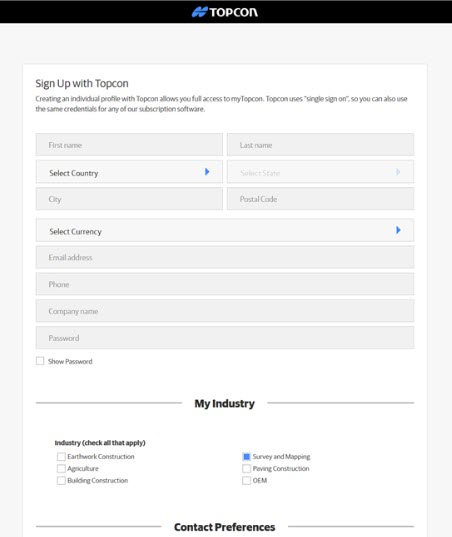
Yes. You need a myTopcon account to download MAGNET Office and to watch Topcon’s activation videos. If you already have one, skip ahead to downloading MAGNET Office.
- Click here to create a myTopcon account.
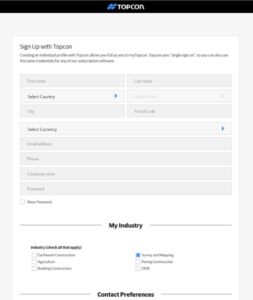
- Check the email address you registered with for a “Thanks For Registering” email from Topcon. Click the link near the bottom of that email to complete your registration.

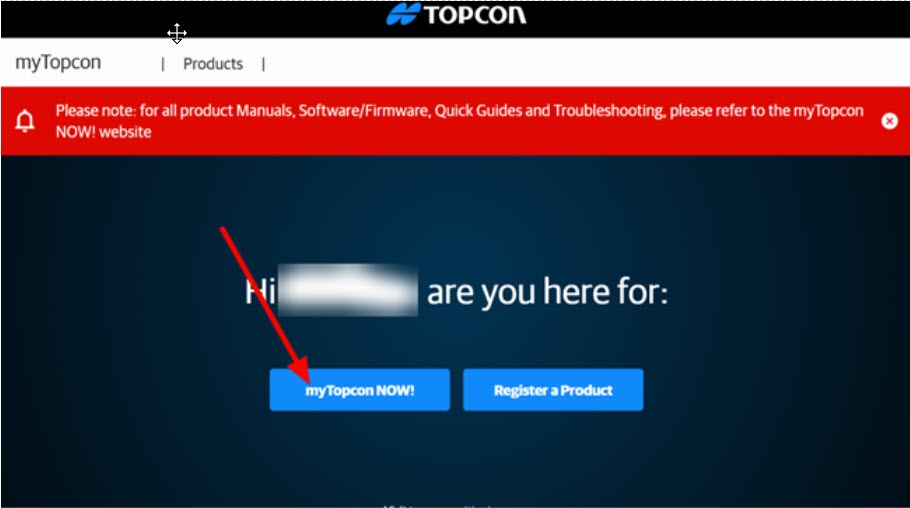
- myTopcon opens in your browser and a video may play over the page. When it’s over, close the video. You’ll see a page with your name on it. Click myTopcon Now!


How do I download MAGNET Office?
- Log in to myTopcon NOW! with your myTopcon username and password.

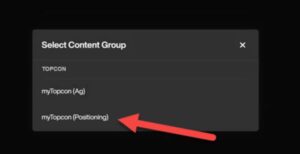
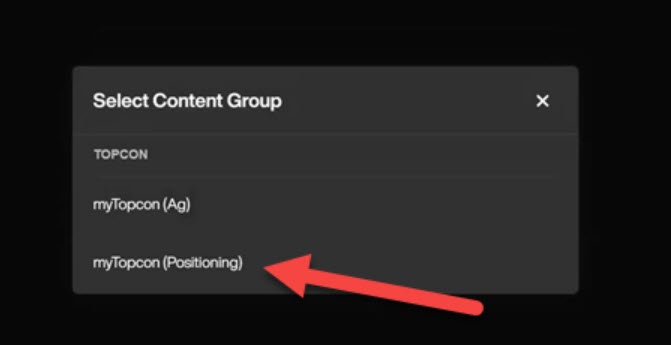
- When asked to select a content group, click myTopcon (Positioning).
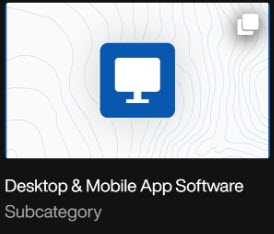
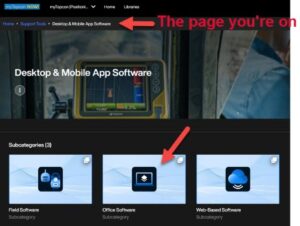
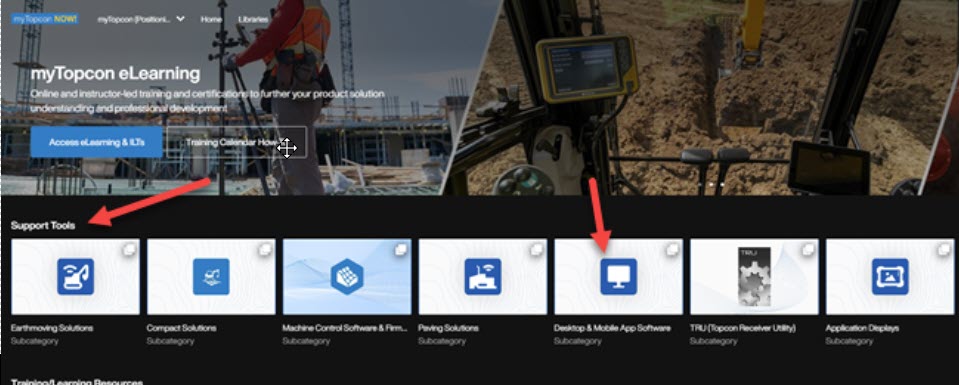
- The first row of options on the myTopcon NOW! home page is Support Tools. On that row, click the square labeled Desktop & Mobile App Software.

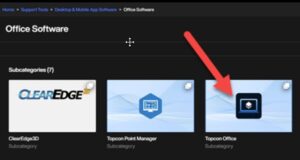
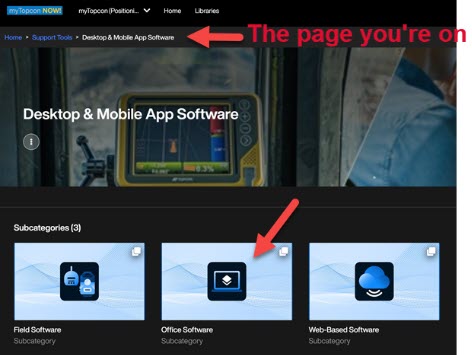
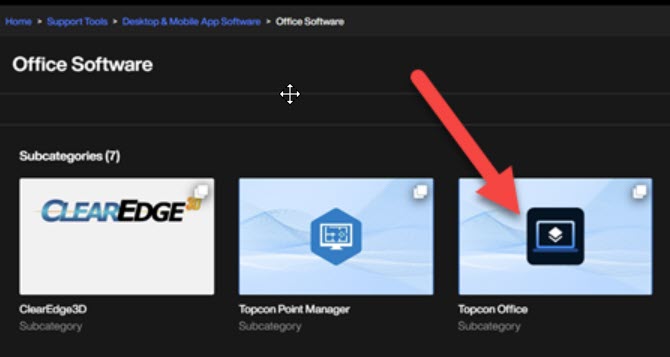
- Under the software subcategories, click Office Software.
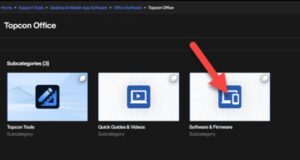
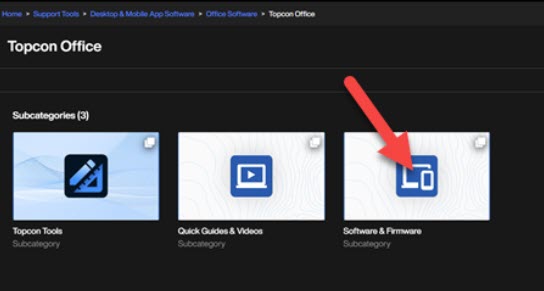
- Click the product you want to download. In our screenshot it’s still listed as Topcon Office.
- Click Software and Firmware.
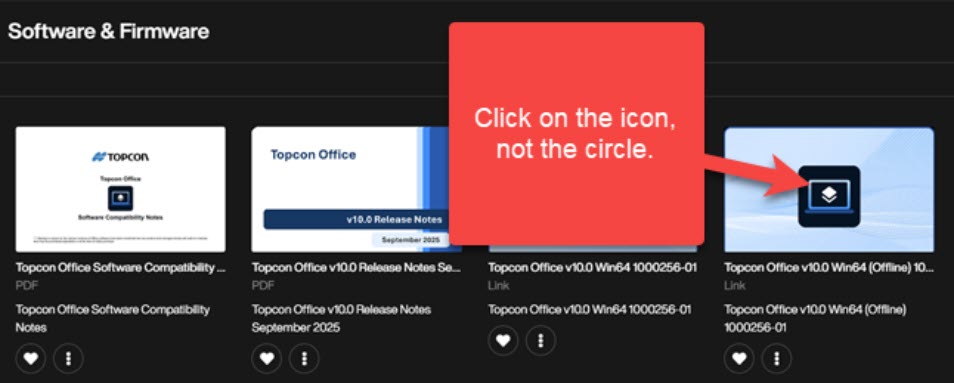
- Click the installer for the latest version. Be sure to click the icon, not the circle in the corner!

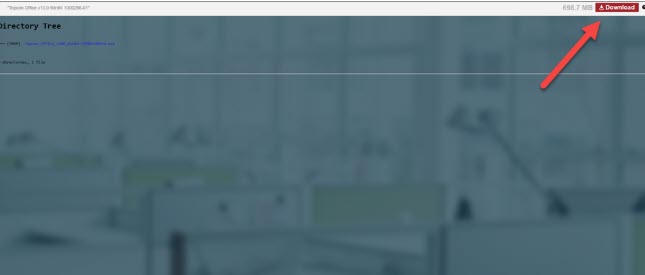
- Click the red Download button in the upper right corner of the screen. The download may take a few minutes depending on your internet connection.



How do I install MAGNET Office?
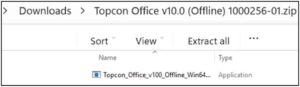
- When the download is finished, find the zip file in your Downloads folder. Right-click it and choose Extract All, then start the installer from the extracted files.
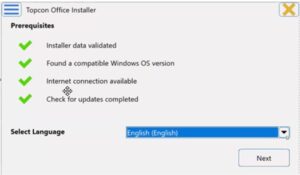
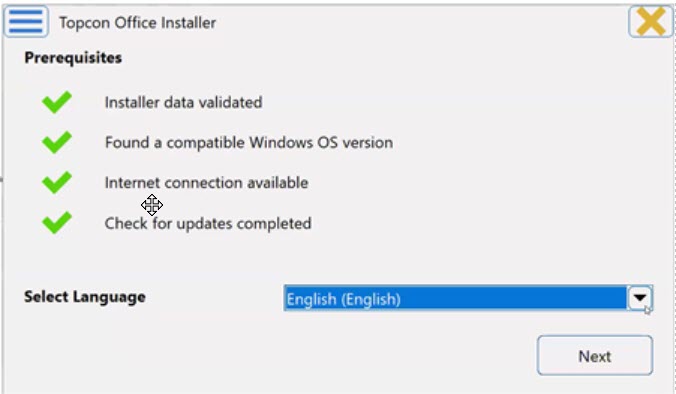
- Select your language and click Next.
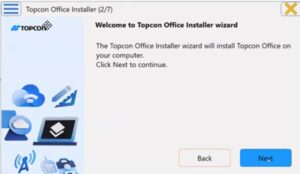
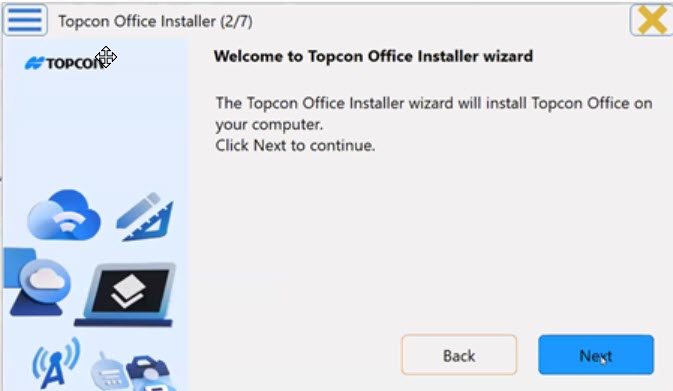
- When the Installer Wizard opens, click Next.
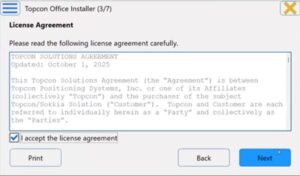
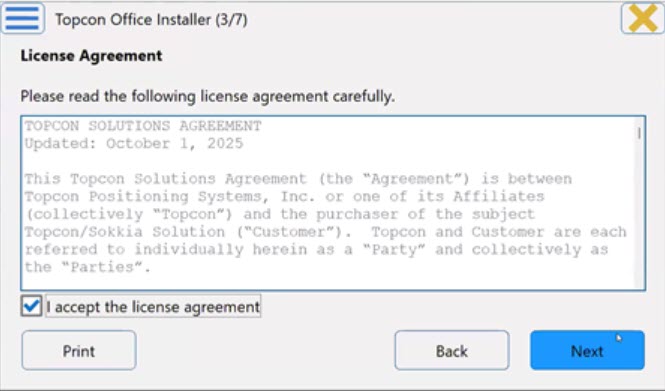
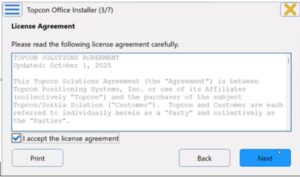
- Read the license agreement, check I accept the license agreement (click Print if you want a copy) and click Next.
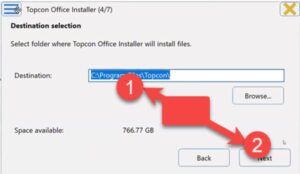
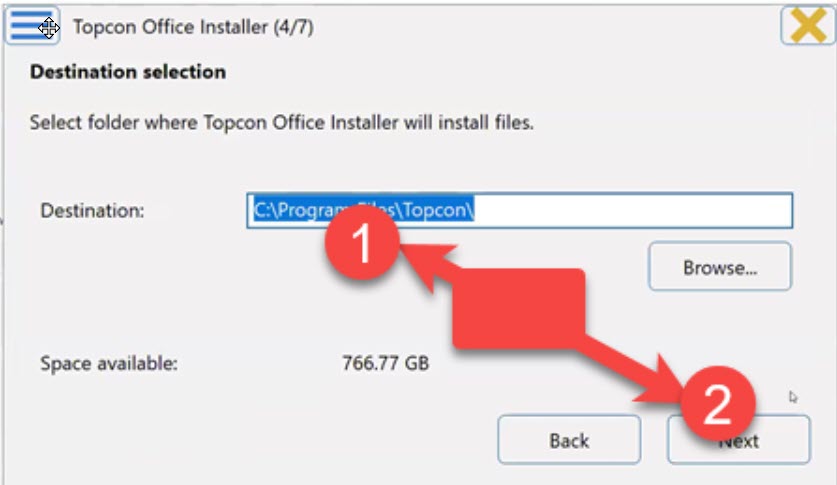
- Choose where you want the software installed and click Next.
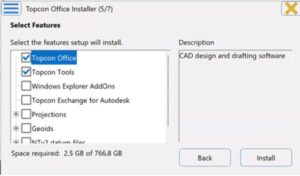
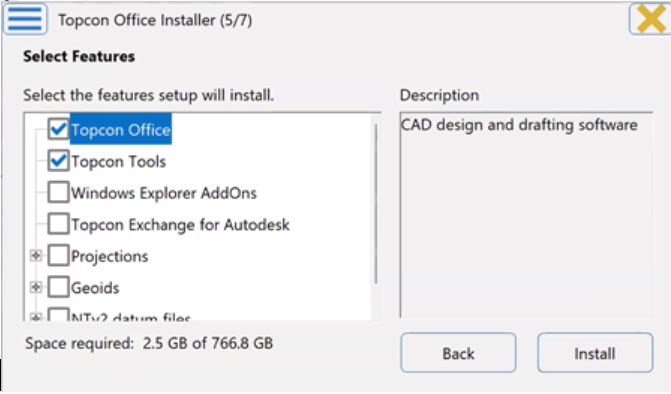
- Select the features you want to install and click Install.
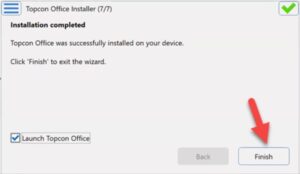
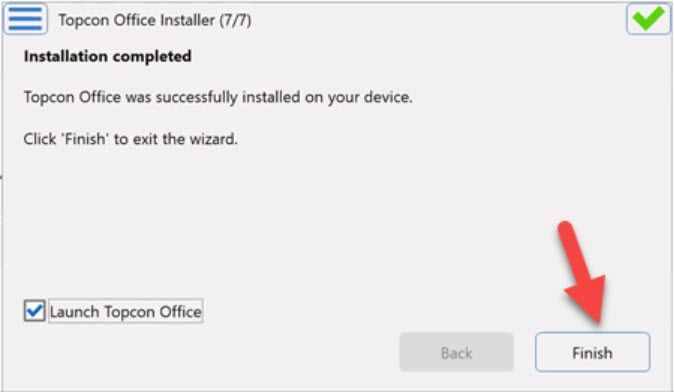
- When the installation is complete, make sure Launch is checked and click Finish.
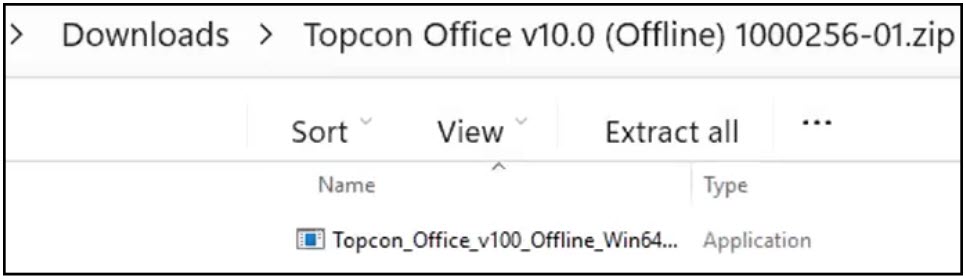
How do I activate MAGNET Office?
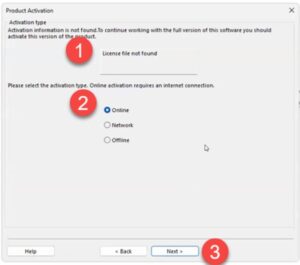
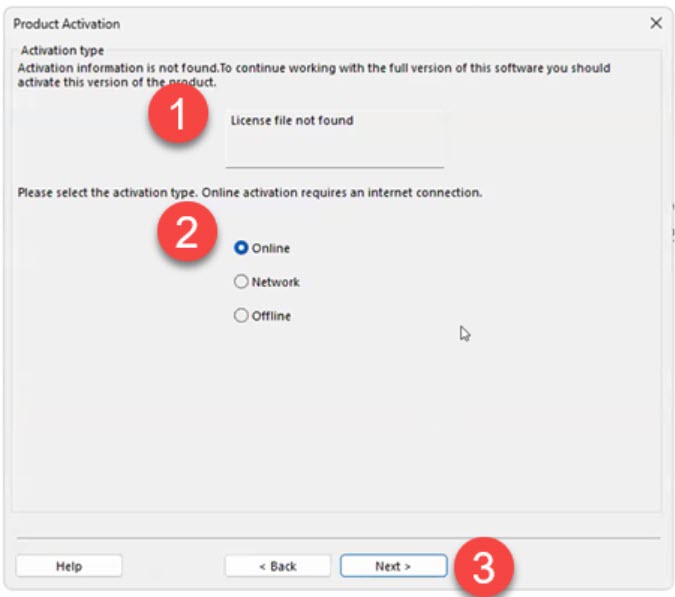
The first time you launch MAGNET Office, you’ll see a License file not found message. Don’t panic! That’s expected because your serial number hasn’t been activated yet.
Have your serial number and your Topcon ID (your myTopcon / MAGNET Enterprise login) handy, then:
- On the Product Activation screen, select Online and click Next.
- Sign in with your Topcon ID.

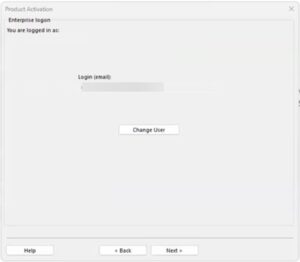
- You’re now logged in to Enterprise (the cloud side of your Topcon account). This step is required to activate your license. Check that your email address is correct in the Login field and click Next.
- Enter your serial number and click Next.
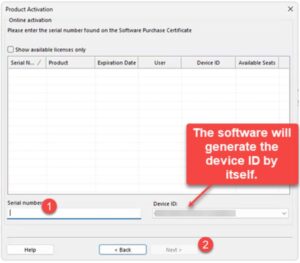
- Check I accept the terms of the license agreement and click Next.
- Review the Activation Result screen and click Finish.
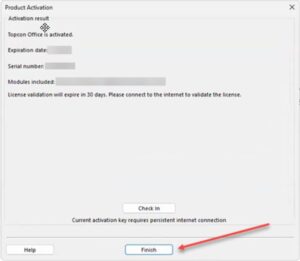
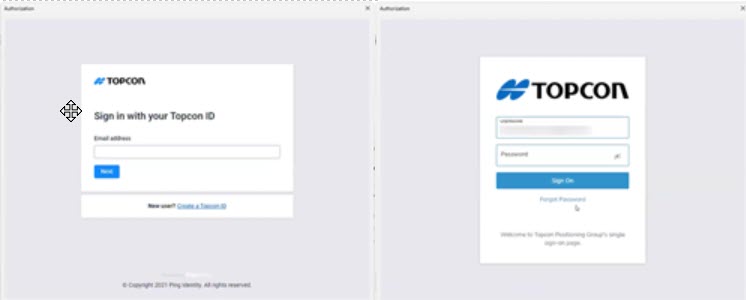
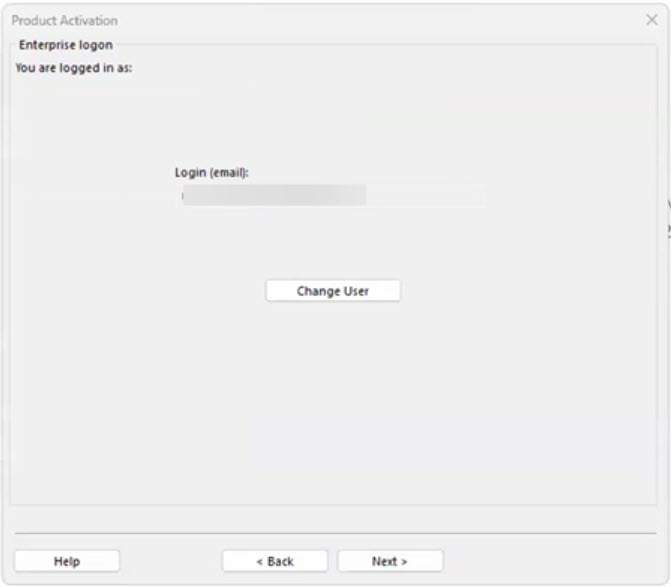
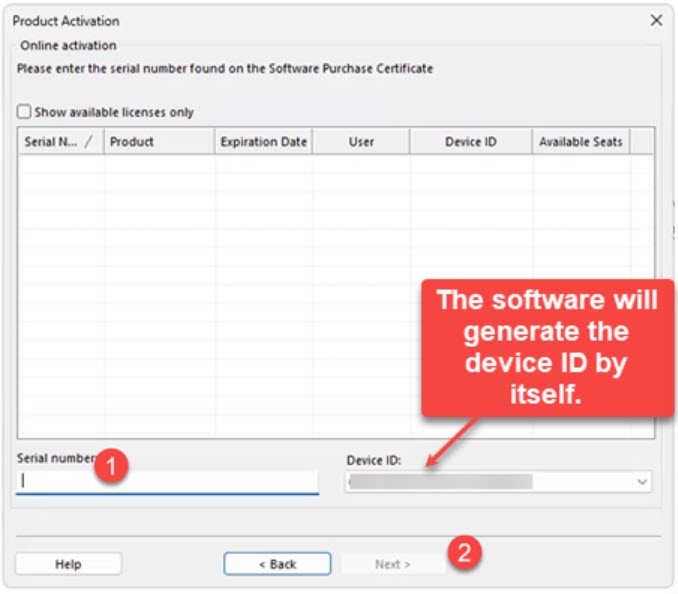
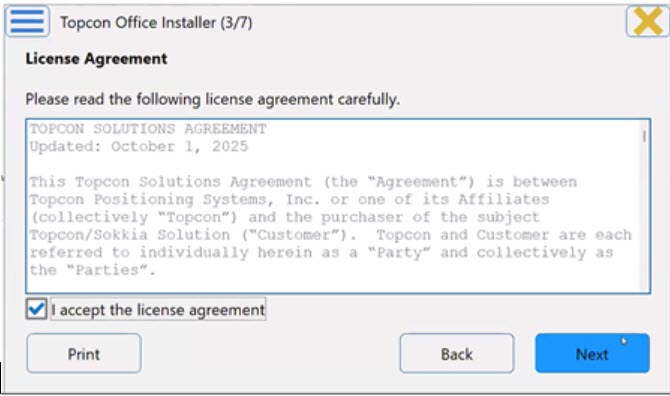
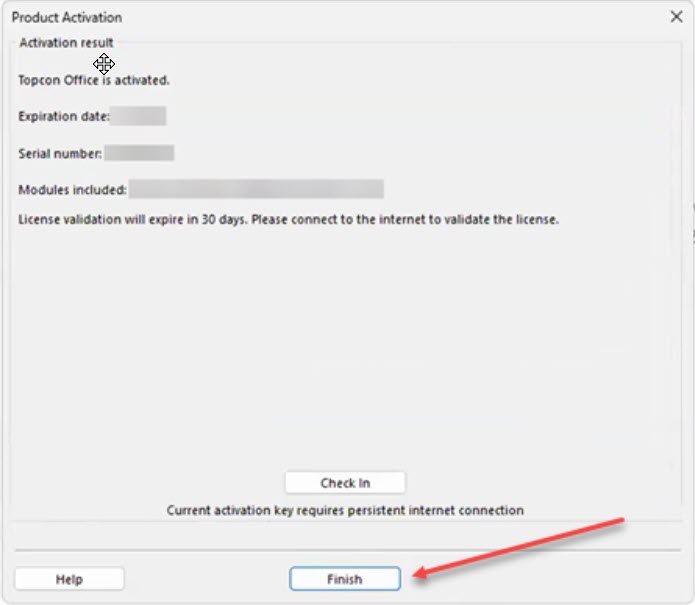
Topcon also has an offline activation method for computers that can’t get online. The catch: a license activated offline can’t use Topcon’s license Check In / Check Out feature, which is how you move a license to another computer. So I always recommend activating online if you can.
What happens the first time I open MAGNET Office?
You can launch MAGNET Office from the Windows Start menu or by typing its name in the Windows Search bar.
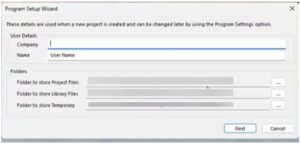
The first time it opens, the Program Setup Wizard walks you through some basic setup:
- Fill in the User Details, review the Folders and click Next.
- Select your settings and click Finish.
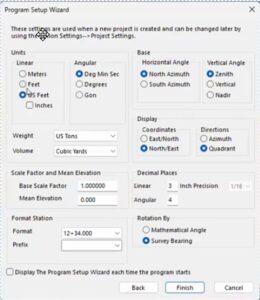
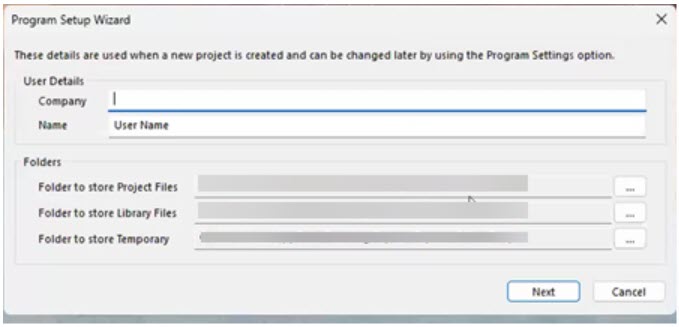
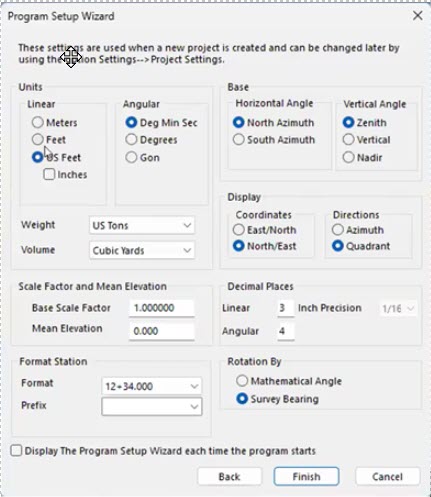
That’s it. MAGNET Office is installed, activated and ready for your configurations and projects!
How do I reinstall MAGNET Office on a new computer?
No problem. Your license is tied to the computer it’s activated on, so the trick is to release it from the old computer before you activate it on the new one. Topcon calls this Check In.
On the old computer (while it still works and is online):
- Open MAGNET Office and go to Help > License.
- Select Check In.
- Enter your Topcon ID (MAGNET Enterprise) credentials and click Next.
- Topcon warns you that the license will be checked in and the program will restart in Demo Mode. Select I understand and wish to continue and click Next.
On the new computer:
- Download and install MAGNET Office the same way you did the first time.
- Activate it online with the same serial number.
A few things to keep in mind:
- Check In only works for licenses that were activated online. If yours was activated offline, contact your dealer or Topcon support before you retire the old computer.
- If the old computer died before you could check the license in, contact your dealer or Topcon support to get the license released.
- MAGNET Office can also open in Demo Mode after you update to a new version or renew your Service Plan or Subscription. When that happens, just reactivate online with your serial number. Topcon’s Reactivating Topcon Office quick guide walks you through it.
Can I install MAGNET Office on more than one computer?
Installing isn’t really the limit. Activation is.
Each MAGNET Office serial number is activated on one computer at a time. Without an active license, MAGNET Office runs in Demo Mode. So if you want to work at the office one week and on your laptop the next, you can check the license in on one computer and activate it on the other, using the steps above.
If you need MAGNET Office running on two computers at the same time, you’ll need a license for each one. Talk to an authorized Topcon dealer about your options. See also What you should know about purchasing Topcon.
Where can I find more help from Topcon?
Topcon has quick guides and short videos for activation, Check In / Check Out and reactivation. The videos require a myTopcon NOW! login.
- Quick Guide PDF: MAGNET Office Online Activation
- Quick Guide PDF: MAGNET Office Offline Activation
- Quick Guide PDF: MAGNET Office License Check In and Check Out
- Quick Guide PDF: Reactivating Topcon Office
- Quick Guide Video: Topcon Office License Activation
- Quick Guide Video: Topcon Office License Check-in
Want to know what’s new in the latest release? See our running thread on recent improvements to MAGNET Office.
Some content on this website was prepared with AI assistance. Please verify important information with the manufacturer or original source before making purchasing or financial decisions.
If you find the material on this website helpful, please consider supporting That CAD Girl by purchasing our products or services.
If you are interested in purchasing products or services we do not offer, we would love to refer you to one of our Trusted Partners. Please click here to send us a message with your request.
What you should know about purchasing Carlson
+
About Carlson Software, the Company
Carlson Software, founded in 1983 and headquartered in Maysville, Kentucky, is a developer of CAD-based software for land surveying, civil engineering, construction and mining. The company provides desktop software, data collection solutions and OEM hardware integration through an extensive global dealer network. Carlson is known for delivering customer-focused software with perpetual licenses, low maintenance fees and long-term product support.
Click here to learn more about Carlson Software, the Company
About the Software
Carlson Software offers modular desktop solutions for land development professionals. Core modules for surveying, civil engineering and construction include Survey, Civil, GIS, Hydrology, Construction, CADnet, Trench and GeoTech.
Carlson works with both IntelliCAD and AutoCAD platforms and maintains full compatibility with DWG file formats. Specialized software is also available for 3D point cloud processing and embedded field data collection using Carlson SurvPC.
Carlson’s website
Operating System Compatibility
- Carlson 2020–2025 with IntelliCAD 9.x–12.x: 64-bit Windows 7, 8, 8.1, 10, 11
- Carlson on AutoCAD 2022 Embedded: Windows 10 and 11 (64-bit only)
- Takeoff R12, R13 / Survey OEM 2022–2025: Windows 10 and 11 (64-bit only)
- Vista and 32-bit versions are not supported
System Requirements
Carlson 2020–2025 with IntelliCAD 9.x–12.x:
- Minimum CPU: Intel Pentium 4 or comparable
- Recommended CPU: Intel i5 or i7 (use cpubenchmark.net for comparisons)
- Minimum RAM: 2 GB (64-bit Windows 7–11); 8+ GB recommended
- Graphics card: Compatible with OpenGL 1.4 or higher
- Recommended GPU: Discrete Nvidia Geforce preferred; ATI/AMD acceptable but less consistent driver support
- Not recommended: Nvidia Quadro and powerful gaming cards
Carlson with AutoCAD 2022 Embedded (including Takeoff R12, R13 / Survey OEM 2022–2025):
- OS: 64-bit Windows 10 or 11
- Processor: Basic 2.5–2.9 GHz; Recommended 3+ GHz
- RAM: 8 GB minimum, 16 GB recommended
- Disk Space: 10 GB free for installation
- Monitor: 1920 x 1080 or higher, up to 3840 x 2160
- Display card: Minimum 1 GB GPU with DirectX 11; Recommended 4 GB GPU with DirectX 12
- Browser: Internet Explorer 11 or later
Click here to learn more about Carlson’s System Requirements
CAD Platform Options
Carlson Software modules provide options for CAD platform:
- “for CAD” programs include a license of IntelliCAD
- Embedded AutoCAD (OEM) programs include a license of AutoCAD OEM
- Modules with IntelliCAD can also be installed on full AutoCAD, AutoCAD Map or Civil 3D
How and Where to Purchase
Carlson Software is available for purchase directly from Carlson or through an authorized dealer network.
Upgrades and Crossgrades
Carlson users can purchase upgrades from older versions at discounted prices. Crossgrades are also available for switching between platforms or changing product bundles.
Maintenance customers receive version upgrades annually (typically each fall). Users without maintenance can upgrade their perpetual license at any time.
License Types and Terms
- Perpetual Standalone: One-time purchase with two activations per seat
- Perpetual Network: Floating license with server-based access and license borrowing
Users may choose software modules individually or as part of bundled suites such as Survey/Civil, Civil Suite or Takeoff Suite.
Software Trials
Free 30-day trials of Carlson desktop software are available.
Support and Training Options
Carlson Software provides technical support by email and phone.
That CAD Girl offers a variety of training options for CAD and Carlson Software including live, custom training, recorded sessions and printed manuals.
Some content on this website was prepared with AI assistance. Please verify important information with the manufacturer or original source before making purchasing or financial decisions.
If you find the material on this website helpful, please consider supporting That CAD Girl by purchasing our products or services.
If you are interested in purchasing products or services we do not offer, we would love to refer you to one of our Trusted Partners. Please click here to send us a message with your request.
What is “The Little CAD Engine That Could” Website?
+Across all software platforms, the nature of bug fixes is that, when you fix one… you might create several more. And the new ones may be absolute show-stoppers that Murphy’s Law guarantees will happen on a weekend when projects need to be completed and no one is on-duty at Carlson to help.
Fear of that happening on a broad-scale is one reason that Carlson only posts a new Build, with updates to both the IntelliCAD and Carlson programs, every few months.
So, as a way to incorporate and test more often, Carlson’s development team has been posting interim TESTING Builds to a separate website – The Little CAD Engine That Could – for many years.
Users who are comfortable working in testing/beta releases of Carlson with IntelliCAD can find additional testing Builds at this website and, if you report a bug to Carlson Support, they may point you here as well.
Two of my favorite things about the posted Builds at The Little CAD Engine That Could are
1) there is a Comment section that allows the developers to describe the bugs that have been fixed in the Build and allows users to provide feedback and comments and
2) in addition to providing links to update to the newer testing Build, they also provide links to revert to previous Builds that may end up being more stable.

FAQ: How do I know if I’m running the latest build of my Carlson Software?
FAQ: How can I find out when new versions or builds of Carlson are released?
FAQ: What is the latest and greatest version/build of my Carlson Software? (a running thread)
FAQ: Where do I find the build date or build number of my Carlson Software?
Some content on this website was prepared with AI assistance. Please verify important information with the manufacturer or original source before making purchasing or financial decisions.
If you find the material on this website helpful, please consider supporting That CAD Girl by purchasing our products or services.
If you are interested in purchasing products or services we do not offer, we would love to refer you to one of our Trusted Partners. Please click here to send us a message with your request.
What you should know about purchasing Topcon
+
- About Topcon Positioning Systems
- About MAGNET Office, MAGNET Field and MAGNET Enterprise
- Operating System
- System Requirements
- CAD Platform
- How and Where to Purchase
- Upgrades to New Versions and Crossgrades to Different License Types or Modules
- License Options
- License Terms
- License Levels (Modules)
- Software Trials
- Support and Training Options
About Topcon Positioning Systems
Topcon Positioning Systems, headquartered in Livermore, California, develops precision positioning technology, software and workflow solutions for the construction, geomatics and agriculture markets. Its European headquarters are in Zoetermeer, Netherlands. Its parent company, Topcon Corporation, was founded in 1932 and is headquartered in Tokyo, Japan.
Click here to learn more about Topcon Positioning Systems
About MAGNET Office, MAGNET Field and MAGNET Enterprise
With the v2026.0 release, Topcon returned its office and field software to the MAGNET name. Topcon Office is now MAGNET Office, Topcon Field is now MAGNET Field and version numbers now follow the year (for example, MAGNET Office 2026.0). The products work together to move survey and construction data between the office, the field and machine control.
MAGNET Office (formerly Topcon Office) is CAD and design software for contractors and surveyors. It combines plans and survey data to build 3D digital terrain models for site survey, layout and machine control. Optional Site Prep and Survey modules add road and site design and finished survey CAD deliverables. Click here to learn more about MAGNET Office
MAGNET Field (formerly Topcon Field) is data collection software that turns a rugged tablet or compatible Android device into a field controller for Topcon GNSS receivers, robotic total stations, scanning robotic total stations and digital levels. It is used for land surveying, stakeout, construction layout, roadwork and utility mapping. Click here to learn more about MAGNET Field
MAGNET Enterprise (also called Topcon Enterprise) is a cloud service for sharing project data between office teams, field crews and machine operators. Files can be shared and converted for use in MAGNET Office, Sitelink3D and Autodesk or Bentley software. Click here for Topcon’s software eBook (PDF), which covers MAGNET Enterprise
Sitelink3D is a web-based service for managing, monitoring and supporting job sites. It syncs design data between the office, machines and field crews and offers remote view and control of connected machines. Click here to learn more about Sitelink3D
Not sure which products you need? See Which Topcon / MAGNET software do I need for the office? and Which Topcon / MAGNET software do I need in the field?
Operating System
As of October 8, 2026, these are the supported operating systems for the current releases:
- MAGNET Office 2026.0: Windows 10 and 11 (64-bit)
- MAGNET Field 2026.0: Windows tablets and compatible Android devices
- MAGNET Enterprise and Sitelink3D: Web-based services used through a web browser
System Requirements
System requirements change with each release. See our Topcon MAGNET Office system requirements FAQ for the current requirements.
CAD Platform
MAGNET Office is a standalone Windows program with its own drafting, design and surface modeling tools. It does not run on top of another CAD program. It imports and exports AutoCAD DWG and DXF files, and MAGNET Office 2026.0 added import of Revit (RVT) models.
If you also work in AutoCAD or Revit, Topcon Exchange for Autodesk adds a ribbon to those programs for creating Topcon machine control and survey files and sending them to the field through MAGNET Enterprise.
How and Where to Purchase
When purchasing Topcon software, you buy through Topcon’s network of authorized dealers and distribution partners. Pricing is subject to change without notice and varies by product, license term and selected modules.
To purchase Topcon software, please contact an authorized Topcon dealer.
Upgrades to New Versions and Crossgrades to Different License Types or Modules
New versions are included while your subscription or your Topcon Software Service Plan is current. Software downloads, activation and support resources are available through your myTopcon account.
Perpetual licenses include the first year of the Service Plan. After that, you renew the Service Plan each year to keep receiving new versions and support.
You can add the Site Prep or Survey module to MAGNET Office as your needs grow. To add modules or move between subscription and perpetual licensing, contact your Topcon dealer about your options.
To see what has changed in recent releases, see What are the recent improvements to Topcon’s MAGNET Field and Office software?
License Options
- Online Activation: MAGNET Office licenses are activated online, so you need an internet connection to activate the software.
- Check In / Check Out: Licenses managed through MAGNET Enterprise can be checked in and checked out so they can be moved between computers and shared across your team. Ask an authorized Topcon dealer how many seats you need and how offline use works for your licenses.
License Terms
- Perpetual License (Permanent License): A one-time purchase that includes the first year of the Topcon Software Service Plan for maintenance, updates and support, plus one year of MAGNET Enterprise. After the first year, the Service Plan is renewed annually for a fee.
- Subscription License: Includes the Service Plan, access to the latest features in each release and MAGNET Enterprise for the length of the subscription. Subscriptions are typically sold in 1- or 3-year terms, so check with an authorized Topcon dealer for current options.
- Sitelink3D (Service Points): Sitelink3D uses Topcon’s Service Point model. You add credit to your myTopcon account and points are used only when the service is in use.
License Levels (Modules)
MAGNET Office is sold as base software with optional modules:
- MAGNET Office: The base software for Sitelink3D and Enterprise connectivity, machine control and layout data prep and building 3D digital terrain models
- Site Prep Module: Adds road, site, corridor and resurfacing design, 2D PDF to 3D job files and takeoff and material quantities
- Survey Module: Adds finished survey CAD deliverables for property plots, subdivisions and land development and includes MAGNET Tools for processing and adjusting total station, GNSS and digital level data
Click here to learn more about MAGNET Office license levels (modules)
For help choosing a combination, see Which Topcon / MAGNET software do I need for the office?
Software Trials
To try the complete MAGNET Office or MAGNET Field software without limitation, Topcon dealers can provide a 30-day trial license.
If you would like help requesting a trial of this software, please contact an authorized Topcon dealer.
Support and Training Options
Topcon provides software downloads, documentation and support resources through myTopcon.
Click here for myTopcon support
MAGNET Office also has built-in help. Click the ? icon at the top right of a dialog or panel for context help, or use the AI chatbot added in MAGNET Office 2026.0 under Help > Chatbot.
For free and paid MAGNET Office training, see What training is available for Topcon / MAGNET Office?
Some content on this website was prepared with AI assistance. Please verify important information with the manufacturer or original source before making purchasing or financial decisions.
If you find the material on this website helpful, please consider supporting That CAD Girl by purchasing our products or services.
If you are interested in purchasing products or services we do not offer, we would love to refer you to one of our Trusted Partners. Please click here to send us a message with your request.
What are the system requirements to run Topcon MAGNET Office?
+
Note: With the v2026.0 release, Topcon returned its office and field software to the MAGNET name. Topcon Office is now MAGNET Office, Topcon Field is now MAGNET Field and version numbers now follow the year (for example, MAGNET Office 2026.0).
This is a running list of the minimum system requirements for the current release of Topcon MAGNET Office. We update it as Topcon releases new versions. Last updated October 2026.
Good news: MAGNET Office runs on modest hardware by today’s standards. The one item to check closely is the processor. Topcon calls for a 64-bit quad-core processor with AVX support. Most recent Intel Core and AMD Ryzen processors support AVX, but some older or budget processors do not.
Per Topcon’s system requirements, MAGNET Office needs an internet connection for online activation and for some features.
As of October 9, 2026, these are the requirements for MAGNET Office 2026.0 (formerly Topcon Office, release notes dated July 2026).
- Windows 11 64-bit or Windows 10 64-bit
- Internet connection for online activation and some features
Minimum hardware:
- 64-bit quad-core processor with AVX support
- 2 GB RAM or more recommended
- 2 GB or more of local hard drive space recommended
- 1280 x 1024 display resolution
Notes: Topcon lists one set of requirements for MAGNET Office, including the Site Prep and Survey modules. Topcon lists 2 GB of RAM, but large surfaces, point clouds and background images will likely run better with more memory.
Topcon resources:
Want to know what’s changed in recent releases? See our running thread on recent improvements to MAGNET Office.
Some content on this website was prepared with AI assistance. Please verify important information with the manufacturer or original source before making purchasing or financial decisions.
If you find the material on this website helpful, please consider supporting That CAD Girl by purchasing our products or services.
If you are interested in purchasing products or services we do not offer, we would love to refer you to one of our Trusted Partners. Please click here to send us a message with your request.
What you should know about purchasing BricsCAD
+
About BricsCAD
BricsCAD is a DWG-compatible CAD platform built for 2D drafting, 3D modeling, mechanical design and building information modeling (BIM). BricsCAD is now part of Octave, the software company spun off from Hexagon.
Click here to learn more about Octave
About BricsCAD-Based Software
BricsCAD supports 2D drafting, 3D modeling, mechanical design and BIM workflows. BricsCAD offers multiple editions built on the same platform:
- BricsCAD Lite – 2D drafting
- BricsCAD Pro – 2D and 3D modeling
- BricsCAD BIM
- BricsCAD Mechanical
- BricsCAD Ultimate – all-in-one suite
The applications offer a familiar AutoCAD-like interface and full compatibility with DWG, DXF, DGN, IFC and point cloud formats. BricsCAD runs on Windows, macOS and Linux and includes smart tools such as Blockify and CopyGuided.
Click here for a BricsCAD vs AutoCAD comparison
System Requirements
System requirements change with each release. See our BricsCAD system requirements FAQ for the current requirements on Windows, macOS and Linux.
CAD Platform
All BricsCAD applications (Lite, Pro, BIM, etc.) are built on the same BricsCAD core platform.
How and Where to Purchase
BricsCAD is available directly from BricsCAD and through authorized BricsCAD dealers. Pricing varies by edition and add-ons.
To purchase BricsCAD, please contact an authorized BricsCAD dealer.
Upgrades and Crossgrades
Perpetual licenses can be kept current with BricsCAD Maintenance, which includes automatic upgrades and support, or by purchasing version upgrades.
Subscription licenses include Priority Support and access to all new versions during the subscription term.
If you want to move between editions (e.g. Lite to Pro or Pro to BIM), contact an authorized BricsCAD dealer about your upgrade options.
License Options (License Modes)
- Academic License: Free 12-month access for students and faculty, renewable annually with valid academic ID
- Single-User License: One computer, one user, one OS
- Network License: Shared access on LAN (Local Area Network); available for perpetual or subscription licenses with 1-year maintenance
- Volume License: One license key used across a defined user base; available for perpetual or subscription licensing and includes a 1-year maintenance contract
Click to learn more about BricsCAD license options (license modes)
License Terms (License Types)
- Perpetual License
- Subscription License
Click to learn more about BricsCAD license terms (license types)
License Levels
- BricsCAD Lite: 2D drafting; no 3D modeling; supports LISP and APIs
- BricsCAD Pro: Adds full 3D modeling, rendering, constraints and 3rd-party application support
- BricsCAD BIM: All Pro features plus streamlined BIM workflow using DWG
- BricsCAD Mechanical: All Pro features plus complete mechanical toolset including sheet metal
- BricsCAD Ultimate: Combines BIM and Mechanical in one platform
Click here to learn more about BricsCAD license levels
Software Trials
You can trial BricsCAD Ultimate for 30 days. All features are enabled during this period. Use the SETLICENSELEVEL command to test other levels. After 30 days, a valid commercial license is required.
Click here to learn more about BricsCAD trial mode
If you would like help requesting a trial of this software, please contact an authorized BricsCAD dealer.
Support and Training Options
BricsCAD provides onboarding and learning resources through the BricsCAD Learning portal.
Technical support is available via the BricsCAD Help Center, including their knowledge base and ticket system.
Some content on this website was prepared with AI assistance. Please verify important information with the manufacturer or original source before making purchasing or financial decisions.
If you find the material on this website helpful, please consider supporting That CAD Girl by purchasing our products or services.
If you are interested in purchasing products or services we do not offer, we would love to refer you to one of our Trusted Partners. Please click here to send us a message with your request.
What you should know about purchasing MicroSurvey
+
About MicroSurvey Software
MicroSurvey Software, based in West Kelowna, British Columbia, has been developing survey and mapping software since 1985. MicroSurvey is part of Hexagon and serves surveyors, public safety and mapping professionals, with customers in over 100 countries. Its software is used for land surveying, mapping, law enforcement, forensics and accident reconstruction.
Click here to learn more about MicroSurvey Software
About the MicroSurvey Line of Products
MicroSurvey develops specialized software for land surveyors, civil engineers and construction professionals. Its products cover the workflow from field data collection through drafting, network adjustments and final deliverables, using industry-standard file formats such as DWG, DXF and LandXML.
MicroSurvey’s survey CAD software provides field to finish drafting, COGO, traverse adjustments, surface modeling, volume calculations and alignment design tools. It runs on your choice of CAD platform:
- MicroSurvey CAD runs standalone on an included IntelliCAD engine. Click here to learn more about MicroSurvey CAD
- MicroSurvey embeddedCAD runs standalone on an included AutoCAD OEM engine from Autodesk. Click here to learn more about MicroSurvey embeddedCAD
- MicroSurvey inCAD is a subscription-based plugin that adds MicroSurvey’s survey tools to your current Autodesk AutoCAD, Civil 3D or Map 3D subscription. Click here to learn more about MicroSurvey inCAD
- SurveyTools for BricsCAD is a subscription-based plugin that installs on top of a separately purchased license of BricsCAD. Click here to learn more about SurveyTools for BricsCAD
STAR*NET is least squares adjustment software that adjusts and analyzes 1D, 2D and 3D survey networks. It combines total station, level, GNSS and gyroscope data and supports GPS vectors, geoid modeling and detailed statistical reporting. Click here to learn more about STAR*NET
FieldGenius is field data collection software for total stations and GNSS receivers, with a map-based view, COGO, staking lists and cutsheet reporting. It runs on Windows and Android. Click here to learn more about FieldGenius
FieldGenius Legacy runs on Windows-based data collectors, tablets and desktop PCs. Click here to learn more about FieldGenius Legacy
Operating System
As of October 8, 2026, these are the supported operating systems for the current releases:
- MicroSurvey CAD 2027: Windows 11 (64-bit)
- MicroSurvey embeddedCAD 2027: Windows 11 (64-bit)
- MicroSurvey inCAD 2027: Windows 11 (64-bit)
- SurveyTools for BricsCAD V26: Windows 11 (64-bit)
- STAR*NET 14: Windows 10 and 11 (64-bit)
- FieldGenius: Windows 10 and 11 or Android
- FieldGenius Legacy: Windows 10, Windows Mobile and Windows CE
System Requirements
System requirements change with each release. See our MicroSurvey system requirements FAQ for the current requirements of each MicroSurvey desktop program.
CAD Platform
- MicroSurvey CAD: Standalone with an included IntelliCAD engine
- MicroSurvey embeddedCAD: Standalone with an included AutoCAD OEM engine
- MicroSurvey inCAD: Add-on for a current Autodesk AutoCAD, Civil 3D or Map 3D
- SurveyTools for BricsCAD: Add-on for BricsCAD (SurveyTools for BricsCAD V26 requires the latest BricsCAD V26)
How and Where to Purchase
When purchasing MicroSurvey software, you can buy directly from MicroSurvey or through its authorized dealer network. Pricing is subject to change without notice and varies by product, edition and license option.
To purchase MicroSurvey software, please contact MicroSurvey or an authorized MicroSurvey dealer.
Upgrades to New Versions and Crossgrades to Different License Types or Editions
New versions are included while your Customer Care Package (CCP) is current. With an active CCP you can update from inside the software by going to Help > Check for Updates. If you let your CCP lapse and renew more than 3 months after it expires, MicroSurvey prices the renewal as an upgrade.
MicroSurvey also offers an upgrade path for switching from USB key or network licenses to a floating license. To move between editions or products, contact MicroSurvey or an authorized MicroSurvey dealer about your options.
Click here to learn more about MicroSurvey maintenance and upgrades
License Options (License Types)
- USB License Key: The license is stored on a USB key plugged into the computer running the software. The key is activated after purchase and updated with MicroSurvey’s USB License Manager when new versions are released.
- Network License: The USB license key plugs into a license server computer on your network that runs MicroSurvey’s Network License Server software.
- Floating License: An internet-activated license that an administrator deploys, monitors and updates from an online MicroSurvey account. A floating license can be checked out for offline use, but nobody else can use that seat until it is checked back in or the checkout period ends.
Click here to learn more about MicroSurvey license options (license types)
License Terms
- Perpetual License: New perpetual licenses include a 12-month Customer Care Package (CCP). If your CCP expires, you can keep running the last version released before your CCP end date, but you lose access to new versions and MicroSurvey technical support until you renew. FieldGenius is available as a perpetual or subscription license.
- Subscription License: MicroSurvey inCAD and SurveyTools for BricsCAD are sold by subscription only and are activated with a License ID and Password. Without a current subscription, you can’t run new versions.
Refer to MicroSurvey’s End-User License Agreement (EULA) for the full license terms.
License Levels
Some MicroSurvey products are offered in more than one edition, each with different functionality. MicroSurvey’s pricing pages currently list:
- MicroSurvey CAD: Standard, Premium and Ultimate. The MicroSurvey CAD 2027 release notes also mention a Studio edition. Click here for the MicroSurvey CAD feature table
- MicroSurvey embeddedCAD: Premium. Click here for the MicroSurvey embeddedCAD feature table
- MicroSurvey inCAD: One level, sold by subscription. Click here for the MicroSurvey inCAD feature table
- SurveyTools for BricsCAD: One level, sold by subscription. Click here for the SurveyTools for BricsCAD feature table
- STAR*NET: Plus, Pro and Ultimate. Click here for the STAR*NET feature table
- FieldGenius: One level, sold as a subscription or perpetual license. Click here for the FieldGenius feature table
- FieldGenius Legacy: Premium. Click here for the FieldGenius Legacy feature table
Software Trials
MicroSurvey offers free 30-day demos of MicroSurvey CAD and FieldGenius. Its demo request page lists every MicroSurvey product. The MicroSurvey CAD demo is a complete, unrestricted version of the software. SurveyTools for BricsCAD also needs BricsCAD V26 installed, which you can try free for 30 days.
Click here to request a MicroSurvey demo
If you would like help requesting a trial of this software, please contact MicroSurvey or an authorized MicroSurvey dealer.
Support and Training Options
New MicroSurvey licenses include a 12-month Customer Care Package (CCP), formerly called the Annual Maintenance Subscription (AMS), which includes:
- Software updates and new versions
- Technical support from MicroSurvey’s experts
- Discounts on MicroSurvey live training and its on-demand online school
- Compatibility updates for the latest operating systems, IntelliCAD and AutoCAD versions
Click here to learn more about MicroSurvey’s Customer Care Package
MicroSurvey also offers self-paced online training courses, some of which are free.
Some content on this website was prepared with AI assistance. Please verify important information with the manufacturer or original source before making purchasing or financial decisions.
If you find the material on this website helpful, please consider supporting That CAD Girl by purchasing our products or services.
If you are interested in purchasing products or services we do not offer, we would love to refer you to one of our Trusted Partners. Please click here to send us a message with your request.
What are the system requirements to run BricsCAD?
+
BricsCAD Lite, Pro, BIM, Mechanical and Ultimate all share the same platform, so the requirements below apply to every edition. Disk space is listed for Ultimate, the largest install.
Jump to:
- BricsCAD on Windows
- BricsCAD on macOS
- BricsCAD on Linux
- BricsCAD hardware (all platforms)
- Communicator for BricsCAD
BricsCAD on Windows
As of October 7, 2026, these are the requirements.
BricsCAD V26 (current release V26.2.08)
- Windows 11 (x86-64)
- Windows 10 (x86-64) is still listed but Microsoft ended Windows 10 support on October 14, 2025
- Built and supported for x86-64 (AMD64) processors only
BricsCAD on macOS
As of October 7, 2026, these are the requirements.
BricsCAD V26
- macOS 12 (Monterey) or higher, including macOS 26 (Tahoe)
- Apple silicon Macs run BricsCAD through Rosetta 2 (a native Apple silicon build is planned)
- Native Apple display hardware is supported; Retina (4K and 5K) displays are recommended
BricsCAD on Linux
As of October 7, 2026, these are the requirements.
BricsCAD V26
- Ubuntu 22.04 LTS or higher versions still supported by Canonical
- openSUSE builds later than April 2022 with glibc 2.35 or higher
- Fedora builds later than April 2022 with glibc 2.35 or higher
- x86-64 (AMD64) processors only
- Most NVIDIA and AMD graphics are supported. 3D hardware acceleration is not supported on Intel graphics or on laptops with dual graphics adapters.
BricsCAD hardware (all platforms)
As of October 7, 2026, these are the requirements.
BricsCAD V26
- Minimum CPU: Intel Core i5 or AMD Ryzen 5
- Recommended CPU: Intel Core Ultra 7 or Ultra 9 or AMD Ryzen 7 or Ryzen 9 (highest single-thread performance matters most)
- Minimum memory: 8 GB
- Recommended memory: 16 GB
- Disk space: 3 GB for BricsCAD Ultimate installed; an SSD is strongly recommended for the system drive
- Minimum display: Full HD (1920 x 1080) True Color with a graphics card with 4 GB VRAM
- Recommended display: multiple UHD (3840 x 2160) or 4K displays with a PCIe graphics card and 8 GB VRAM
Notes: on Windows most NVIDIA, AMD and Intel graphics are supported and mid-range gaming cards are recommended. Install the latest graphics drivers. For point clouds and large models, set BricsCAD to High Performance in Windows Graphics settings.
BricsCAD help center:
Communicator for BricsCAD
As of October 7, 2026, these are the requirements.
Communicator for BricsCAD V26
- Requires BricsCAD Pro or higher
- Starting with V26 the minor version must match your BricsCAD version (for example Communicator V26.2.x with BricsCAD V26.2.x)
- Hardware: follow the BricsCAD V26 requirements above (no separate official hardware specs are published)
BricsCAD help center:
Need help with an older version? Visit the BricsCAD Help Center.
Some content on this website was prepared with AI assistance. Please verify important information with the manufacturer or original source before making purchasing or financial decisions.
If you find the material on this website helpful, please consider supporting That CAD Girl by purchasing our products or services.
If you are interested in purchasing products or services we do not offer, we would love to refer you to one of our Trusted Partners. Please click here to send us a message with your request.
What are the system requirements to run MicroSurvey software?
+
Good news: MicroSurvey CAD runs on fairly light-duty machines. If you’re running inCAD on top of AutoCAD or Civil 3D, or using embeddedCAD (which runs on an embedded AutoCAD engine), plan your computer around Autodesk (AutoCAD 2027 specifications). If you’re running SurveyTools on top of BricsCAD, check the requirements for your BricsCAD version.
All MicroSurvey desktop programs need full administrator rights to install and must be run once with “Run as administrator.” After that, limited user accounts can run them. Programs licensed with a USB License Key need a free USB port on the workstation or on the network license server.
Jump to:
- MicroSurvey CAD
- MicroSurvey embeddedCAD
- MicroSurvey inCAD
- SurveyTools for BricsCAD
- MicroSurvey STAR*NET
MicroSurvey CAD
As of October 7, 2026, these are the requirements.
MicroSurvey CAD 2027 (version 27.0.3.9964, released July 29, 2026)
- Windows 11 64-bit
- A free USB port for the USB License Key
- The Ultimate and Studio editions need Leica Cyclone Viewer (free download from Leica) at a minimum to work with point clouds
- Built on the IntelliCAD 14.1 engine
Minimum hardware:
- Intel Pentium 4 or comparable x64 processor
- 4 GB RAM
- 10 GB of free disk space
- 1024 x 768 or higher resolution
- Graphics card compatible with OpenGL 1.4 or higher
Recommended (and the minimum MicroSurvey suggests for surface, animation and point cloud work):
- Intel Core i5-8500 3.00 GHz or newer
- 8 to 16 GB RAM
- 10 GB of free disk space
- 1024 x 768 or higher resolution with a graphics driver that supports OpenGL ES
- NVIDIA GeForce GTX 1050 or newer, with dedicated graphics memory
Notes: the processor must be x64. ARM processors (such as some Snapdragon chips) are not supported. If you use NVIDIA custom profiles, see MicroSurvey’s article on restoring the defaults.
MicroSurvey help desk:
MicroSurvey embeddedCAD
As of October 7, 2026, these are the requirements.
embeddedCAD 2027 (version 27.0.2.9991, released July 28, 2026)
- Windows 11 64-bit
- A free USB port for the USB License Key
- Runs on the embedded AutoCAD OEM 2027 engine, so plan hardware around AutoCAD 2027’s requirements
MicroSurvey help desk:
MicroSurvey inCAD
As of October 7, 2026, these are the requirements.
inCAD 2027 (version 27.0.2.10036, released July 28, 2026, subscription only)
- Windows 11 64-bit
- Requires a separately licensed copy of AutoCAD 2027, Civil 3D 2027 or Map 3D 2027 (not AutoCAD LT)
- Hardware: follow Autodesk’s requirements for your AutoCAD product
MicroSurvey help desk:
SurveyTools for BricsCAD
As of October 7, 2026, these are the requirements.
SurveyTools for BricsCAD V26 (version 26.0.2.9121, released February 17, 2026)
- Windows 11 64-bit
- Requires the latest version of BricsCAD V26 to be installed first
- Hardware: follow the BricsCAD V26 requirements
MicroSurvey help desk:
MicroSurvey STAR*NET
As of October 7, 2026, these are the requirements.
STAR*NET 14 (released February 19, 2026)
- Windows 10 or Windows 11 64-bit
- A free USB port for the USB License Key
- New “No Graphics” mode lets STAR*NET run on virtual machines or servers without a dedicated graphics card
MicroSurvey help desk:
Need an older version? See MicroSurvey’s Release History and Download Links.
Some content on this website was prepared with AI assistance. Please verify important information with the manufacturer or original source before making purchasing or financial decisions.
If you find the material on this website helpful, please consider supporting That CAD Girl by purchasing our products or services.
If you are interested in purchasing products or services we do not offer, we would love to refer you to one of our Trusted Partners. Please click here to send us a message with your request.
How do I know if I’m running the latest build of my Carlson Software?
+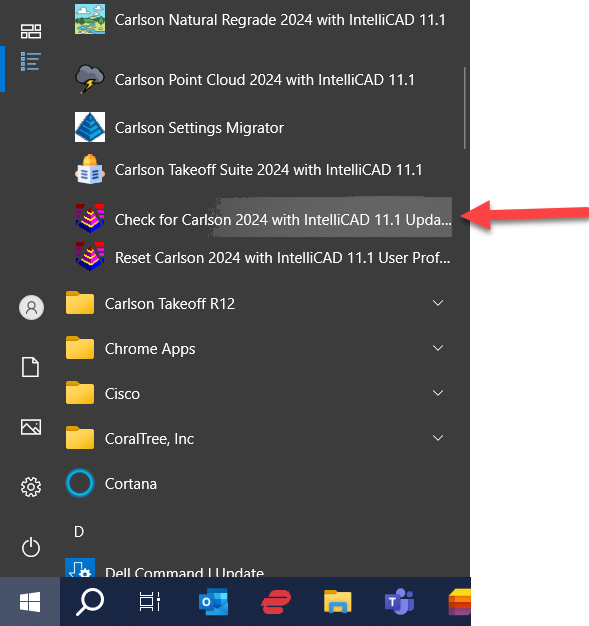
FAQ: Where do I find the build date or build number of my Carlson Software?
FAQ: What is the latest and greatest version/build of my Carlson Software? (a running thread)
FAQ: How can I find out when new versions or builds of Carlson are released?
Some content on this website was prepared with AI assistance. Please verify important information with the manufacturer or original source before making purchasing or financial decisions.
If you find the material on this website helpful, please consider supporting That CAD Girl by purchasing our products or services.
If you are interested in purchasing products or services we do not offer, we would love to refer you to one of our Trusted Partners. Please click here to send us a message with your request.
Does Carlson run on a Mac?
+
Some content on this website was prepared with AI assistance. Please verify important information with the manufacturer or original source before making purchasing or financial decisions.
If you find the material on this website helpful, please consider supporting That CAD Girl by purchasing our products or services.
If you are interested in purchasing products or services we do not offer, we would love to refer you to one of our Trusted Partners. Please click here to send us a message with your request.
How do I register my Carlson Software? And what are change keys?
+Pro-Tip! The Serial Number screen on your That CAD Girl Customer Portal has a “Customer Notes” section – that’s a great place to save your Change Key and other important information about each license!
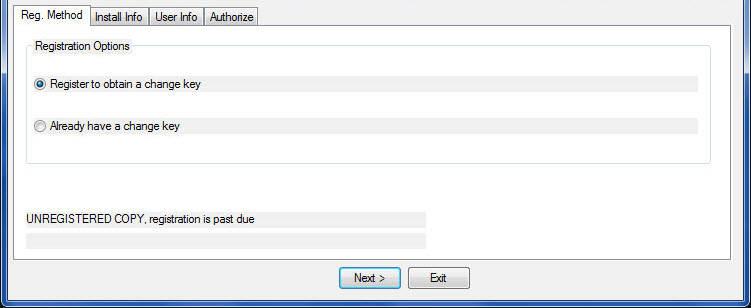
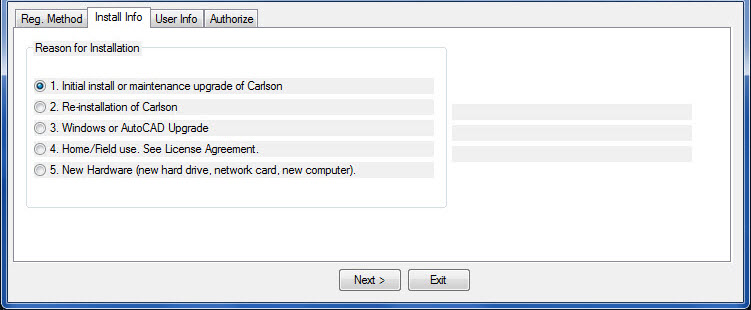
- Initial install or maintenance upgrade of Carlson
- Re-installation of Carlson
- Windows or AutoCAD Upgrade
- Home/Field use. See License Agreement.
- New Hardware (new hard drive, network card, new computer)
Some content on this website was prepared with AI assistance. Please verify important information with the manufacturer or original source before making purchasing or financial decisions.
If you find the material on this website helpful, please consider supporting That CAD Girl by purchasing our products or services.
If you are interested in purchasing products or services we do not offer, we would love to refer you to one of our Trusted Partners. Please click here to send us a message with your request.
Download & install your license of Carlson Takeoff with embedded AutoCAD (OEM)
+- Follow this link: http://www.carlsonsw.com/support/software-downloads/?ss_email=&product=TakeOff
- Next to, “Takeoff”, pick “Show Files”.
- From the drop-down list, select the correct “Product Version”
- Download #1 or #2 will be the full, complete, up-to-date version of the software. Select “Download”.
- During installation, enter your serial number when prompted: XXXXX-XXXXX-XXXXX-XXXXX-XXXXX.
- Start Carlson Software
- Go to Help > About Carlson
- Pick the “Change Registration” button
- Once the “Add/Remove Serial Number” dialog box is open, pick the “Add” button
- Complete the Registration Information with your new serial number: XXXXX-XXXXX-XXXXX-XXXXX.
Instructions for installing the network license manager can be found here: http://www.carlsonsw.com/support/knowledge-base/?action=display_topic&topic_id=55.
You can also refer to this FAQ: Download and Install the Carlson Network License Manager
If you need a new (or updated) network license file, please contact Brian Hammer in Carlson’s Boston office. His email is [email protected] and the phone number is 606-564-5028.
Some content on this website was prepared with AI assistance. Please verify important information with the manufacturer or original source before making purchasing or financial decisions.
If you find the material on this website helpful, please consider supporting That CAD Girl by purchasing our products or services.
If you are interested in purchasing products or services we do not offer, we would love to refer you to one of our Trusted Partners. Please click here to send us a message with your request.
Download & install your license of Carlson Survey with embedded AutoCAD (OEM)
+- Follow this link: http://www.carlsonsw.com/support/software-downloads/?product=CarlsonSurveyEmbedded
- Next to, “Carlson Survey Embedded”, pick “Show Files”.
- From the drop-down list, select the correct “Product Version”
- Download #1 or #2 will be the full, complete, up-to-date version of the software. Select “Download”.
- During installation, enter your serial number when prompted: XXXXX-XXXXX-XXXXX-XXXXX-XXXXX.
- Start Carlson Software
- Go to Help > About Carlson
- Pick the “Change Registration” button
- Once the “Add/Remove Serial Number” dialog box is open, pick the “Add” button
- Complete the Registration Information with your new serial number: XXXXX-XXXXX-XXXXX-XXXXX.
Instructions for installing the network license manager can be found here: http://www.carlsonsw.com/support/knowledge-base/?action=display_topic&topic_id=55.
You can also refer to this FAQ: Download and Install the Carlson Network License Manager
If you need a new (or updated) network license file, please contact Brian Hammer in Carlson’s Boston office. His email is [email protected] and the phone number is 606-564-5028.
Some content on this website was prepared with AI assistance. Please verify important information with the manufacturer or original source before making purchasing or financial decisions.
If you find the material on this website helpful, please consider supporting That CAD Girl by purchasing our products or services.
If you are interested in purchasing products or services we do not offer, we would love to refer you to one of our Trusted Partners. Please click here to send us a message with your request.
Working with Carlson’s network license manager
+See also:
Carlson KB 59: What does Network License Manager do?
Carlson KB 211: Troubleshooting the Network License Manager
Carlson KB 612: Carlson Software’s Network License Manager – An Overview
Carlson KB 903: License Manager System Requirements
Carlson KB 218: Sending a Network License To A Remote User (Off-Site) – ADVANCED METHOD
Carlson KB 999: How Carlson Software’s End-User License Agreement Applies to Networked Software
Some content on this website was prepared with AI assistance. Please verify important information with the manufacturer or original source before making purchasing or financial decisions.
If you find the material on this website helpful, please consider supporting That CAD Girl by purchasing our products or services.
If you are interested in purchasing products or services we do not offer, we would love to refer you to one of our Trusted Partners. Please click here to send us a message with your request.
What versions of AutoCAD & IntelliCAD & Windows does Carlson run on top of? Does it run on AutoCAD LT? (a running thread)
+
Carlson Desktop Software with IntelliCAD or for Your AutoCAD
Carlson can be installed on top of any full-AutoCAD-based program such as AutoCAD, AutoCAD Map, Land Desktop or Civil 3d.
Carlson cannot be installed on top of any version AutoCAD LT.
| Carlson Version | AutoCAD & IntelliCAD Platforms | Windows Platforms |
|---|---|---|
| 2024 | AutoCAD 2018-2024, IntelliCAD 10.1a and 11.1 | 64 bit Windows |
| 2023 | AutoCAD 2018-2023, IntelliCAD 10.1a and 11.0 | 64 bit Windows |
| 2022 | AutoCAD 2017-2022, IntelliCAD 10.0a and 10.1a | 64 bit Windows 10 |
| 2021 | AutoCAD 2017-2021, Intellicad 10.0a | 64 bit Windows 10 |
| 2020 | AutoCAD 2015-2020, IntelliCAD 9.2 | 64 bit Windows 10 |
| 2019 | AutoCAD 2010-2019, IntelliCAD 9 | 32 or 64 bit Windows Vista, 7, 8, 8.1, and 10 |
| 2018 | AutoCAD 2010-2018, IntelliCAD 8.2 | 32 or 64 bit Windows Vista, 7, 8, 8.1, and 10 |
| 2017 | AutoCAD 2010-2017, IntelliCAD 8.2 | 32 or 64 bit Windows Vista, 7, 8, 8.1, and 10 |
| 2016 | AutoCAD 2007-2016, IntelliCAD 8.1 | 32 or 64 bit Windows Vista, 7, 8, 8.1, and 10 |
| 2015 | AutoCAD 2007-2015, IntelliCAD 8.0 | XP, 32 or 64 bit Windows Vista, 7, 8 and 8.1 |
| 2014 | AutoCAD 2004-2014, IntelliCAD 7.2 | XP, 32 or 64 bit Windows Vista, 7, 8 and 8.1 |
Carlson Desktop Software with Embedded AutoCAD (OEM)
| Carlson Version | Embedded AutoCAD Engine | Windows Platforms |
|---|---|---|
| Survey 2024 | 20222 | 64 bit Windows |
| Survey 2023 | 2022 | 64 bit Windows |
| Survey 2022/Takeoff R12 | 2022 | 64 bit Windows |
| Survey 2021 | 2018 | 64 bit Windows |
| Survey 2020 | 2018 | 64 bit Windows |
| Survey 2019/Takeoff R11 | 2018 | 64 bit Windows |
| Survey 2018/Takeoff R10 | 2018 | Windows 7, 8, 8.1, and 10 |
| Survey 2017/Takeoff R9 | 2013 | Windows XP, 7, 8, 8.1, and 10 |
| Survey 2016 | 2013 | Windows XP, 7, 8, 8.1, and 10 |
| Survey 2015/Takeoff R8 | 2013 | Windows XP, 7, 8, 8.1, and 10 |
| Survey 2014/Takeoff R7 | 2013 | Windows XP, 7, 8, 8.1, and 10 |
Some content on this website was prepared with AI assistance. Please verify important information with the manufacturer or original source before making purchasing or financial decisions.
If you find the material on this website helpful, please consider supporting That CAD Girl by purchasing our products or services.
If you are interested in purchasing products or services we do not offer, we would love to refer you to one of our Trusted Partners. Please click here to send us a message with your request.
[FAQ027] Are there any problems running Carlson on Windows 10?
+
Carlson Software running on Windows 10 seems to present just a couple of issues: registration and graphics card/performance. If you encounter any issues you may also want to check in here to see if you can narrow down the problem: KB 1078: Troubleshooting Guide.
Registration:
When Windows 10 originally came out, Carlson 2015 and earlier versions would not install and Carlson had to change the program to make it work, so Carlson 2016 was the first one supported on Windows 10. Microsoft may have changed Windows 10 since then and it’s possible that these versions will install today.
If you ARE able to install these versions, Carlson will able to help with the registration; however, every time Windows 10 has major update, Carlson products prior to the 2017 release will likely lose their registration and will have to be re-registered because Windows changes the signature that was used for the initial registration. Carlson has re-worked this mechanism to avoid the problem in later releases.
Graphics Cards and Performance Issues:
Carlson KB1108: Slow entities creation and modification on Windows 10
Carlson KB1123: Changing graphics card settings to use your dedicated GPU on a Windows computer
Carlson KB1131: NVidia video card: visual artifacts, pixelized lines, wrong text display
Only one that seems to show up every once in awhile… But it’s Microsoft’s fault!!
Windows 10 does updates – automatic updates – a lot. And, sometimes these updates can mess with your Carlson license registration. Carlson has free technical support so you can always call 606.564.5028 or email them at [email protected] during regular business hours but, if this happens on a weekend, their support staff is probably out enjoying Kentucky bourbon. Or something.
So, when Murphy’s Law strikes, you can refer to this Knowledge Base article on Carlson’s website: Carlson KB 995: Windows 10 effect on previously registered software.
Some content on this website was prepared with AI assistance. Please verify important information with the manufacturer or original source before making purchasing or financial decisions.
If you find the material on this website helpful, please consider supporting That CAD Girl by purchasing our products or services.
If you are interested in purchasing products or services we do not offer, we would love to refer you to one of our Trusted Partners. Please click here to send us a message with your request.
Where can I download my Carlson Software?
+If you are doing this manually, you will first have to select the correct program and version for downloading. You can choose your Carlson program and version from a drop-down list or, if you’re not sure of one or both, you can also enter your serial number to find the right download.
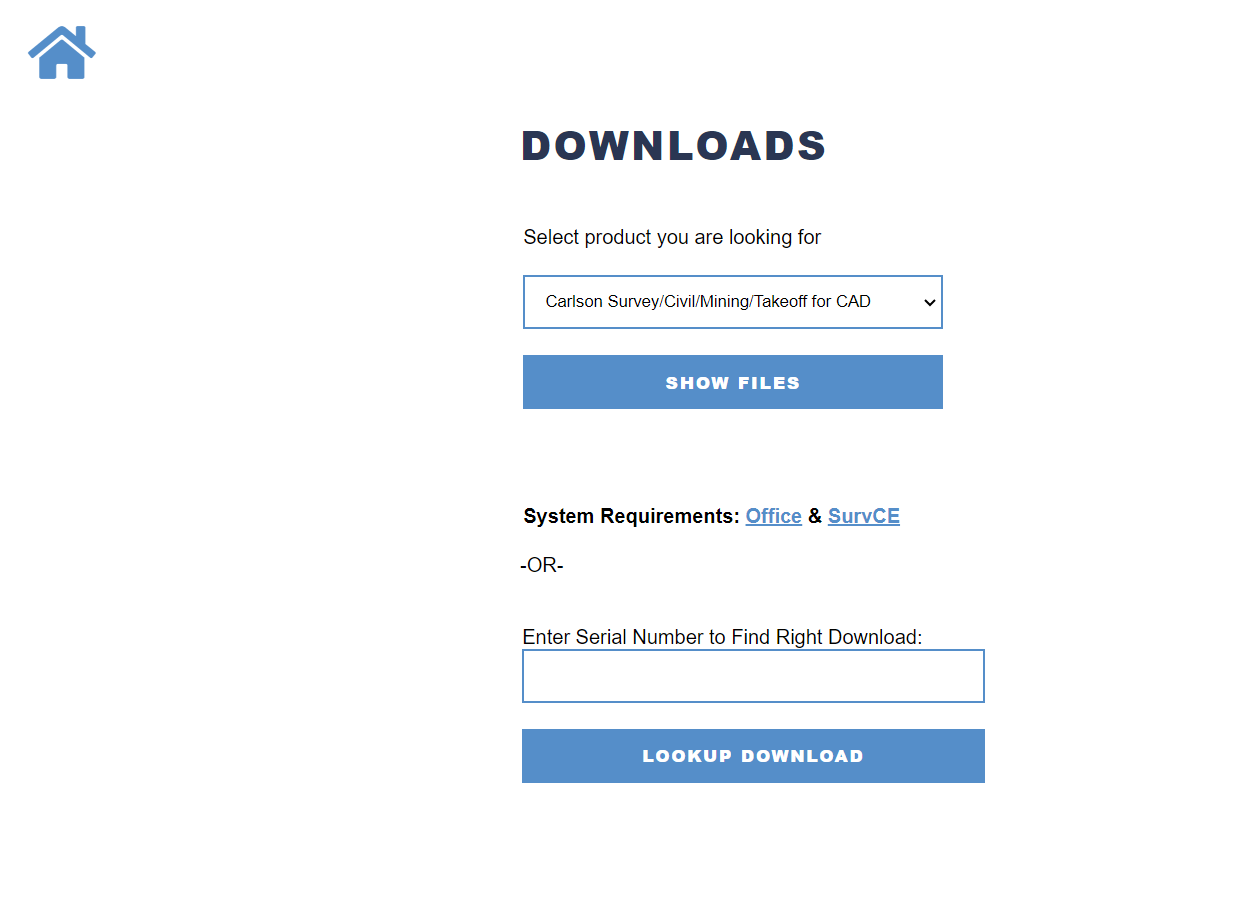
- For any of the Carlson Software desktop products that run on top of AutoCAD or come with IntelliCAD, select the default product Carlson Survey/Civil/Mining/Takeoff for CAD
- For Survey with embedded AutoCAD (OEM) select Carlson Survey Embedded
- For Takeoff with embedded AutoCAD (OEM) select Takeoff
FAQ: How do I know if I’m running the latest build of my Carlson Software?
FAQ: What is the latest and greatest version/build of my Carlson Software? (a running thread)
Some content on this website was prepared with AI assistance. Please verify important information with the manufacturer or original source before making purchasing or financial decisions.
If you find the material on this website helpful, please consider supporting That CAD Girl by purchasing our products or services.
If you are interested in purchasing products or services we do not offer, we would love to refer you to one of our Trusted Partners. Please click here to send us a message with your request.
How can I install Land Desktop on a Windows 7 computer?
+
I had actually forgotten about this but recently had to re-install Land Desktop myself and I figured it was worth sharing. This method is not guaranteed but it just might work.
Instead of trying to install Land Desktop from the original DVD, try copying the contents of the DVD to a new folder on the hard drive of the Windows 7 machine. Then, run the installation from there by clicking on the Setup.exe file.
I haven’t tried this with anything newer than Windows 7 but it worked flawlessly on my Windows 7 64 bit computer.
Some content on this website was prepared with AI assistance. Please verify important information with the manufacturer or original source before making purchasing or financial decisions.
If you find the material on this website helpful, please consider supporting That CAD Girl by purchasing our products or services.
If you are interested in purchasing products or services we do not offer, we would love to refer you to one of our Trusted Partners. Please click here to send us a message with your request.
I think I found a bug in my Carlson Software – how can I get it resolved?
+If you encounter a bug in the program, you’ll first want to check for updates to see if you’re running the latest build of your program. If not, the latest build might resolve the issue.
There is a link to Check for Updates in your Windows Carlson Software program folder as shown below:
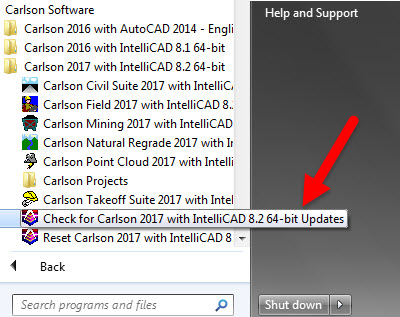
Rather than use the Check for Updates link, you can follow these FAQs to see if the build you currently have installed is the same as the one posted on Carlson’s Software Downloads page.
Once you’ve confirmed you’re running the latest build, you have several ways to submit a request for tech support.
After they have verified it’s a repeatable error/bug, Carlson may handle it a couple of ways. If it’s a stop-work situation for you in the latest version, Carlson will work to correct it and send you updated program files with instruction on how and where to copy them. Anyone else who stumbles upon the same issue will get the same files sent to them.
Your bug fix will be incorporated into the next build of the program when it’s posted to Carlson’s website.
Some content on this website was prepared with AI assistance. Please verify important information with the manufacturer or original source before making purchasing or financial decisions.
If you find the material on this website helpful, please consider supporting That CAD Girl by purchasing our products or services.
If you are interested in purchasing products or services we do not offer, we would love to refer you to one of our Trusted Partners. Please click here to send us a message with your request.
Download & install your Carlson SurvCE
+
NOTE: You must have your SurvCE serial number in order to download the installation file.
- Follow this link: http://www.carlsonsw.com/support/software-downloads/?product=SurvCE
- Select your “Product Version”
- Enter your serial number to get access to the download files: XXXXX-XXXXX-XXXXX-XXXXX.
Some content on this website was prepared with AI assistance. Please verify important information with the manufacturer or original source before making purchasing or financial decisions.
If you find the material on this website helpful, please consider supporting That CAD Girl by purchasing our products or services.
If you are interested in purchasing products or services we do not offer, we would love to refer you to one of our Trusted Partners. Please click here to send us a message with your request.
What happens if I get a new computer and need to reinstall Carlson?
+
- Initial install or maintenance upgrade of Carlson
- Re-installation of Carlson
- Windows or AutoCAD Upgrade
- Home/Field use. See License Agreement.
- New Hardware (new hard drive, network card, new computer)
Some content on this website was prepared with AI assistance. Please verify important information with the manufacturer or original source before making purchasing or financial decisions.
If you find the material on this website helpful, please consider supporting That CAD Girl by purchasing our products or services.
If you are interested in purchasing products or services we do not offer, we would love to refer you to one of our Trusted Partners. Please click here to send us a message with your request.
Where can I get a 30 day trial of Carlson?
+Then click on Request a 30 day Trial Serial Number
Some content on this website was prepared with AI assistance. Please verify important information with the manufacturer or original source before making purchasing or financial decisions.
If you find the material on this website helpful, please consider supporting That CAD Girl by purchasing our products or services.
If you are interested in purchasing products or services we do not offer, we would love to refer you to one of our Trusted Partners. Please click here to send us a message with your request.
Can I install my Carlson desktop software on two computers?
+For your 2nd installation, follow the same steps to download and, during the installation process, use your same serial number. The key to NOT getting in trouble is how you register it the first time it launches on the 2nd computer. The image below shows the Install Info tab of the registration dialog box.
You must specify the Reason for Installation from one of these 5 options:
- Initial install or maintenance update of Carlson
- Re-installation of Carlson
- Windows or AutoCAD Upgrade
- Home/Field use. See License Agreement.
- New Hardware (new hard drive, network card, new computer)
For your 2nd installation, you’d choose option #4. It’s a little dated but you can refer to this Knowledge Base article from Carlson’s website explaining these options: Carlson KB 893: Desktop Software Reasons for Registration. This FAQ explains where to find your Carlson Software License Agreement (EULA).
Some content on this website was prepared with AI assistance. Please verify important information with the manufacturer or original source before making purchasing or financial decisions.
If you find the material on this website helpful, please consider supporting That CAD Girl by purchasing our products or services.
If you are interested in purchasing products or services we do not offer, we would love to refer you to one of our Trusted Partners. Please click here to send us a message with your request.
Is it better to network Carlson than use standalone licenses?
+The only time I’d recommend networking individual licenses such as Survey, Survey OEM, Civil, etc. is if you have 2 or more people who can literally share a license. For instance, if you have a technician who works in one office or on one computer from 8-12 and another who works in a different office or computer from 1-5 then, yes, network away!
Using this example, only one license will ever be in use at any one time so you would only need to buy one networked license that can be shared on multiple computers.
Networking one or more licenses of individual seats can also be beneficial if you have several people using the software part-time. Maybe you buy 3 licenses for 4 to share because only 3 people will ever be using it at the same time.
All that being said, networking one of Carlson’s Suites (Civil or Takeoff) can potentially save a lot of money. Civil Suite includes 4 programs: Survey, Civil, Hydrology and GIS. Takeoff Suite includes 4 as well: Construction, CADNet, GeoTech and Trench. If you network either of the Suites, each of those programs acts like an individual license. Sweet Suite!
So, if you buy one standalone license of Civil Suite, that license is registered to one user who can access any of the 4 programs at will. But, if you network that Civil Suite, you can have one person working in Survey at the same time someone else is working in Civil, while a 3rd person is working in Hydrology and a 4th is in GIS.
Even though this sounds like a great way to save money, you should also be aware that sharing licenses can also become a headache to your staff and lead to some loss in productivity. It’s like anything else, networking the Suites has its pros and cons.
You may also want to refer to this updated FAQ: Working with Carlson’s network license manager for more information.
Some content on this website was prepared with AI assistance. Please verify important information with the manufacturer or original source before making purchasing or financial decisions.
If you find the material on this website helpful, please consider supporting That CAD Girl by purchasing our products or services.
If you are interested in purchasing products or services we do not offer, we would love to refer you to one of our Trusted Partners. Please click here to send us a message with your request.
What data collectors, GPS and total stations can I run with my Carlson SurvCE or SurvPC?
+
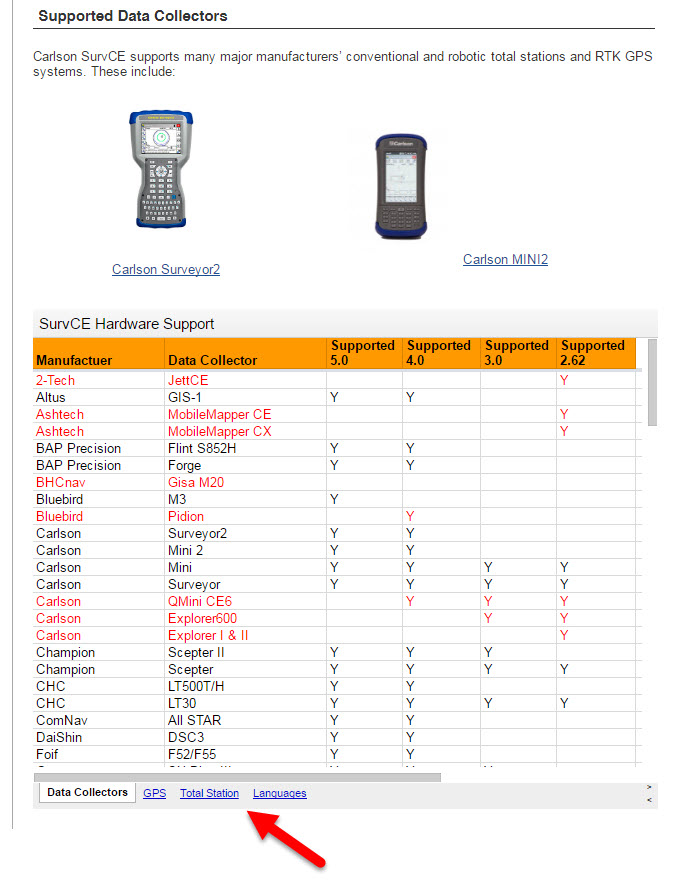
Some content on this website was prepared with AI assistance. Please verify important information with the manufacturer or original source before making purchasing or financial decisions.
If you find the material on this website helpful, please consider supporting That CAD Girl by purchasing our products or services.
If you are interested in purchasing products or services we do not offer, we would love to refer you to one of our Trusted Partners. Please click here to send us a message with your request.
What are the system requirements to run Carlson Software in the office? Do I need a monster computer?
+
But, Carlson’s core product and IntelliCAD can run on pretty light-duty machines.
The minimum system requirements for running Carlson with embedded AutoCAD (OEM), on top of AutoCAD and with IntelliCAD are posted here.
Updated for 2020: Carlson 2020 software will no longer run on 32 bit machines.
Note: If you are using an Nvidia video card, you will want to make sure you get the driver and updates directly from Nvidia.com and not just let Windows search for updates.
See also: Carlson KB1123: Changing graphics card settings to use your dedicated GPU on a Windows computer
See also: Carlson KB1131: NVidia video card: visual artifacts, pixelized lines, wrong text display
Some content on this website was prepared with AI assistance. Please verify important information with the manufacturer or original source before making purchasing or financial decisions.
If you find the material on this website helpful, please consider supporting That CAD Girl by purchasing our products or services.
If you are interested in purchasing products or services we do not offer, we would love to refer you to one of our Trusted Partners. Please click here to send us a message with your request.
Download & install your license of Carlson Software (with your AutoCAD or IntelliCAD)
+These instructions are applicable to perpetual licenses, 90-day licenses and 30-day trials for the following modules: Survey, Civil, Hydrology, GIS, Geology, Underground Mining, Surface Mining, Natural Regrade, Field, CADnet, GeoTech, Trench, Construction and Point Clouds.
- Follow this link: http://www.carlsonsw.com/support/software-downloads/
- Next to, “Carlson Survey/Civil/Mining/Takeoff for CAD”, pick “Show Files”
- From the drop-down list, select the correct “Product Version”
- Download #1 or #2 will be the full, complete, up-to-date version of the software. Select “Download”.
- During installation, enter your serial number when prompted: XXXXX-XXXXX-XXXXX-XXXXX-XXXXX
- When prompted for the platform, select IntelliCAD or your current version of AutoCAD.
If you have previously downloaded and installed this same version of Carlson and have been running it under a trial serial number or you’ve purchased additional modules, you do not need to re-download and re-install.
You can follow the instructions below to update your registration with your new purchased serial number:
- Start Carlson Software
- Go to Help > About Carlson
- Pick the “Change Registration” button
- Once the “Add/Remove Serial Number” dialog box is open, pick the “Add” button
- Complete the Registration Information with your new serial number: XXXXX-XXXXX-XXXXX-XXXXX.
Instructions for installing the network license manager can be found here: http://www.carlsonsw.com/support/knowledge-base/?action=display_topic&topic_id=55.
You can also refer to this FAQ: Download and Install the Carlson Network License Manager
If you need a new (or updated) network license file, please contact Brian Hammer in Carlson’s Boston office. His email is [email protected] and the phone number is 606-564-5028.
Some content on this website was prepared with AI assistance. Please verify important information with the manufacturer or original source before making purchasing or financial decisions.
If you find the material on this website helpful, please consider supporting That CAD Girl by purchasing our products or services.
If you are interested in purchasing products or services we do not offer, we would love to refer you to one of our Trusted Partners. Please click here to send us a message with your request.
What are the system requirements to run Carlson SurvPC?
+
Click here to review the minimum system requirements for SurvPC.
Some content on this website was prepared with AI assistance. Please verify important information with the manufacturer or original source before making purchasing or financial decisions.
If you find the material on this website helpful, please consider supporting That CAD Girl by purchasing our products or services.
If you are interested in purchasing products or services we do not offer, we would love to refer you to one of our Trusted Partners. Please click here to send us a message with your request.
I’ve Installed My Carlson Software – Now What Do I Do?
+
Installing and Registering
FAQ: How do I register my Carlson Software? And what are change keys?
FAQ: Can I install my Carlson desktop software on two computers?
FAQ: What happens if I get a new computer and need to reinstall Carlson?
FAQ: What happens if I get a new computer and need to reinstall Carlson?
Tracking my Licenses and Keeping Up to Date
FAQ: That CAD Girl Customer Portal
FAQ: My Maintenance is Current… Where’s My Upgrade?
FAQ: When I upgrade, do I immediately lose access to the older version of my software?
FAQ: I can’t seem to keep up with my Carlson maintenance – Can you help?
FAQ: Do I qualify for an automatic upgrade to the new version of Carlson?
Technical Support
FAQ: Where do I get support for Carlson Software and how much will it cost me?
FAQ: How can I be sure I’m running the latest build of my Carlson Software?
FAQ: How can I find out when new versions or builds of Carlson are released?
FAQ: Where do I find the build date or build number of my Carlson Software?
FAQ: I think I found a bug in my Carlson Software – how can I get it resolved?
FAQ: What is the latest and greatest version/build of my Carlson Software? (a running thread)
FAQ: What is “The Little CAD Engine That Could” Website?
Training
FAQ: What options do I have for training on CAD or Carlson Software?
FAQ: Am I eligible to attend your Carlson Software webinars for free?
FAQ: Before I buy, can I attend a webinar for free?
FAQ: Does That CAD Girl training qualify for PDH/CEU/continuing education credit?
Some content on this website was prepared with AI assistance. Please verify important information with the manufacturer or original source before making purchasing or financial decisions.
If you find the material on this website helpful, please consider supporting That CAD Girl by purchasing our products or services.
If you are interested in purchasing products or services we do not offer, we would love to refer you to one of our Trusted Partners. Please click here to send us a message with your request.
Find Answers on your new That CAD Girl Portal
+Find Answers on your new That CAD Girl Portal
If you (or your company) have ever requested a proposal or invoice from That CAD Girl – Congrats! You have a portal!
Every portal is specific for the email address we have on file for you, so – Click here to access That CAD Girl’s Customer Portal then enter your email address.
The availability of tabs on your portal will depend on whether you have been granted Full Access by the primary contact in your company or if you have Restricted Access. Everyone will have Home, Free Webinars and My Training tabs while those with Full Access will have access to Recent Transactions, Serial Numbers and Maintenance Reports.
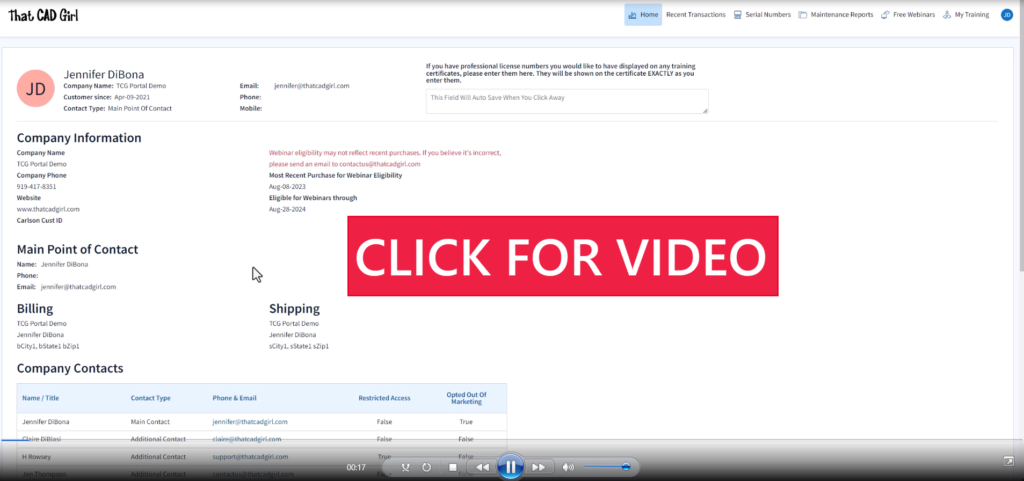
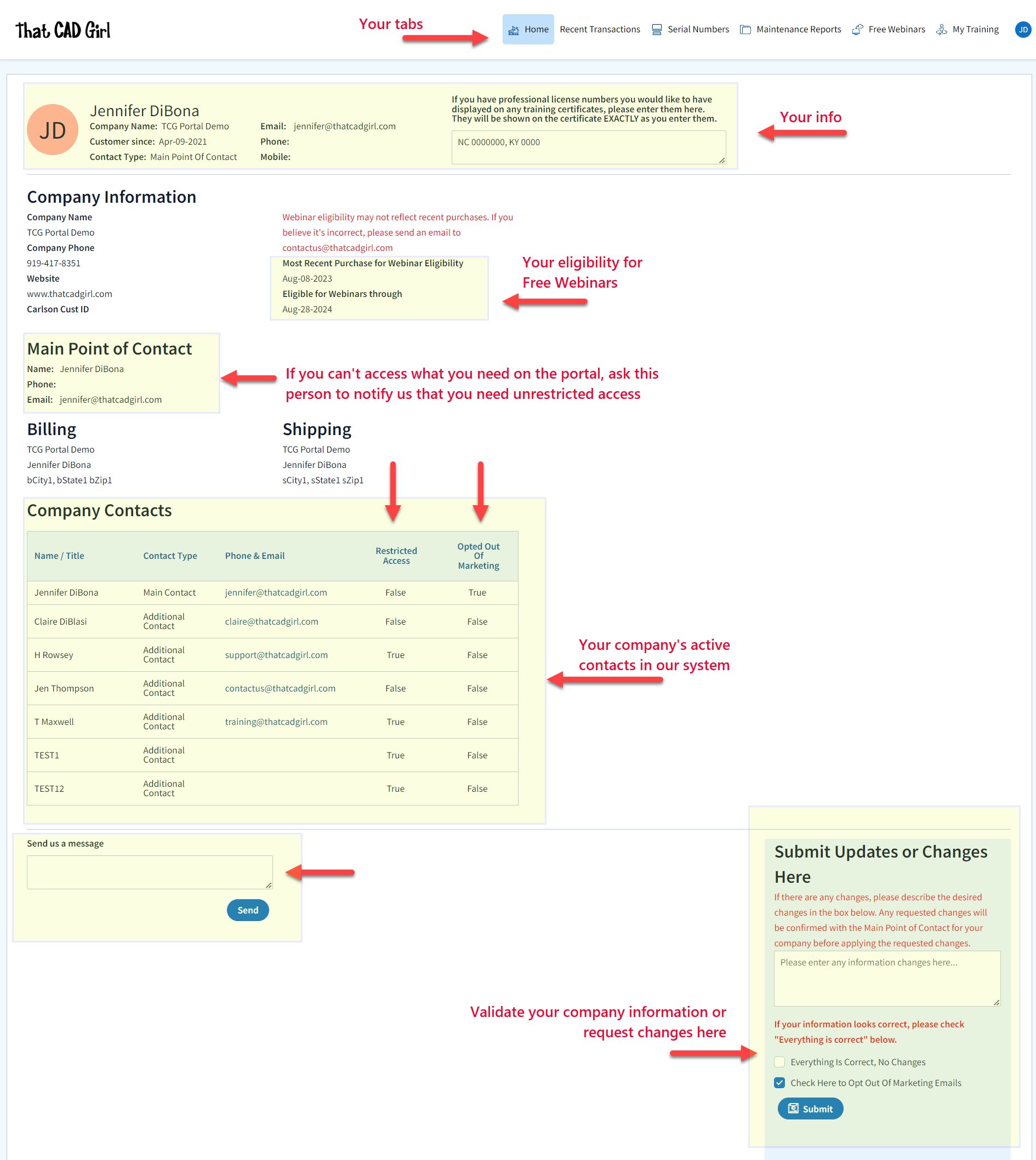
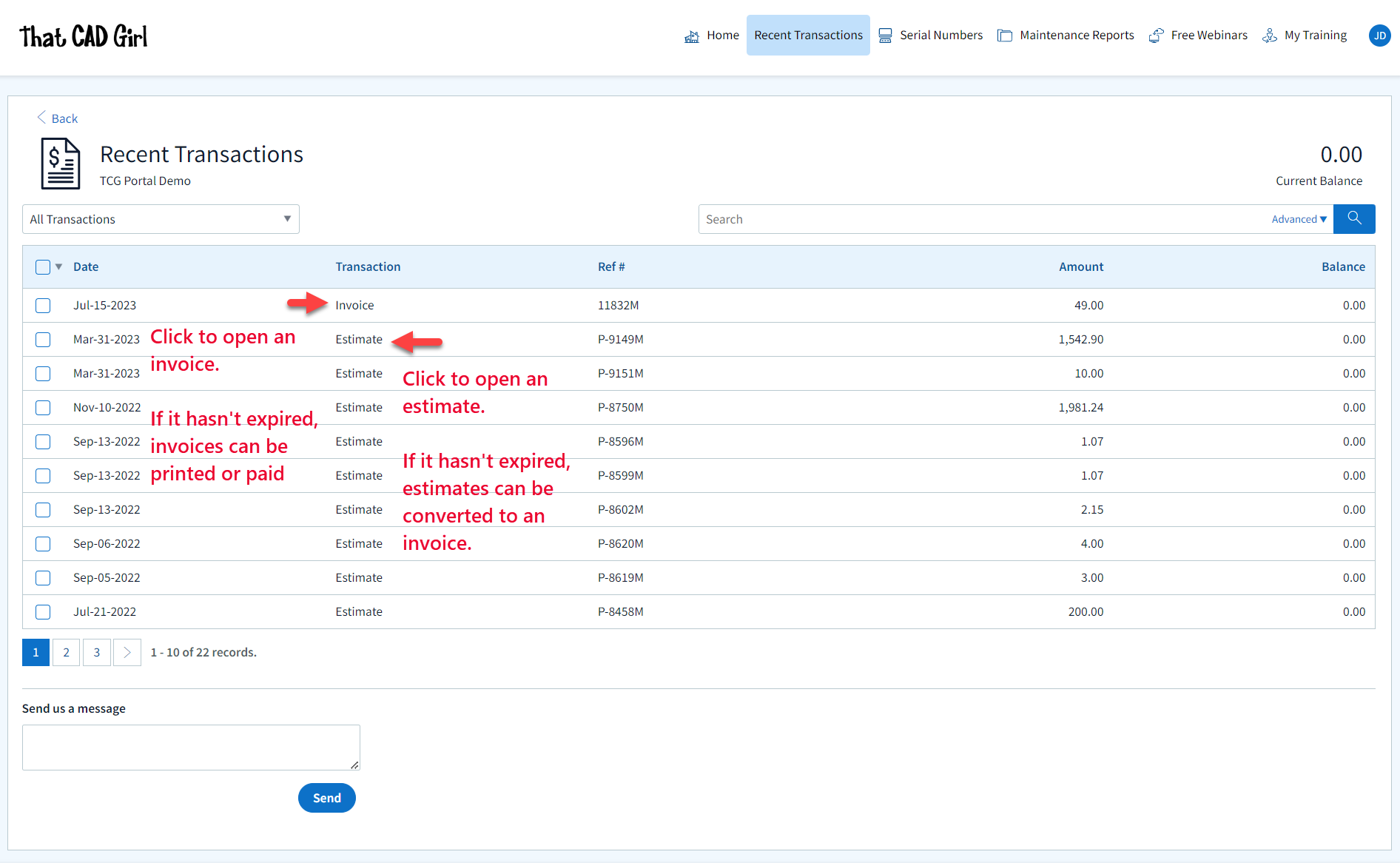
Clicking on an Estimate – When viewing an Estimate (Proposal) in Recent Transactions, you have different options depending on whether the Estimate has been previously converted to an invoice, is active (unexpired) or is past due (expired).
For active (unexpired) and unconverted Estimates, you can click “Accept & Pay” to convert the Estimate to an Invoice and proceed directly to our payments screen or click “Create Invoice” to convert the Estimate to an invoice and proceed to the Invoice screen.
For past due (expired) or previously converted Estimates, you only have the “Print” button that allows you to export to a PDF.
NOTE: Once an Estimate has been converted to an Invoice using either option, you must return to the Recent Transactions table and open the Invoice to pay.
Clicking on an Invoice – When viewing an Invoice in Recent Transactions, you have different options depending on whether the Invoice is active or past due.
For active (unexpired) Invoices, you can click “Pay Now” to proceed to our payment screen.
For past due (expired) Invoices, you only have the “Print” button that allows you to export to a PDF.
DISCLAIMER: That CAD Girl has made every attempt to ensure the accuracy and reliability of the information about your Carlson Software licensing that is provided on this website. Nevertheless, inadvertent errors may occur so all information shall be confirmed and validated directly by Carlson Software prior to use.
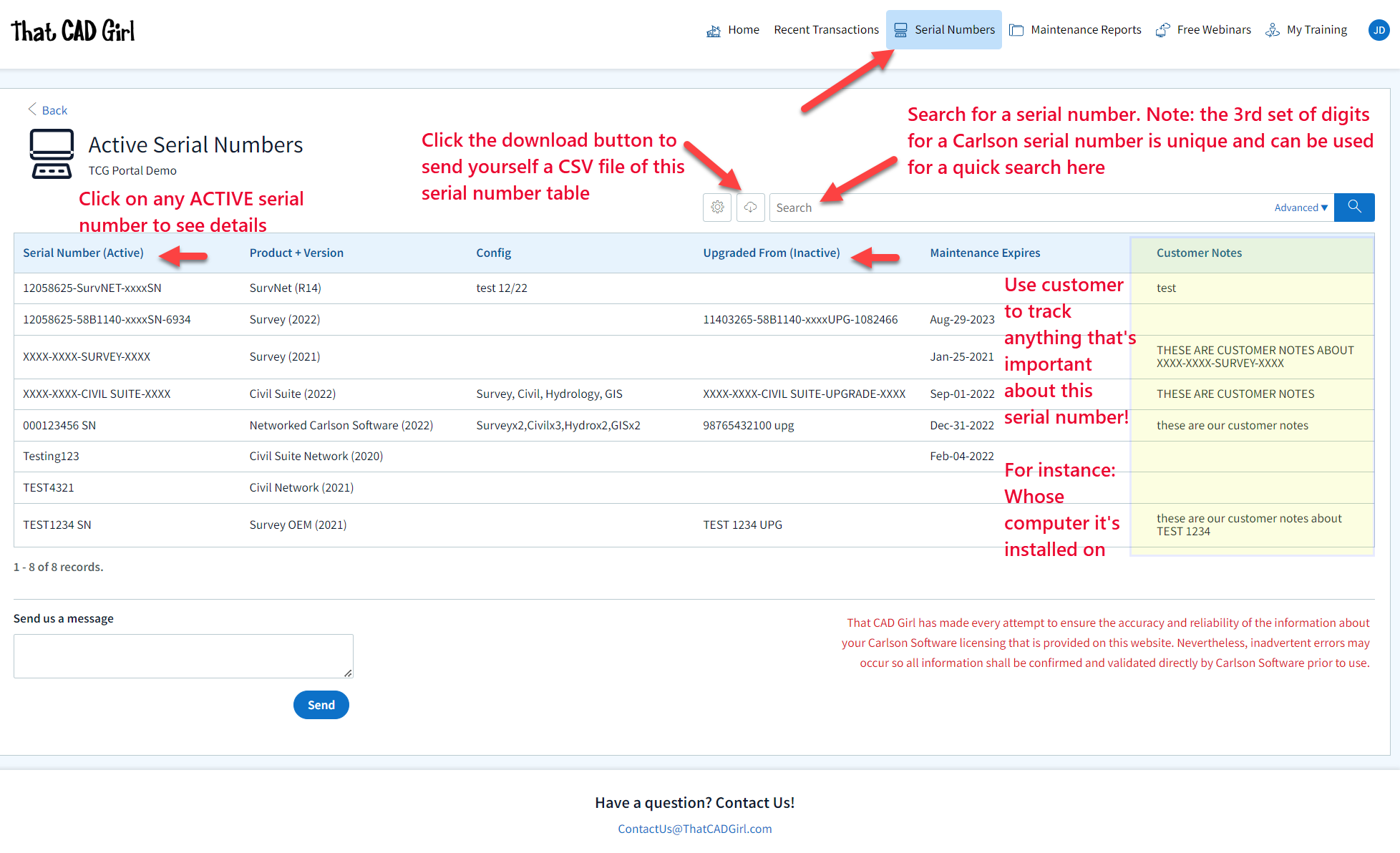
Also, clicking on any serial number in the list brings you to a details page where you can add any “Customer Notes” that are helpful to you such as the user name, location or even the Change Key associated to that installation. You can also find the link to download and link to installation instructions.
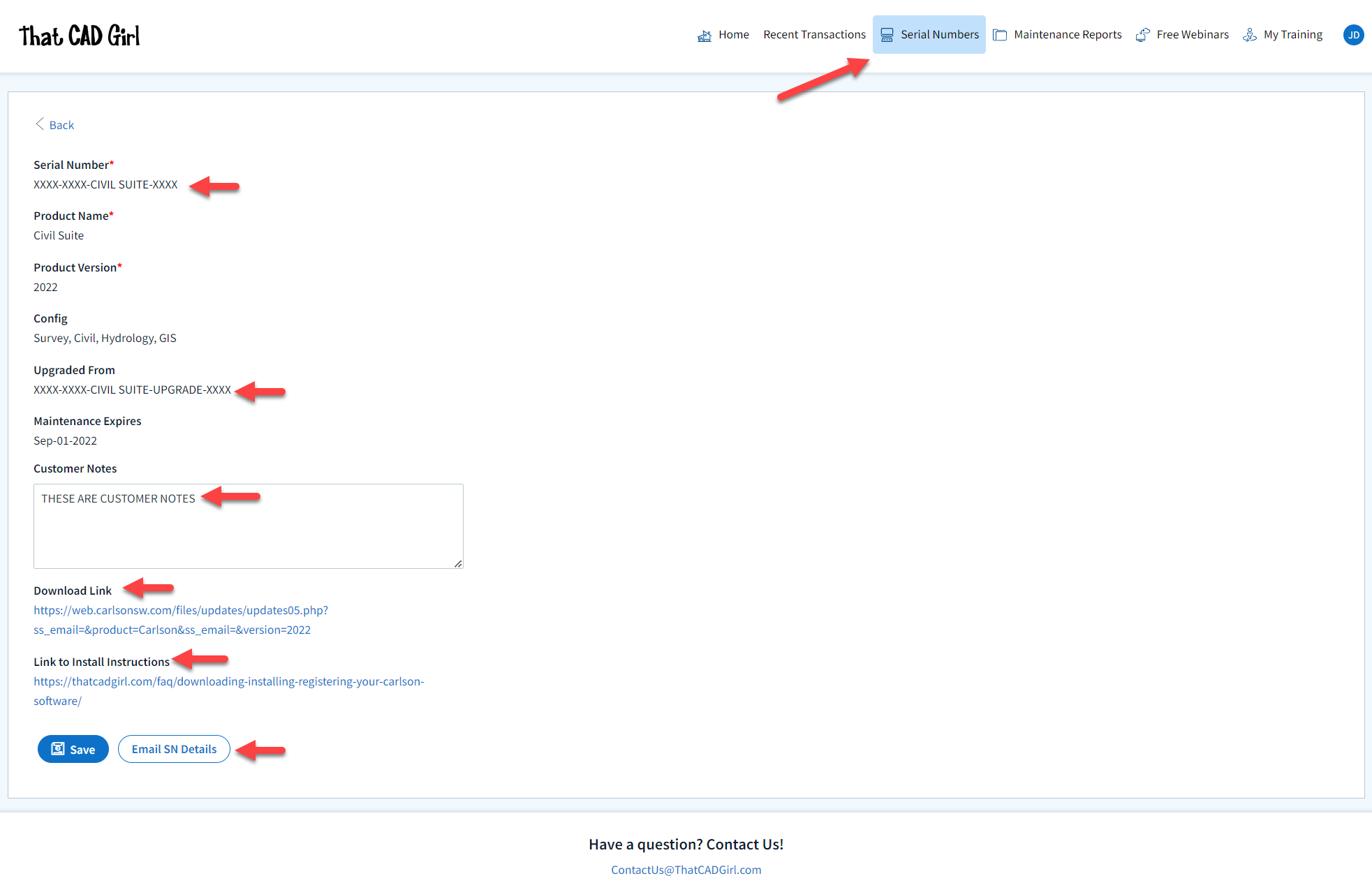
DISCLAIMER: That CAD Girl has made every attempt to ensure the accuracy and reliability of the information about your Carlson Software licensing that is provided on this website. Nevertheless, inadvertent errors may occur so all information shall be confirmed and validated directly by Carlson Software prior to use.
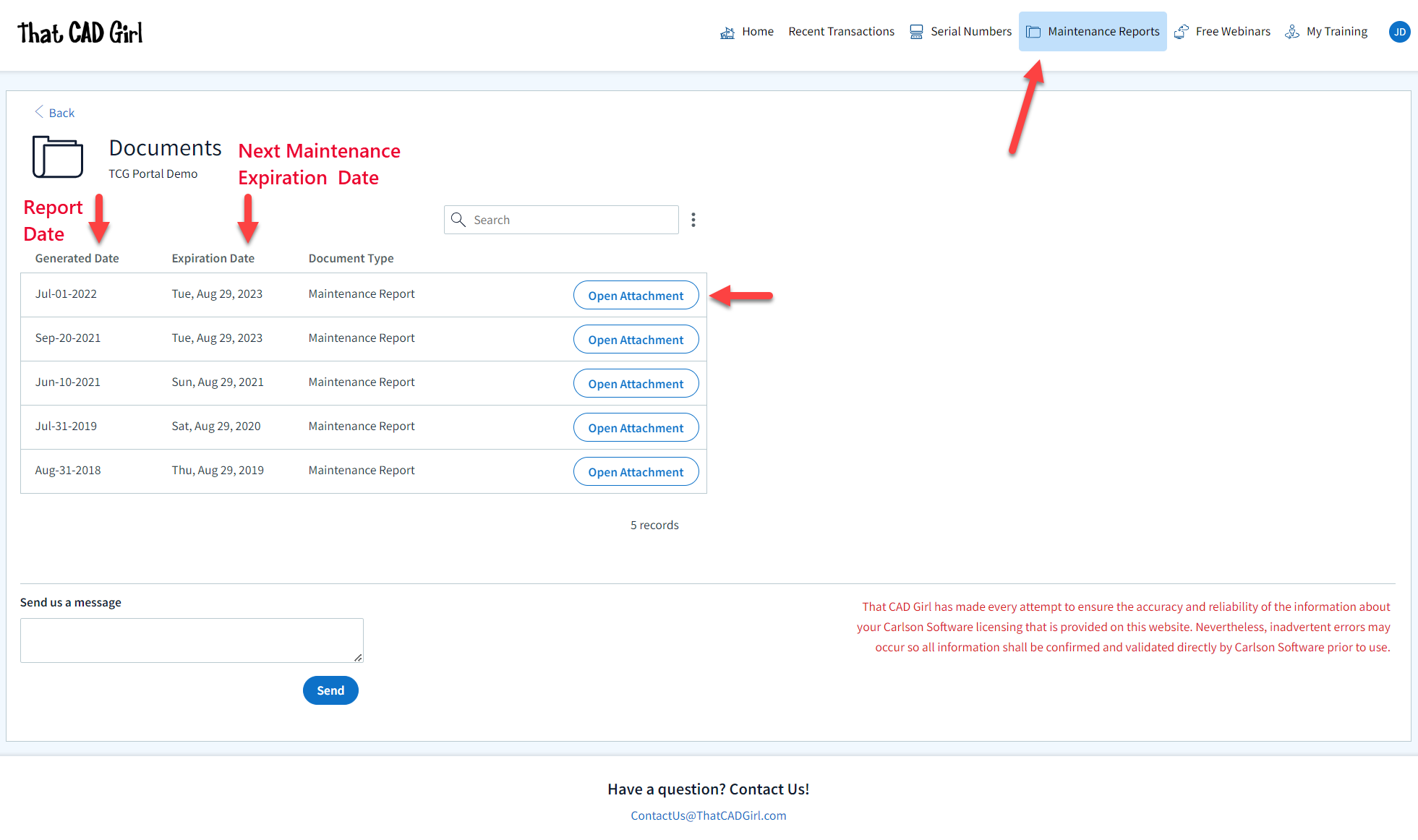
- A list of Upcoming sessions in our Webinar Series with links to pre-register
- A list of webinars that you attended and a button to download a Certificate of Attendance. Note: You can add your professional license numbers on your Home tab and they will appear on your certificates.
- A list of recordings of webinars that you attended
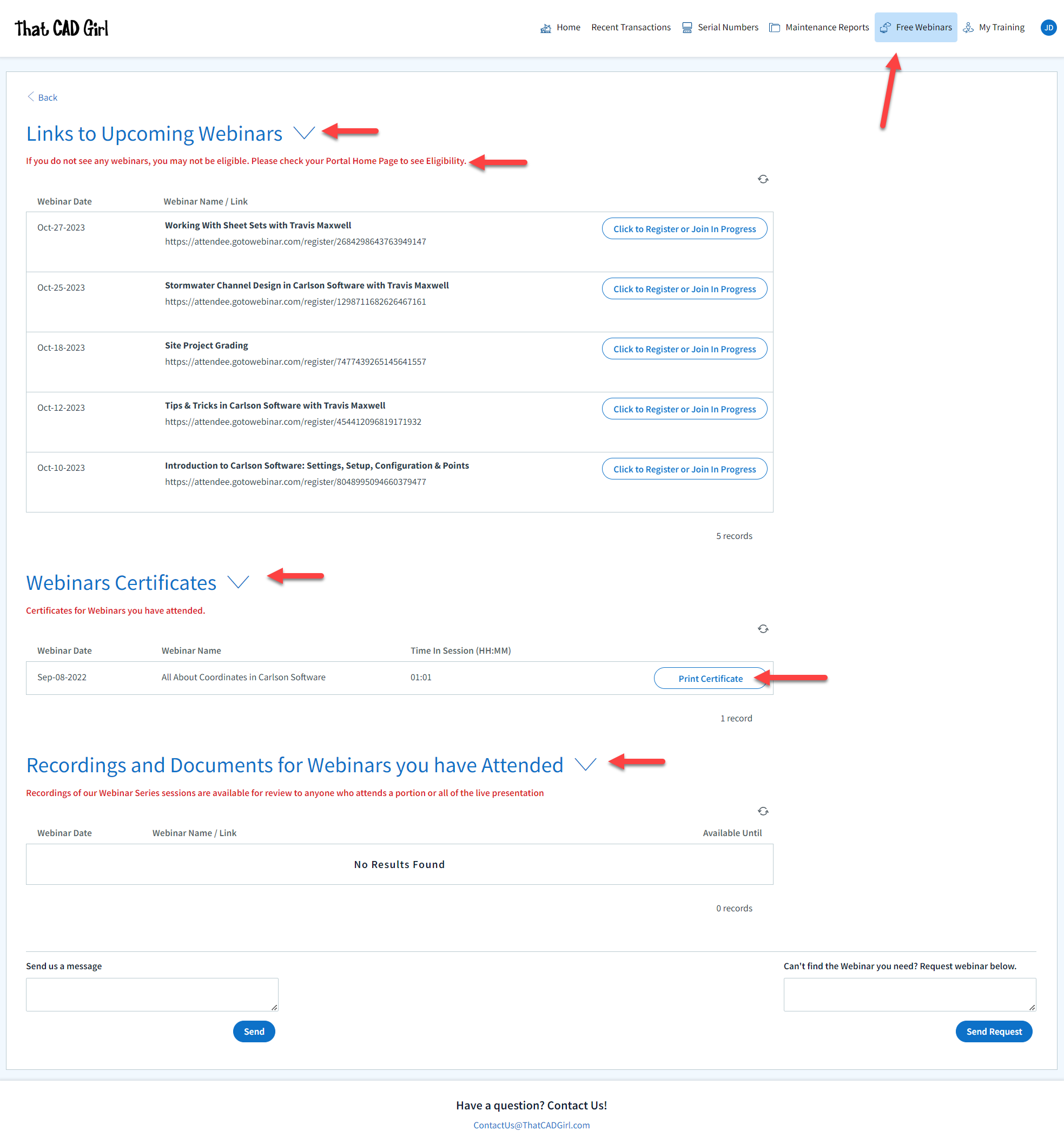
- A list of Upcoming Training sessions that have already been paid for with links to pre-register
- A list of Past Training sessions the user has paid for and attended with a link to download a Certificate of Attendance
- A list of Past Training sessions with links to the recording
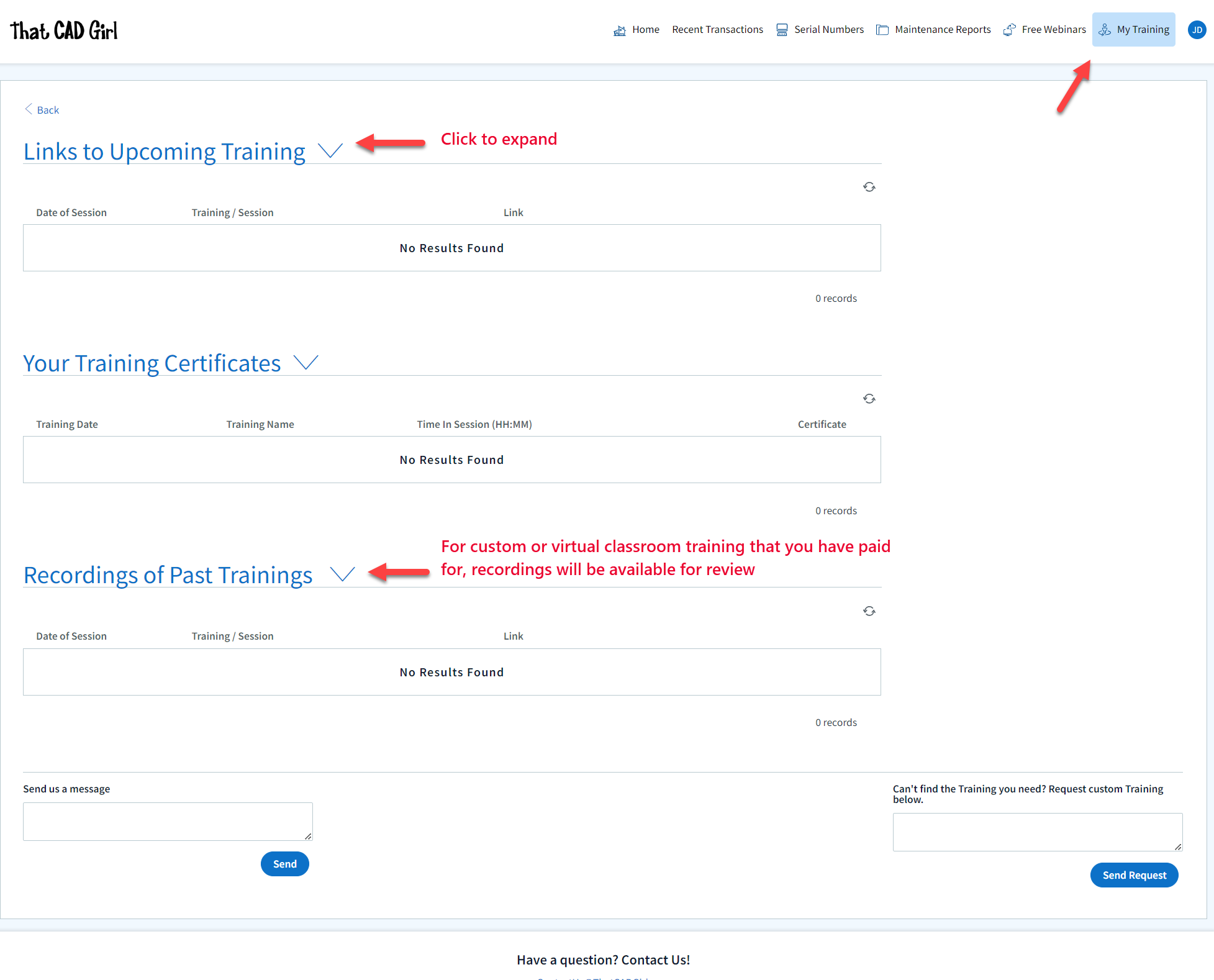
Find Answers on your new That CAD Girl Portal
If you have ever requested a proposal or invoice from That CAD Girl – Congrats! You have a portal!
Every portal is specific for the email address we have on file for you and you can access yours by following this link and entering your email address.
The availability of tabs on your portal will depend on whether you have been granted Full Access by the primary contact in your company or if you have Restricted Access. Everyone will have Home, Webinars and Paid Training tabs while those with Full Access will have access to Transactions, Serial Numbers and License Reports.
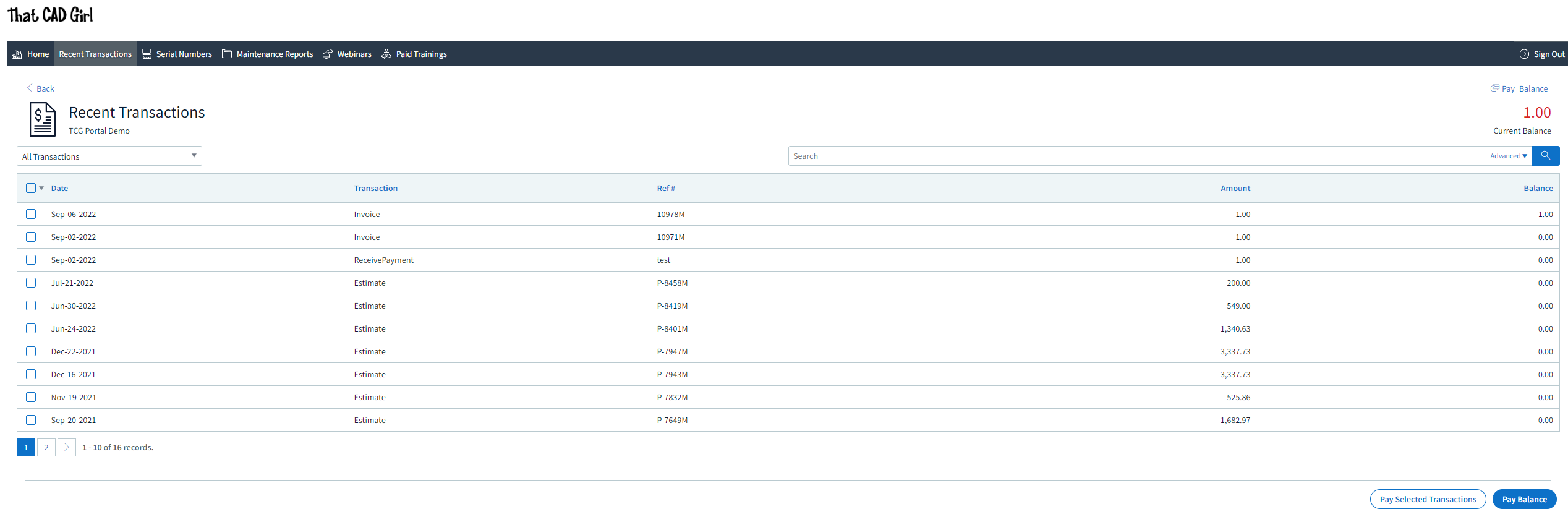
DISCLAIMER: That CAD Girl has made every attempt to ensure the accuracy and reliability of the information about your Carlson Software licensing that is provided on this website. Nevertheless, inadvertent errors may occur so all information shall be confirmed and validated directly by Carlson Software prior to use.

Also, clicking on any serial number in the list brings you to a details page where you can add any “User Notes” that are helpful to you such as the user name, location or even the Change Key associated to that installation. You can also find the link to download and link to installation instructions.
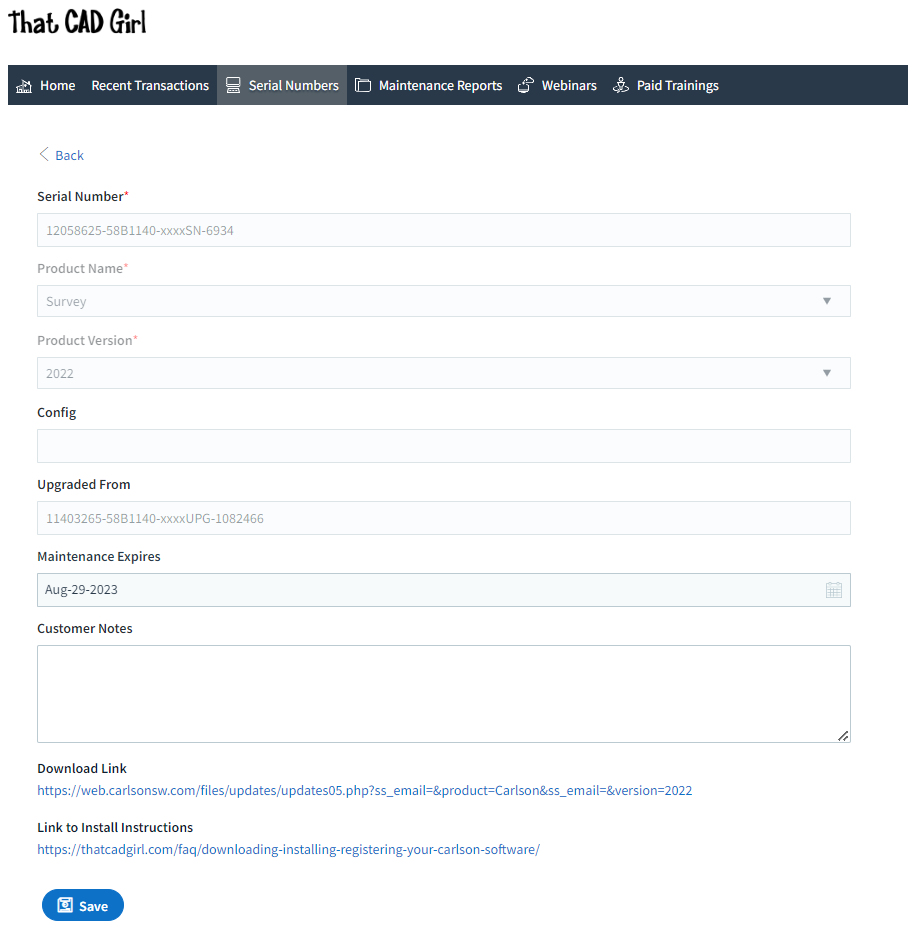
DISCLAIMER: That CAD Girl has made every attempt to ensure the accuracy and reliability of the information about your Carlson Software licensing that is provided on this website. Nevertheless, inadvertent errors may occur so all information shall be confirmed and validated directly by Carlson Software prior to use.
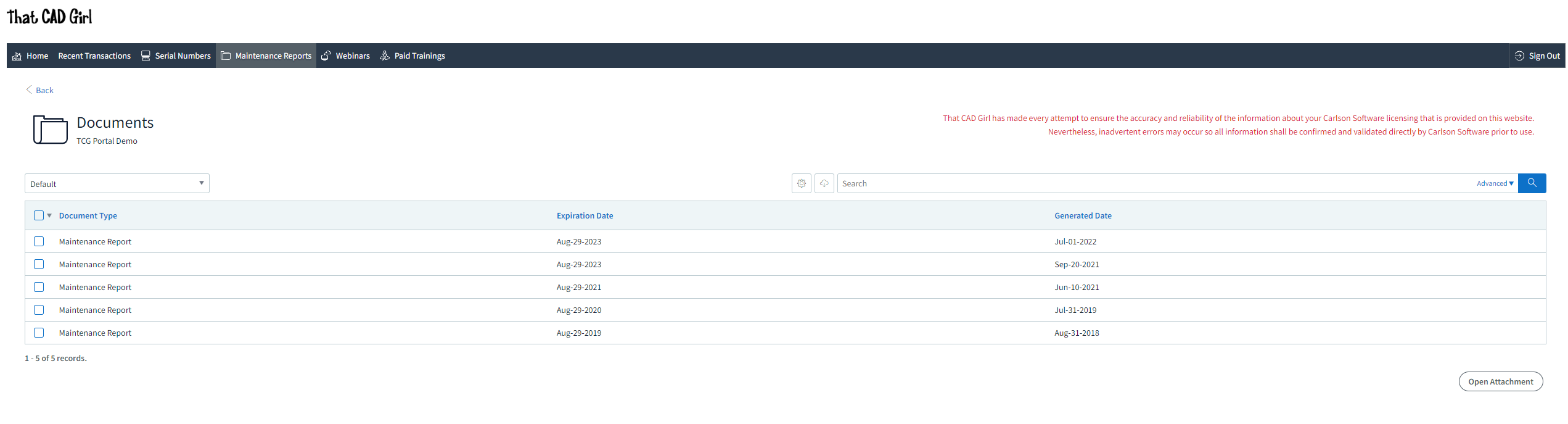
- A list of Upcoming sessions in our Webinar Series with links to pre-register
- A list of Past sessions in our Webinar Series with links to the recording
- A list of sessions the user has attended with a link to download a Certificate of Attendance
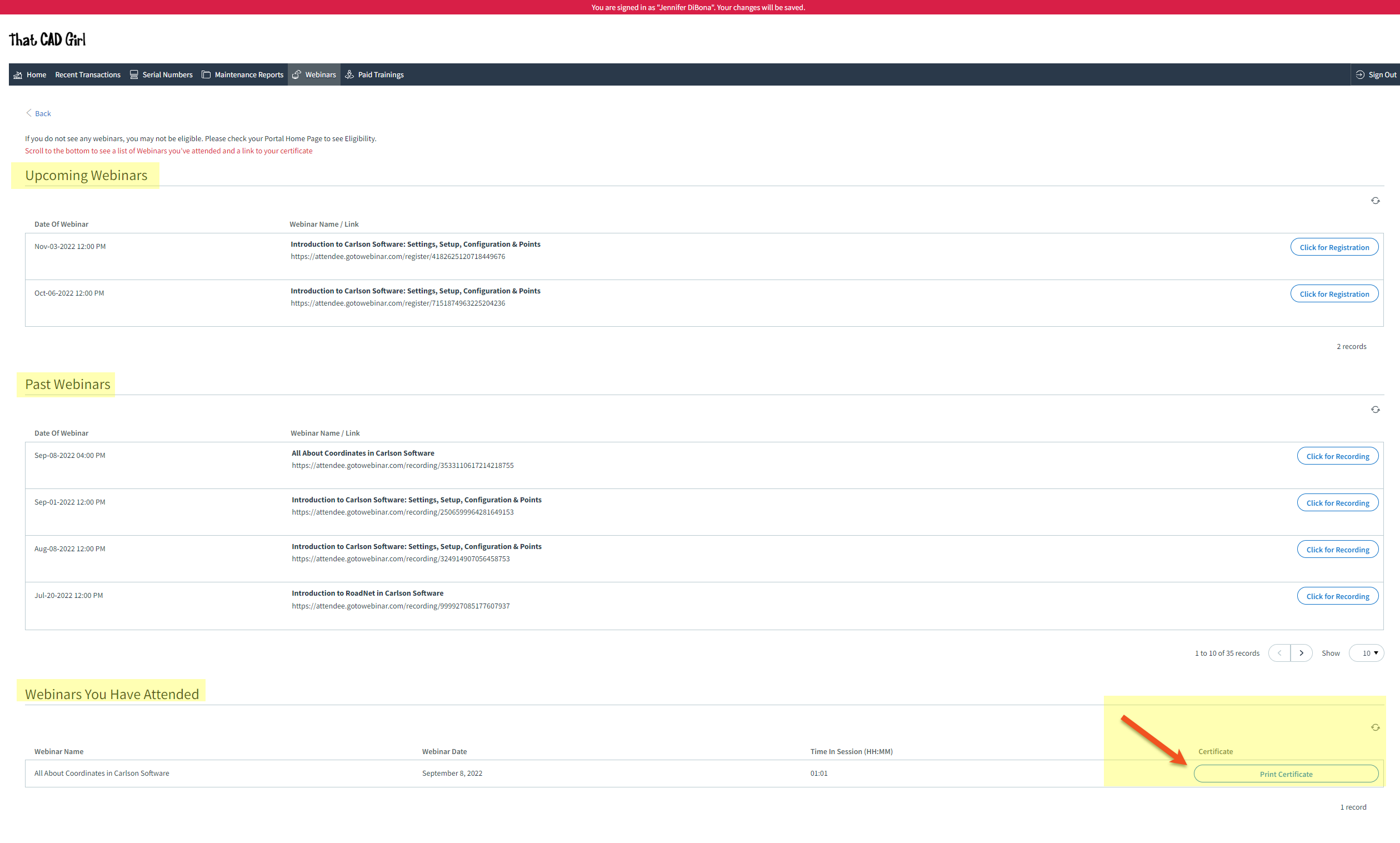
- A list of Paid Training sessions the user has attended with a link to download a Certificate of Attendance
- A list of Upcoming Paid Training sessions that have already been paid for with links to pre-register
- A list of Past Paid Training sessions with links to the recording
Some content on this website was prepared with AI assistance. Please verify important information with the manufacturer or original source before making purchasing or financial decisions.
If you find the material on this website helpful, please consider supporting That CAD Girl by purchasing our products or services.
If you are interested in purchasing products or services we do not offer, we would love to refer you to one of our Trusted Partners. Please click here to send us a message with your request.
Download & install your license of Carlson Software (General)
+FAQ: Download and install your Carlson Software (with your AutoCAD or IntelliCAD)
FAQ: Download and install your Carlson Survey with embedded AutoCAD (OEM)
FAQ: Download and install your Carlson Takeoff with embedded AutoCAD (OEM)
- Follow this link: http://www.carlsonsw.com/support/software-downloads/
- Use the drop-down box below the prompt “Select product you are looking for”, to select the correct program
- From the drop-down list, select the correct “Product Version”
- Download #1 or #2 will be the full, complete, up-to-date version of the software. Select “Download”.
- During installation, enter your serial number when prompted: XXXXX-XXXXX-XXXXX-XXXXX-XXXXX.
- Start Carlson Software
- Go to Help > About Carlson
- Pick the “Change Registration” button
- Once the “Add/Remove Serial Number” dialog box is open, pick the “Add” button
- Complete the Registration Information with your new serial number: XXXXX-XXXXX-XXXXX-XXXXX.
Instructions for installing the network license manager can be found here: http://www.carlsonsw.com/support/knowledge-base/?action=display_topic&topic_id=55.
You can also refer to this FAQ: Download and Install the Carlson Network License Manager
If you need a new (or updated) network license file, please contact Brian Hammer in Carlson’s Boston office. His email is [email protected] and the phone number is 606-564-5028.
Some content on this website was prepared with AI assistance. Please verify important information with the manufacturer or original source before making purchasing or financial decisions.
If you find the material on this website helpful, please consider supporting That CAD Girl by purchasing our products or services.
If you are interested in purchasing products or services we do not offer, we would love to refer you to one of our Trusted Partners. Please click here to send us a message with your request.
Download & install your license of Carlson SurvPC
+When downloading Carlson SurvPC (and SurvCE), you are first required to enter a serial number before being directed to the correct page to download. This is to ensure you have the correct version (due to device compatibility).
How to install and run a trial: During installation you will be prompted for your serial number. If you are installing for the purpose of running a trial, it is not necessary to enter the serial number during installation; however, without a serial number, SurvPC will run in 15-point demo-mode for an unlimited number of days. If you use the trial serial number during installation, it will unlock unlimited points but will also reduce the trial period to 30 days.
- Follow this link: https://web.carlsonsw.com/files/updates/updates05.php?ss_email=&product=SurvPC
- Enter your serial number XXXXX-XXXXX-XXXXX-XXXXX-XXXXX
- Enter your email address (for a trial)
- Click on “Show Files”
- Download #1 or #2 will be the full, complete, up-to-date version of the software. Select “Download”.
- During installation, enter your serial number when prompted: XXXXX-XXXXX-XXXXX-XXXXX-XXXXX.
Some content on this website was prepared with AI assistance. Please verify important information with the manufacturer or original source before making purchasing or financial decisions.
If you find the material on this website helpful, please consider supporting That CAD Girl by purchasing our products or services.
If you are interested in purchasing products or services we do not offer, we would love to refer you to one of our Trusted Partners. Please click here to send us a message with your request.
When I upgrade, do I immediately lose access to the older version of my software?
+Actually, when you purchase your upgrade or receive a new serial number by virtue of a maintenance upgrade, nothing happens until you want it to.
Whenever you’re ready to install the upgrade, you can do so on the same computer or on a different computer. When you install and register the license with the new serial number, a 60-day “clock” starts counting down on the older installation. When the 60-days expire, the old license will de-activate and will revert to running in trial mode.
Some content on this website was prepared with AI assistance. Please verify important information with the manufacturer or original source before making purchasing or financial decisions.
If you find the material on this website helpful, please consider supporting That CAD Girl by purchasing our products or services.
If you are interested in purchasing products or services we do not offer, we would love to refer you to one of our Trusted Partners. Please click here to send us a message with your request.
Is BricsCAD Lite truly 2D only? What can I do in Lite? What can’t I do in Lite?
+The main difference is:
BricsCAD Lite can work with basic geometry in 3D space, but BricsCAD Pro is required for true 3D modeling, terrain surfaces and civil design.
Can I draw linework with different elevations?
Yes. The standard LINE command accepts X, Y and Z coordinates. For example, a line can begin at 100,200,10 and end at 150,250,25.
Lite also includes the 3DPOLY command. This creates a connected series of line segments whose vertices can each have different X, Y and Z values.
What civil and survey work can I do in BricsCAD Lite?
| Civil or Survey Task | Available in Lite? |
|---|---|
| Enter X, Y and Z coordinates | Yes |
| Draw lines between points at different elevations | Yes |
| Draw 3D polylines | Yes |
| Create survey breaklines | Yes |
| Draw utility or pipe centerlines in 3D | Yes |
| Connect measured XYZ points with linework | Yes |
| Use 3D object snaps and coordinate systems | Yes |
| Orbit around and view drawings from different angles | Yes |
| Open and view DWG files containing 3D objects | Yes |
| Create individual 3D faces or basic faceted meshes | Yes |
A 3D polyline, 3D face or faceted mesh is still basic drawing geometry. It is not an intelligent terrain surface and does not provide automatic contouring, slope analysis or volume calculations.
What civil and survey work can’t I do in BricsCAD Lite?
BricsCAD Lite does not include BricsCAD’s civil modeling and design tools.
| Civil or Survey Task | Available in Lite? |
|---|---|
| Automatically create a TIN surface from points or breaklines | No |
| Generate contours from a terrain surface | No |
| Calculate cut and fill volumes | No |
| Create intelligent civil points | No |
| Create grading objects | No |
| Create alignments or profiles | No |
| Create corridors | No |
| Create civil section views and labels | No |
| Create or edit true 3D solids and modern surfaces | No |
These tools require BricsCAD Pro or a higher BricsCAD license level.
Can Lite open drawings that contain 3D objects?
Yes. Lite can open and display DWG files containing 3D solids, surfaces and other 3D objects. You can orbit around the drawing, inspect the model and generally move, copy, rotate or scale complete objects.
However, Lite does not include the full tools needed to create or remodel those objects. For example, you cannot extrude a boundary into a solid, push or pull a solid face or cut one solid from another.
Are BricsCAD Lite and BricsCAD Pro separate programs?
No. Lite and Pro are different license levels of the same BricsCAD program. They use the same installer for the same BricsCAD version, operating system, processor platform and language.
The activated license controls which commands and features are available. If you upgrade from Lite to Pro, you generally do not need to uninstall BricsCAD or download a separate Pro installer. You can activate the Pro license in the existing installation and restart BricsCAD if necessary.
Bottom Line
BricsCAD Lite is not strictly 2D. It can create elevated lines, 3D polylines, survey breaklines and other basic XYZ geometry.
BricsCAD Lite may be sufficient when you need to draft or exchange civil and survey linework with elevations; but, choose BricsCAD Pro when you need terrain surfaces, contours, volumes, grading, alignments, profiles, corridors or true 3D modeling.
Some content on this website was prepared with AI assistance. Please verify important information with the manufacturer or original source before making purchasing or financial decisions.
If you find the material on this website helpful, please consider supporting That CAD Girl by purchasing our products or services.
If you are interested in purchasing products or services we do not offer, we would love to refer you to one of our Trusted Partners. Please click here to send us a message with your request.
Does BricsCAD Offer a 30 day Trial?
+
Can I run BricsCAD without a license?
Yes. If you do not own a license, you can run BricsCAD in trial mode.
How long does the BricsCAD trial last?
The BricsCAD trial lasts 30 days from the time it is activated.
Is the BricsCAD trial fully functional?
Yes. During the trial period, BricsCAD runs as a fully functional version with no feature limitations.
What happens when I open BricsCAD in trial mode?
When BricsCAD is opened in trial mode, the BricsCAD Launcher opens automatically and displays how many days remain in your trial.
What options do I have when the BricsCAD Launcher opens?
You have two options:
- Continue to launch BricsCAD in trial mode
- Enter License to activate a Single user Volume or Network license
What license level does BricsCAD use during the trial?
By default, BricsCAD runs in Ultimate mode during the trial, giving you access to all available features.
Can I test different BricsCAD license levels during the trial?
Yes. You can switch between license levels while in trial mode to evaluate which edition best fits your needs.
How do I change the license level during a BricsCAD trial?
Use the SETLICENSELEVEL command within BricsCAD to change the active license level.
What license levels are available in BricsCAD?
BricsCAD offers five license levels:
- BricsCAD Lite
- BricsCAD Pro
- BricsCAD BIM
- BricsCAD Mechanical
- BricsCAD Ultimate
Can I apply a purchased license to a trial installation?
Yes. If you purchase a license during or after the trial, you can activate it without reinstalling BricsCAD.
Some content on this website was prepared with AI assistance. Please verify important information with the manufacturer or original source before making purchasing or financial decisions.
If you find the material on this website helpful, please consider supporting That CAD Girl by purchasing our products or services.
If you are interested in purchasing products or services we do not offer, we would love to refer you to one of our Trusted Partners. Please click here to send us a message with your request.
What Licensing Options Does BricsCAD Offer?
+
What is a BricsCAD perpetual license?
A perpetual license is a one time purchase that gives you ownership of the software.
What is BricsCAD Maintenance?
BricsCAD Maintenance is an optional annual plan for perpetual licenses. It provides:
- Priority Support
- Access to product updates
- Access to future major release versions
What is a BricsCAD subscription license?
A subscription license allows you to use the latest version of BricsCAD for one year. While active it includes Priority Support and access to all new versions released during the subscription term.
What is a BricsCAD single user license?
A single user license is assigned to one person. It is intended for individual use and is not a floating license.
A single user license may be installed on two computers, such as a desktop workstation and a laptop. However, the software may only be used on one computer at a time. Concurrent use is not permitted.
Single user licensing is available for both perpetual and subscription licenses.
Can I use my BricsCAD license on two machines?
Yes. If you own a single user BricsCAD license, you may install it on two machines for the same user. Typical examples include an office computer and a home or field laptop.
This dual install allowance does not apply to network or volume licenses unless expressly permitted by Bricsys.
What is a BricsCAD network license?
A network license is a floating license that allows multiple users to access BricsCAD within a local area network. Licenses are checked out from a central license server when BricsCAD is launched.
The number of network licenses purchased determines how many users can run BricsCAD at the same time.
Network licenses are available as perpetual or subscription licenses and include one year of BricsCAD Maintenance.
What is a BricsCAD volume license?
A volume license allows BricsCAD to be used within a defined group of users using the same license key.
Volume licenses are available as perpetual or subscription licenses and include one year of BricsCAD Maintenance.
Volume licenses do not include the dual install rights provided with single user licenses unless explicitly authorized by Bricsys.
What is a BricsCAD academic license?
BricsCAD academic licenses are free for 12 months and available to students instructors faculty and educational institutions.
Students may renew annually with a valid student ID.
What license types are available for academic use?
Academic licensing is available in single user network or volume formats.
Some content on this website was prepared with AI assistance. Please verify important information with the manufacturer or original source before making purchasing or financial decisions.
If you find the material on this website helpful, please consider supporting That CAD Girl by purchasing our products or services.
If you are interested in purchasing products or services we do not offer, we would love to refer you to one of our Trusted Partners. Please click here to send us a message with your request.